Updating Linux Veeam Backup & Replication Servers
In Veeam Service Provider Console, you can initiate updates of Linux Veeam Backup & Replication (Veeam Software Appliance) on client computers without accessing the managed backup servers.
For details on Linux Veeam Backup & Replication updates, see section How Updates Work of the Veeam Backup & Replication User Guide.
Required Privileges
To perform this task, a user must have one of the following roles assigned: Service Provider Global Administrator, Service Provider Administrator, Service Provider Operator.
Prerequisites
Consider the following:
- Make sure you have additional free space on the system disk on the machine on which you plan to upgrade Veeam Backup & Replication. Veeam Service Provider Console will need extra space to download and unpack Veeam Backup & Replication setup file. You can check the setup file size on the first step of the wizard.
- If the Veeam Backup & Replication server you want to upgrade is managed by Veeam Backup Enterprise Manager, make sure to upgrade Veeam Backup Enterprise Manager before upgrading Veeam Backup & Replication. For details, see section Upgrading to Veeam Backup Enterprise Manager 13.0.1 of the Veeam Backup Enterprise Manager Guide.
|
Note: |
|
Before You Begin
Before you start the update procedure:
- Stop and disable all active jobs and finish all restore processes.
- Close the Veeam Backup & Replication console on the servers which you want to upgrade.
Updating Linux Veeam Backup & Replication
To update a Linux Veeam Backup & Replication server:
- Log in to Veeam Service Provider Console.
For details, see Accessing Veeam Service Provider Console.
- In the menu on the left, click Discovery (for Service Provider Global Administrator, Service Provider Administrator) or Managed Computers (for Service Provider Operator).
- Open the Backup Servers tab.
- Select the necessary computers in the list.
- At the top of the list, click Manage Updates and choose Upgrade Server.
Alternatively, you can right-click the necessary server, select Manage Updates and choose Upgrade Server.
Veeam Service Provider Console will open the Update Backup Server window.
- From the Updates drop-down list, select updates to install on the backup server:
- System and security updates — select this option to install mandatory updates.
- Updates for installed version of Veeam Backup & Replication — select this option to install available patches to the backup server.
- Upgrade Veeam Backup & Replication — select this option to upgrade Veeam Backup & Replication to the next version.
- In the Schedule section, specify an update schedule:
- To update Veeam Backup & Replication immediately, select Update now.
If you select this option, any previously scheduled update will be canceled automatically.
- To postpone the update, select Schedule update and specify date and time when Veeam Backup & Replication will be updated.
- If you want Veeam Backup & Replication to automatically stop all active jobs and restore processes, temporarily disable scheduled jobs and close Veeam Backup & Replication console, select the Terminate all activities automatically before install check box.
After the update process is finished, scheduled jobs will be enabled automatically. Note that some jobs cannot be stopped automatically.
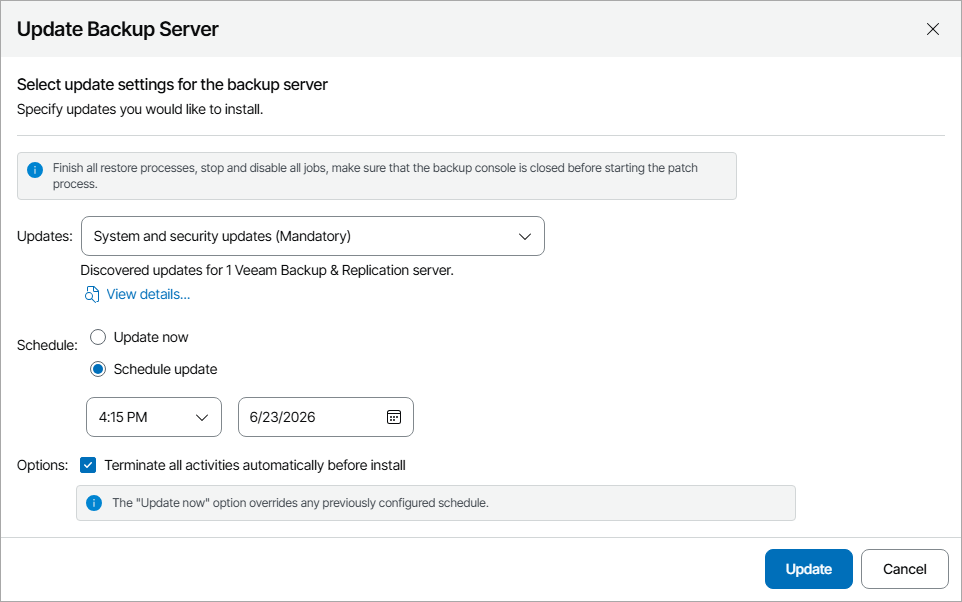
- Click Update.
Checking Update Results
To make sure that Veeam Backup & Replication update has completed successfully, complete the following steps:
- Log in to Veeam Service Provider Console.
For details, see Accessing Veeam Service Provider Console.
- In the menu on the left, click Discovery (for Service Provider Global Administrator, Service Provider Administrator) or Managed Computers (for Service Provider Operator).
- Open the Backup Servers tab.
- Find the necessary computers in the list.
- Check the value in the Update Status column.
If the update was successful, the Update Status must be Success.
- Click a link in the Update Status column to display session details of the update procedure.
If you want to cancel Veeam Backup & Replication update, click Cancel Update. If the update was canceled and the Update Status is Failed, click Clear Logs to reset the status.