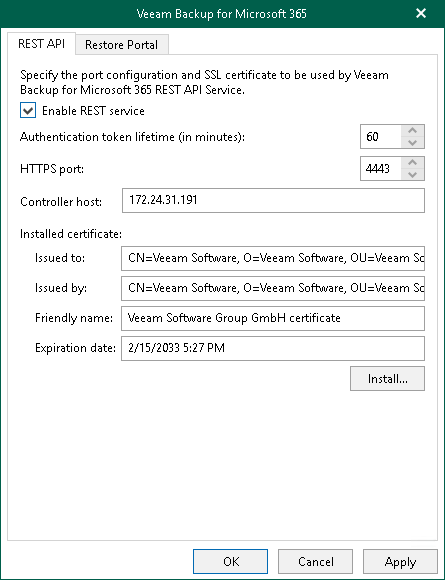
Configuring REST API Settings
On the REST API tab, do the following:
- Select the Enable REST service check box.
- In the Authentication token lifetime field, specify the lifetime value for an authentication token (in minutes).
REST API authorization is based on the OAuth 2.0 Authorization Framework.
- In the HTTPS port field, specify a port number which Veeam Backup for Microsoft 365 use to access Veeam Backup for Microsoft 365 REST API Service.
- In the Controller host field, specify a DNS name or IP address of the Veeam Backup for Microsoft 365 server.
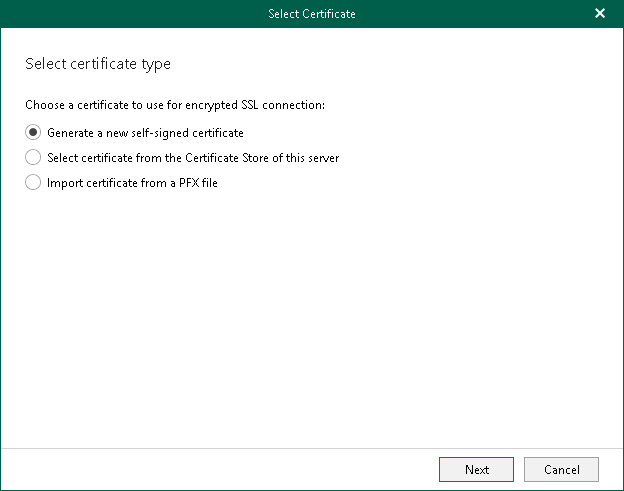
- Click Install to run the Select Certificate wizard and install the REST API certificate. Proceed to any of the following options:
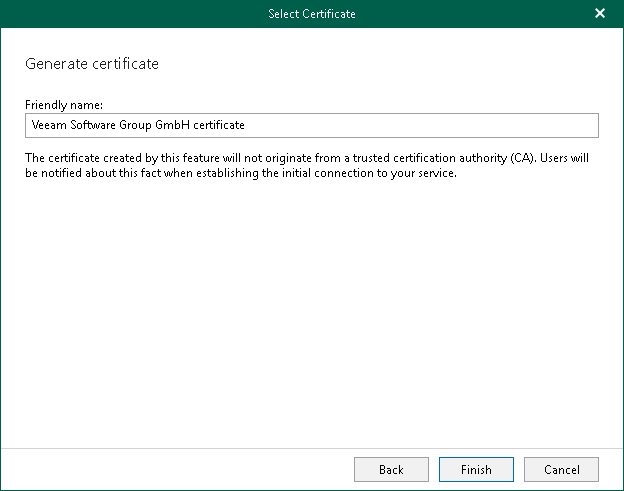
 Generate a new self-signed certificate
|
Perform the following steps:
|
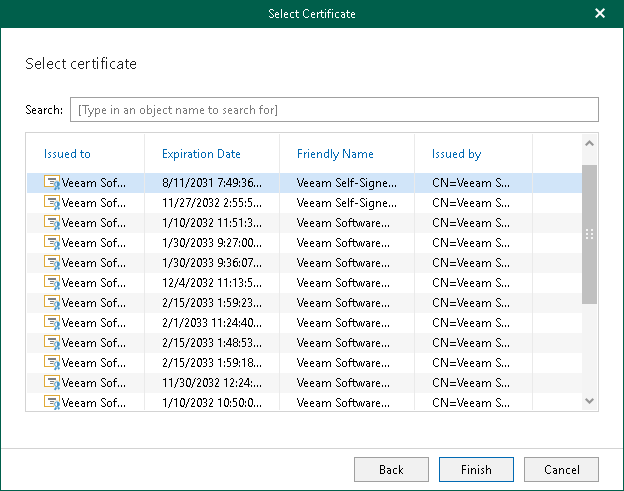
Import an existing TLS certificate from the certificate store
|
Perform the following steps:
|

Import a TLS certificate from a file in the PFX format
|
Perform the following steps:
|

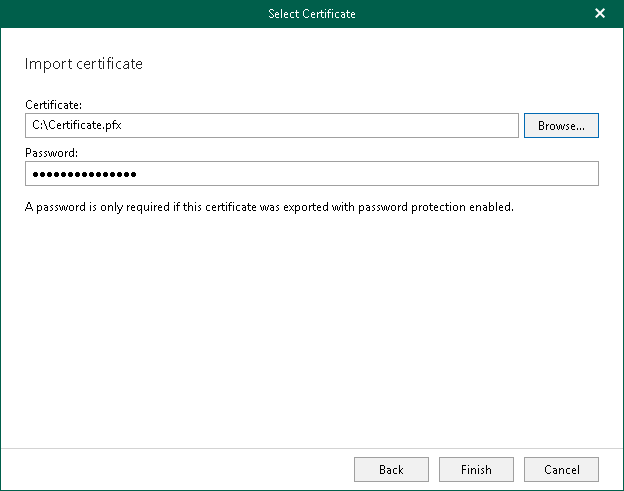
|
Note |
|
If you have generated a new self-signed certificate for restore operators, you must import the certificate for restore operators to the Trusted Root Certification Authorities certificate store on the separate machine with REST API installed. |
- If you want to use Swagger UI, select the Enable Swagger UI check box. If you do not require permanent access, leave the check box clear to reduce the potential attack surface.
- Select the Enable restore operator authentication only check box to use REST API only for authentication of restore operators to Restore Portal. Keep in mind that if you enable this check box, all other REST API endpoints will be unavailable.