Configuring Remote Access
In Veeam Service Provider Console, you can configure remote access to managed computers and Veeam products through REST API, PowerShell or the Veeam Backup & Replication Web UI.
Required Privileges
To perform this task, a user must have the following role assigned: Portal Administrator.
Configuring Remote Access
To set up remote access:
- Log in to Veeam Service Provider Console.
For details, see Accessing Veeam Service Provider Console.
- At the top right corner of the Veeam Service Provider Console window, click Configuration.
- In the configuration menu on the left, click Access Management.
- Configure the necessary remote access type:
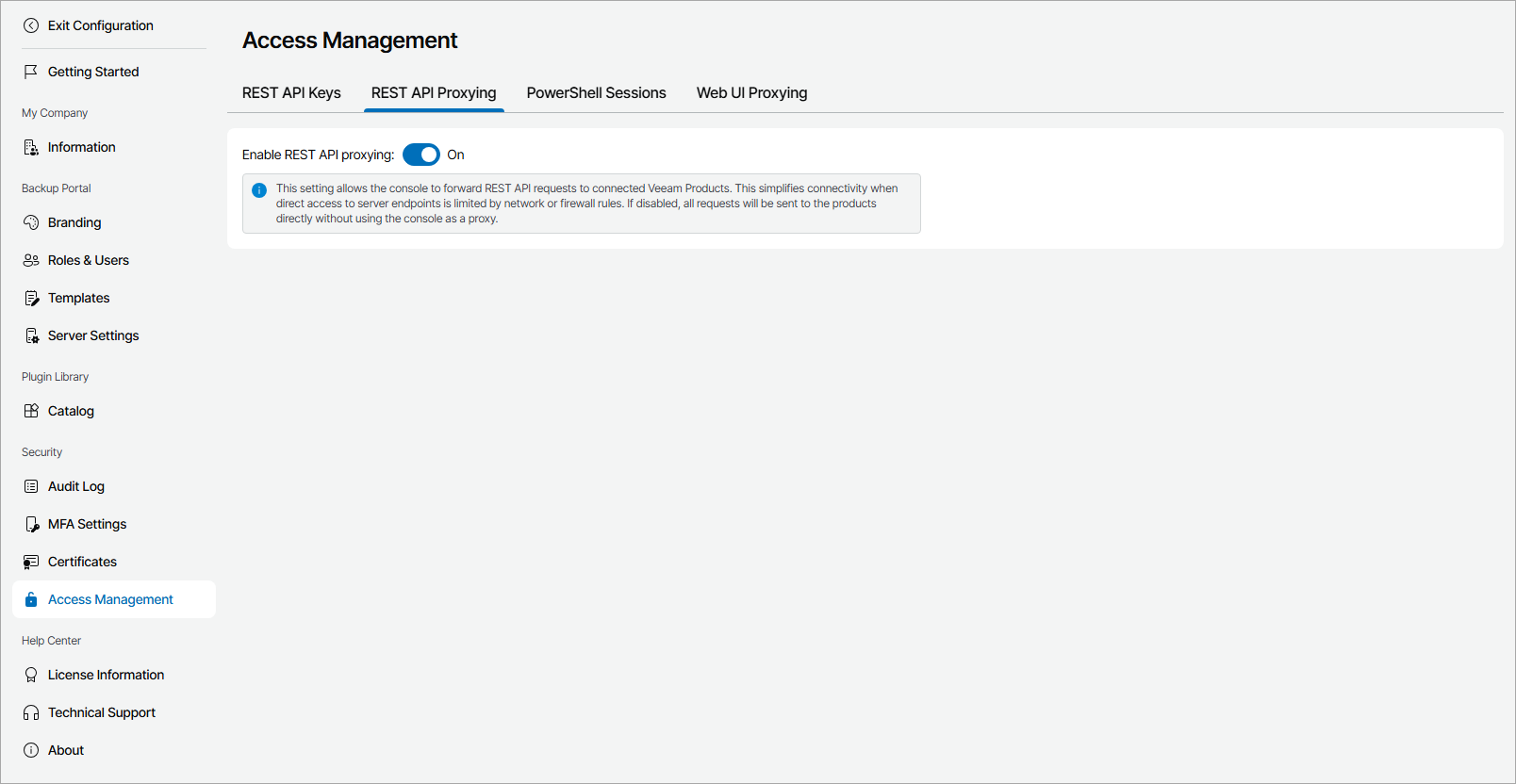
- On the REST API Proxying tab, select if you want to allow Veeam Service Provider Console to send REST API requests to managed products.
For details, see REST API Reference.
- On the PowerShell Sessions tab, select if you want to allow Veeam Service Provider Console to launch PowerShell console on remote computers.
For details, see Accessing Remote PowerShell Console.
- On the Web UI Proxying tab, select if you want to allow Veeam Service Provider Console to open remote Veeam Backup & Replication wizards and access the Veeam Backup & Replication web UI.
|
Important! |
|
If you want to forbid REST API calls from Veeam Service Provider Console to remote Veeam Backup & Replication servers, make sure that Enable redirecting to Veeam Backup & Replication web UI wizards and Enable REST API Proxying toggles are set to Off. |