Modifying Management Agent Label
You can assign provider labels to Veeam Service Provider Console management agents deployed in the client or hosted infrastructure. These labels are not visible to reseller and company users.
Required Privileges
To perform this task, a user must have one of the following roles assigned: Portal Administrator, Site Administrator, Portal Operator.
Assigning Labels to Discovered Computers
To assign a label:
- Log in to Veeam Service Provider Console.
For details, see Accessing Veeam Service Provider Console.
- In the menu on the left, click Discovery.
- Open the Discovered Computers tab and navigate to Computers.
- Select the necessary computer in the list.
- At the top of the list, click Management Agent and select Assign Label.
Alternatively, you can click a link in the Label column. If the column is hidden, click the ellipsis on the right of the list header and select Label in the list of properties that must be displayed.
- In the Assign Label window, select a label that must be assigned to the computer and click Assign.
For details on creating a new label, see Creating Labels.
To unassign a label from the management agent, select the necessary label from the list, click Unassign, then in the confirmation window, click Yes.
Assigning Labels to Veeam Backup Agents
To assign a label:
- Log in to Veeam Service Provider Console.
For details, see Accessing Veeam Service Provider Console.
- In the menu on the left, click Discovery.
- Open the Backup Agents tab.
- Select the necessary Veeam backup agent in the list.
- At the top of the list, click Backup Agent and select Assign Label.
Alternatively, you can click a link in the Label column. If the column is hidden, click the ellipsis on the right of the list header and select Label in the list of properties that must be displayed.
- In the Assign Label window, select a label that must be assigned to the Veeam backup agent and click Assign.
For details on creating a new label, see Creating Labels.
To unassign a label from the management agent, select the necessary label from the list, click Unassign, then in the confirmation window, click Yes.
Assigning Labels to Veeam Backup & Replication Servers
To assign a label:
- Log in to Veeam Service Provider Console.
For details, see Accessing Veeam Service Provider Console.
- In the menu on the left, click Discovery.
- Open the Backup Servers tab.
- Select the necessary Veeam Backup & Replication server in the list.
- At the top of the list, click Assign Label.
Alternatively, you can click a link in the Label column. If the column is hidden, click the ellipsis on the right of the list header and select Label in the list of properties that must be displayed.
- In the Assign Label window, select a label that must be assigned to the backup server and click Assign.
For details on creating a new label, see Creating Labels.
To unassign a label from the management agent, select the necessary label from the list, click Unassign, then in the confirmation window, click Yes.
Assigning Labels to Veeam ONE Servers
To assign a label:
- Log in to Veeam Service Provider Console.
For details, see Accessing Veeam Service Provider Console.
- In the menu on the left, click Discovery.
- Open the ONE Servers tab.
- Select the necessary Veeam ONE server in the list.
- At the top of the list, click Assign Label.
Alternatively, you can click a link in the Label column. If the column is hidden, click the ellipsis on the right of the list header and select Label in the list of properties that must be displayed.
- In the Assign Label window, select a label that must be assigned to the Veeam ONE server and click Assign.
For details on creating a new label, see Creating Labels.
To unassign a label from the management agent, select the necessary label from the list, click Unassign, then in the confirmation window, click Yes.
Assigning Labels to Veeam Backup for Microsoft 365 Servers
To assign a label:
- Log in to Veeam Service Provider Console.
For details, see Accessing Veeam Service Provider Console.
- In the menu on the left, click Discovery.
- Open the Microsoft 365 Servers tab.
- Select the necessary Veeam Backup for Microsoft 365 server in the list.
- At the top of the list, click Assign Label.
Alternatively, you can click a link in the Label column. If the column is hidden, click the ellipsis on the right of the list header and select Label in the list of properties that must be displayed.
- In the Assign Label window, select a label that must be assigned to the backup server and click Assign.
For details on creating a new label, see Creating Labels.
To unassign a label from the management agent, select the necessary label from the list, click Unassign, then in the confirmation window, click Yes.
To create a provider label:
- In the Assign Label window, click Create Label.
Veeam Service Provider Console will open the Create Label window.
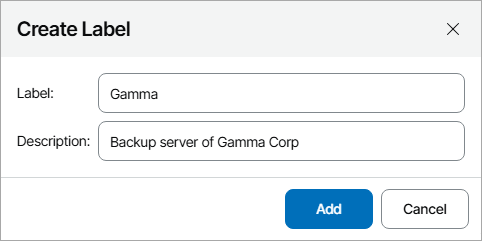
- In the Label field, specify a name for the label.
- In the Description field, add a description for the label.
- Click Add.