Managing Backup Repository Labels
To configure individual charge rates for Veeam Backup & Replication repositories, you must assign backup repository labels. A repository label groups repositories for which you want to set a separate charge rate. You can assign one label to multiple backup repositories.
Note |
|
For details on setting charge rates for backup repository labels, see Step 5. Specify Rates for Managed Backup Services.
Assigning Backup Repository Labels
To assign a label to a Veeam Backup & Replication repository:
- Log in to Veeam Service Provider Console.
For details, see Accessing Veeam Service Provider Console.
- At the top right corner of the Veeam Service Provider Console window, click Configuration.
- In the configuration menu on the left, click Catalog.
- Click the Veeam Backup & Replication plugin tile.
- In the menu on the left, click Storage Billing.
- Open the necessary tab:
- Hosted Backup Servers — select this tab to manage labels for hosted Veeam Backup & Replication repositories.
- Remote Backup Servers — select this tab to manage labels for remote Veeam Backup & Replication repositories.
- Select one or more Veeam Backup & Replication repositories in the list.
- At the top of the list, click Assign Label.
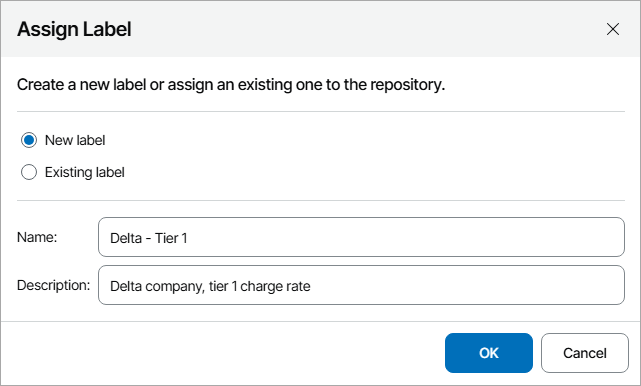
- In the Assign Label window, select the necessary option:
- To assign a new label to the repository, choose New label and specify the label name and description.
- To assign a previously created label to the repository, choose Existing label and select the necessary label from the list.
- Click OK.
Removing Backup Repository Labels
To remove a label from a backup repository:
- Log in to Veeam Service Provider Console.
For details, see Accessing Veeam Service Provider Console.
- At the top right corner of the Veeam Service Provider Console window, click Configuration.
- In the configuration menu on the left, click Catalog.
- Click the Veeam Backup & Replication plugin tile.
- In the menu on the left, click Storage Billing.
- Open the necessary tab:
- Hosted Backup Servers — select this tab to manage labels for hosted Veeam Backup & Replication repositories.
- Remote Backup Servers — select this tab to manage labels for remote Veeam Backup & Replication repositories.
- Select one or more Veeam Backup & Replication repositories in the list.
- At the top of the list, click Remove Label.
- In the confirmation window, click Yes.
After you remove a label from a repository, this repository will not be charged until you assign a new repository label.