Step 4. Specify Object Storage Settings
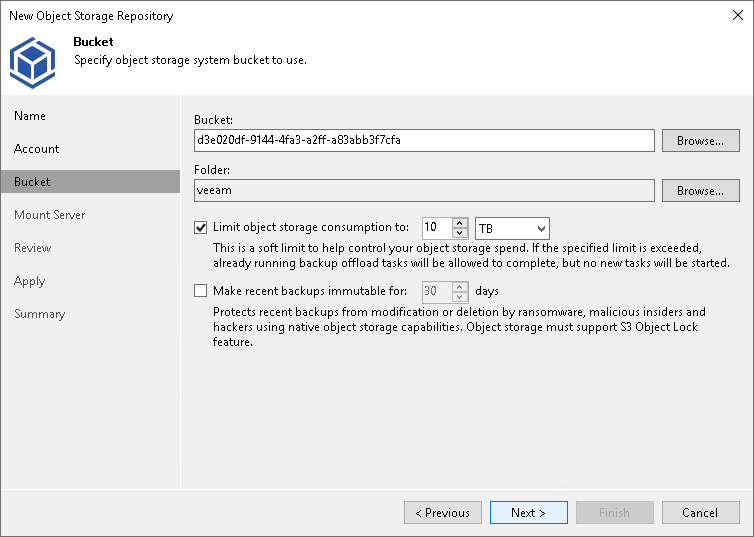
At the Bucket step of the wizard, do the following:
Specifying General Bucket Settings
To specify general bucket settings, do the following:
- In the Bucket field, enter a name of the bucket or click Browse to get the necessary bucket.
Note that you must create the bucket where you want to store your backup data beforehand.
- In the Folder field, enter a cloud folder name to which you want to map your object storage repository. Alternatively, click Browse and either select an existing folder or click New Folder.
- Select the Limit object storage consumption to check box to define a soft limit for your object storage consumption. If this limit is exceeded during a job run, Veeam Backup & Replication will complete the job. However, a new job will not be able to start unless you remove the extra data that exceeds the limit or change the soft limit settings. Provide the value in TB or PB.
Specifying Immutability Settings
Immutability prohibits deletion of blocks of data from your object storage repository.
To enable immutability:
- Select the Make backups immutable (recommended) check box.
- In the Immutability Settings window, specify how the immutability period is counted and set the immutability period in days:
- Select the For the entire duration of their retention policy option if you want the immutability period depend on the retention policy of a backup job.
Important |
Consider the following:
For more information, see How Immutability Works. |
- Select the For the minimum immutability period only option if you want to specify the immutability period explicitly. The backup job retention will be skipped.
- Next to the Minimum immutability duration option, provide the necessary value.
