Step 3. Specify Veeam Account
At the Account step of the wizard, specify credentials for the Veeam account, the storage vault that you plan to use and the connection settings that Veeam Backup & Replication will use to transfer data to Veeam Data Cloud Vault:
Specifying User Credentials
To specify the authorization settings:
- To authorize using your Veeam credentials, click the Authorize link.
- In the Veeam authorization window enter your credentials for the Veeam account. After that, your backup server will be registered in Veeam Data Cloud.
Note |
Consider the following:
|
- From the Vault drop-down list, select the storage vault that you want to use. To manage storage vaults, click the Manage link.
Note |
Consider the following:
|


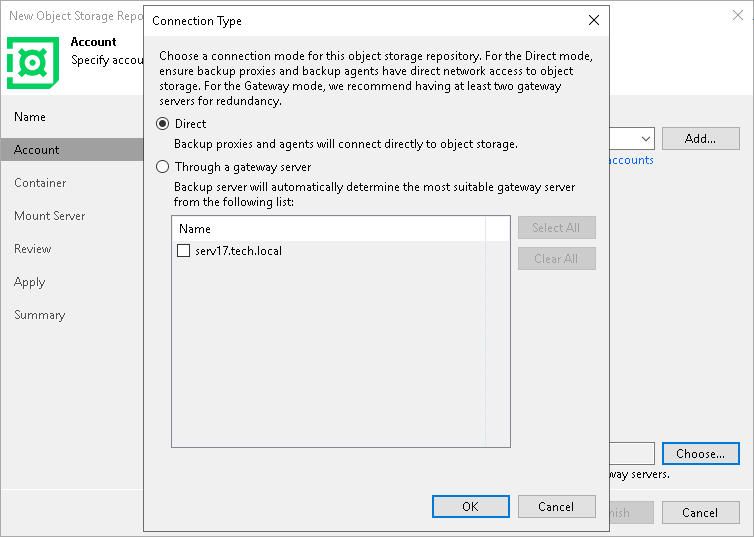
By default, Veeam Backup & Replication uses the Direct mode to transfer data to an object storage repository. To specify different connection settings, do the following:
- Next to the Connection mode field, click Choose.
- In the Connection Mode window, select one of the following:
- Direct — select this option if you want to instantly move data of processed VMs or file shares to object storage repositories. Before you select this option, check the following Considerations and Limitations.
- Through a gateway server — select this option if you want Veeam Backup & Replication to use gateway servers to transfer data from processed machines or file shares to object storage repositories. From the Name list, select gateway servers that you want to use for data transfer operations.
By default, the role of a gateway server is assigned to the Veeam Backup & Replication server. You can choose any Microsoft Windows or Linux server that is added to your backup infrastructure and has internet connection. Note that you must add the server to the backup infrastructure beforehand. Before you add the server, check the following Considerations and Limitations. For more information on how to add a server, see Virtualization Servers and Hosts.