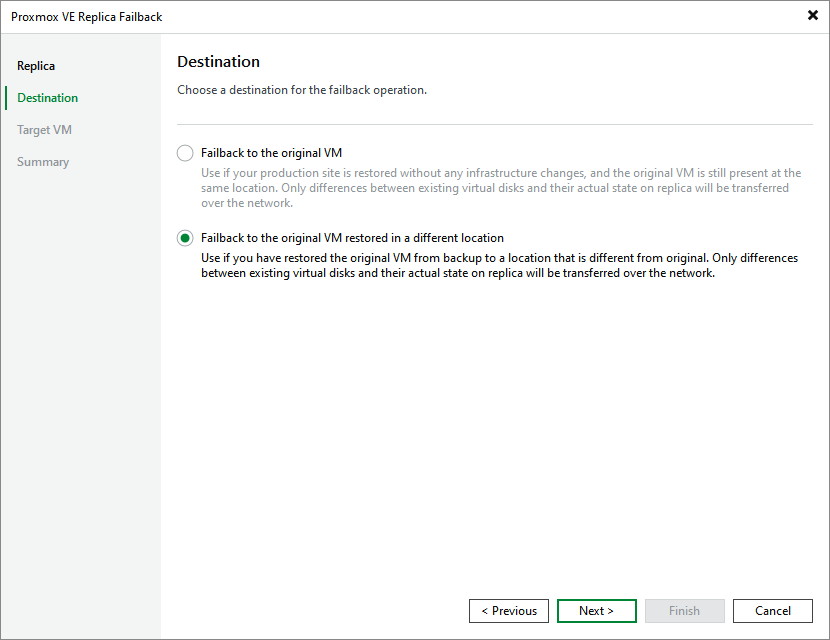
Step 3. Specify Failback Destination
At the Destination step of the wizard, choose whether you want to fail back the selected replica to the original VM or to a VM restored in a custom location:
- Failback to the original VM — select this option if you want to fail back to original VMs that reside on the source hosts. Veeam Backup & Replication will synchronize the state of the original VMs with the current state of its replicas to apply any changes that occurred to the replica while running in the DR site.
- Failback to the original VM restored in a different location — select this option if the original VM has already been recovered to a new location, and you want to switch to the recovered VM from their its replica. Veeam Backup & Replication will synchronize the state of the recovered VM with the current state of the replica to apply any changes that occurred to the replica while running in the DR site.
To be able to fail back the replica to a VM in a new location, you must restore the original VM to that location beforehand.
If you select one of the first two options, Veeam Backup & Replication will send to the source/recovered VMs only differences between the existing virtual disks. Veeam Backup & Replication will not send replica configuration changes such as different IP address or network settings (if replica Re-IP and network mapping were applied), new hardware or virtual disks added while the replicas were in the Failover state.