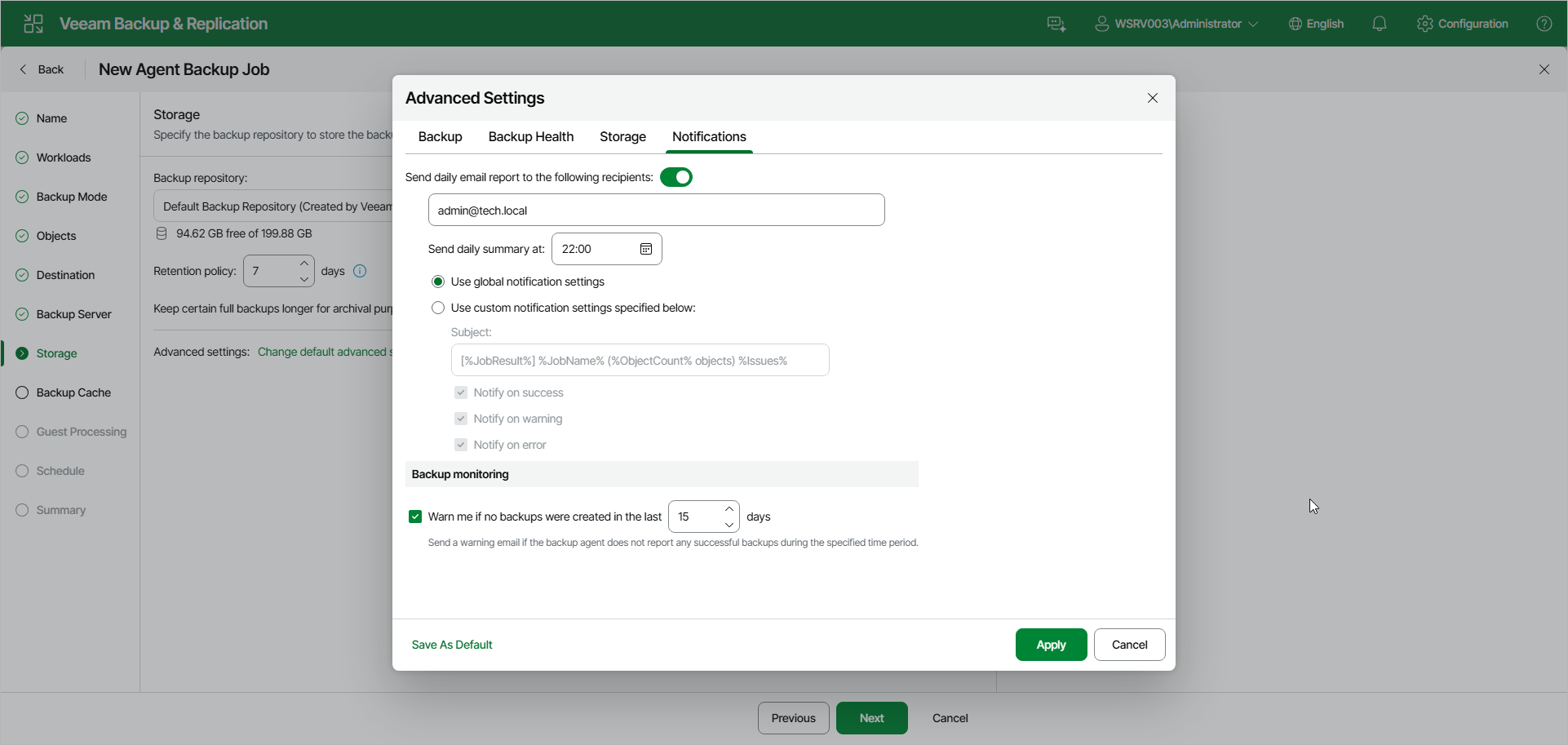
Notification Settings
You can specify email notification settings for the backup policy. If you enable notification settings, Veeam Backup & Replication will send a daily email report with backup policy statistics to a specified email address. The report contains cumulative statistics for backup job sessions performed for the last 24-hour period on computers to which the backup policy is applied.
|
NOTE |
|
Email reports with backup policy statistics will be sent if you configure global email notification settings in Veeam Backup & Replication. For more information, see Configuring Global Email Notification Settings. After you enable notification settings for the backup policy, Veeam Backup & Replication will send reports with the backup policy statistics to email addresses specified in global email notification settings and email addresses specified in the backup policy settings. |
To specify notification settings for the backup policy:
- Open the Advanced Settings window at one of the following steps of the wizard:
- Storage — if you have selected to save backup files in a Veeam backup repository. Click Change default advanced settings.
- Local Storage — if you have selected to save backup files in a local storage of a Veeam Agent computer. Click Configure advanced settings.
- Shared Folder — if you have selected to save backup files in a network shared folder. Click Configure advanced settings.
- In the Advanced Settings window, go to the Notifications tab.
- Turn on the Send daily email report to the following recipients toggle and specify a recipient’s email address in the field below. You can enter several addresses separated by a semicolon.
- In the Send daily summary at field, specify the time when Veeam Backup & Replication must send the email notification for the backup policy. Veeam Backup & Replication will send the report daily at the specified time.
- You can choose to use global notification settings or specify custom notification settings.
- To receive a typical notification for the backup policy, select Use global notification settings. In this case, Veeam Backup & Replication will apply to the backup policy global email notification settings specified for the backup server.
- To configure a custom notification for the backup policy, select Use custom notification settings specified below. You can specify the following notification settings:
- In the Subject field, specify a notification subject. You can use the following variables in the subject: %Time% (completion time), %JobName%, %JobResult%, %ObjectCount% (number of machines in the backup policy) and %Issues% (number of machines in the backup policy that have been processed with the Warning or Failed status).
- Select the Notify on success, Notify on warning or Notify on error check boxes to receive email notification if the policy completes successfully, completes with a warning or fails.
- Under Backup monitoring, select the Warn me if no backups were created in the last check box and specify a number of days. In this case, Veeam Backup & Replication will send a warning email if the backup agent does not report any successful backups during the specified time period.