Viewing Update History
To see the results of the update installation performed on the backup appliance, do the following:
- Switch to the Configuration page.
- Navigate to Support Information > Updates.
- Click Check and View Updates.
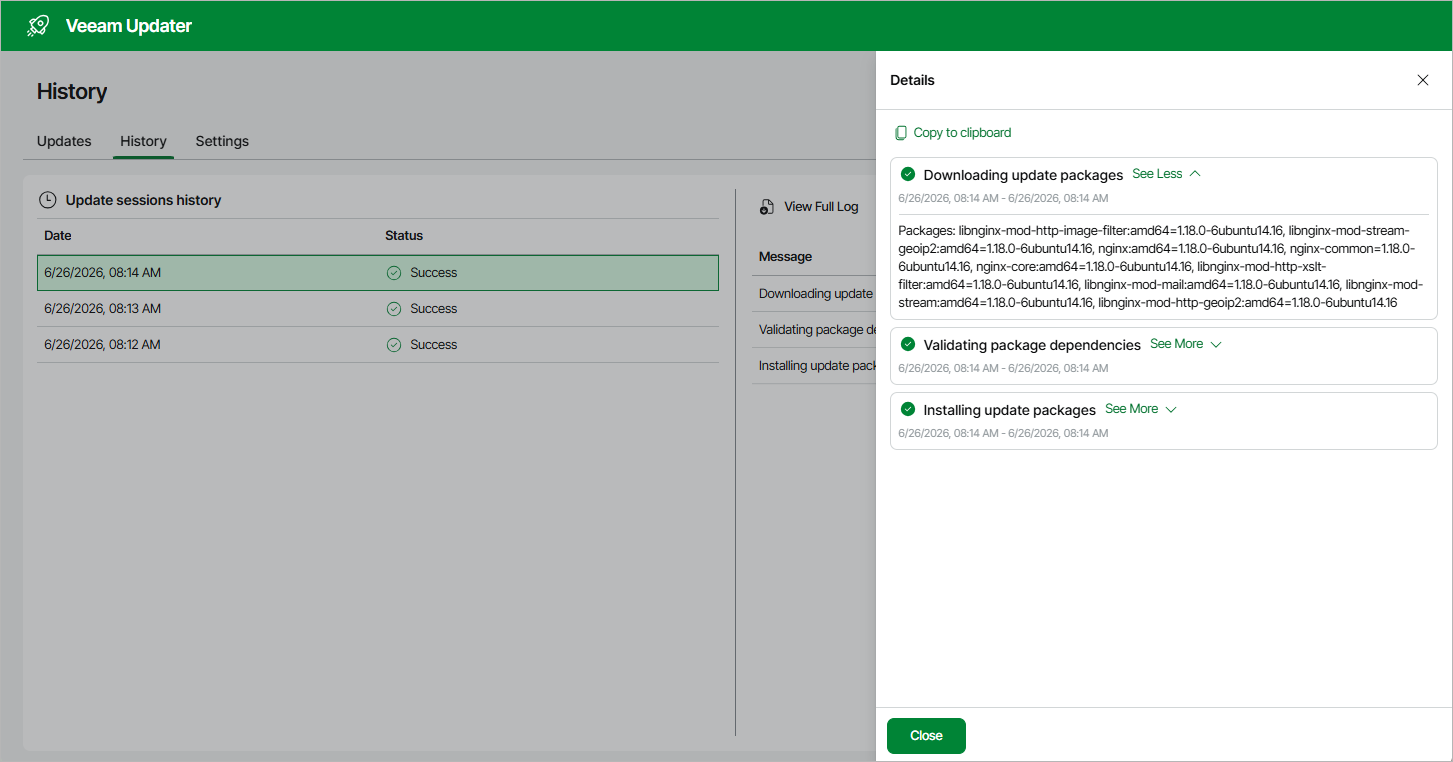
- On the Veeam Updater page, switch to the History tab.
For each date when an update was installed, the History tab displays the update session status — that is, whether the installation process completed successfully or failed to complete. To view the full list of packages installed during a specific session, select the necessary timestamp in the Date column and click View Details.
|
Tip |
|
To download logs for for the installed updates, click View Full Log — the backup appliance will save the logs as a single file to the default download directory on the local machine. |