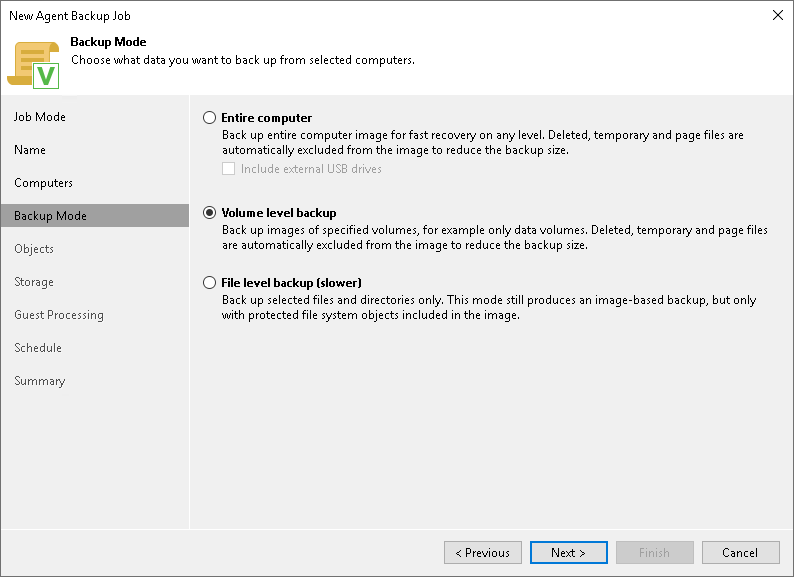
Step 5. Select Backup Mode
At the Backup Mode step of the wizard, select the mode in which you want to create a backup.
- In the Backup mode section, select the backup mode. You can select one of the following options:
- Entire computer — select this option to back up the entire computer image for fast recovery at any level. Deleted, temporary, and page files are automatically excluded from the image to reduce the backup size. With this option selected, you will pass to Storage step of the wizard.
- Volume level backup — select this option to back up images of specified volumes only, for example only data volumes. Deleted, temporary, and page files are automatically excluded from the image to reduce the backup size. With this option selected, you will pass to the Objects step of the wizard.
- File level backup — select this option to back up selected files and directories only. This mode still produces an image-based backup, but only with the protected file system objects included in the image. With this option selected, you will pass to the Objects step of the wizard.
If necessary, you can edit the backup mode settings after you create the backup job.
- [For entire computer backup] If you want to include in the backup one or more external USB drives, select the Include external USB drives check box. With this option selected, Veeam Agent will include in the backup all external USB drives that are connected to the Veeam Agent computer at the time when the backup job starts. To learn more, see the Backup of External Drives section in the Veeam Agent for Microsoft Windows User Guide.
|
|
|
Consider the following:
|