Step 6. View Configuration Check Results
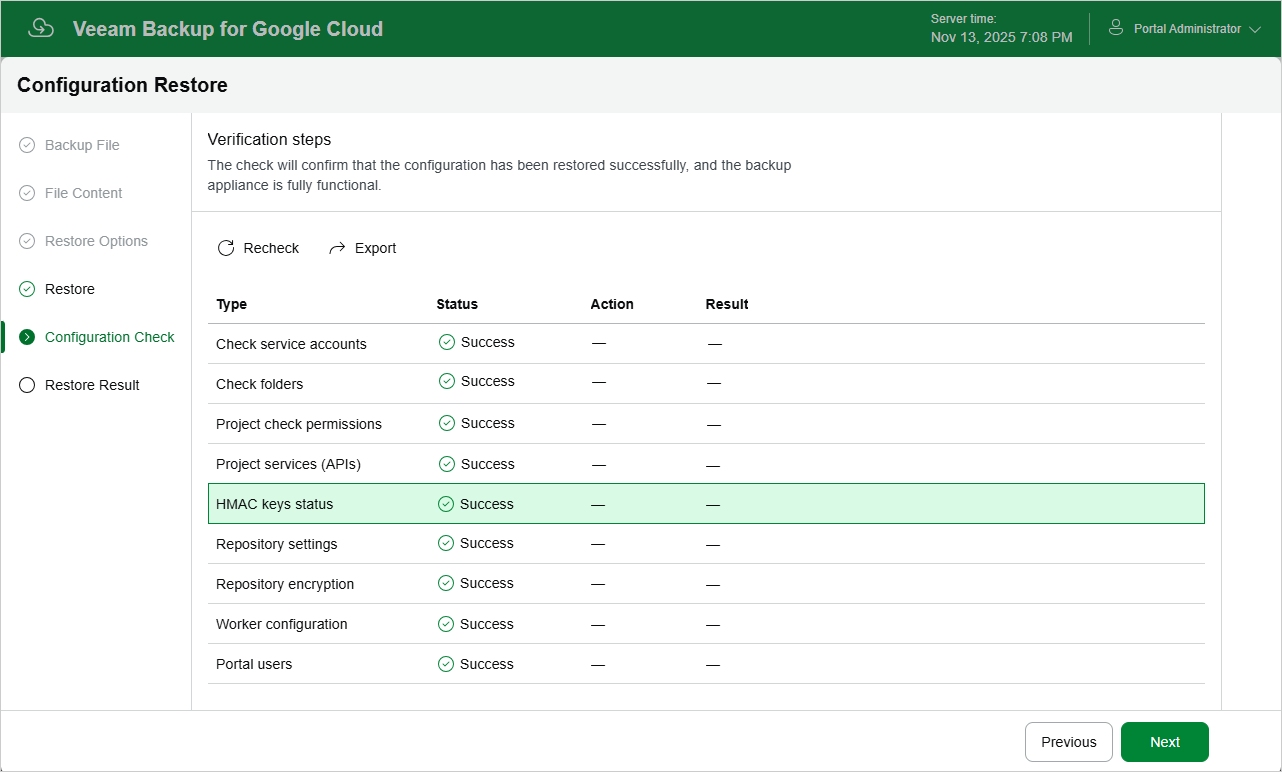
After the restore process is over, the backup appliance will run a number of verification checks to confirm that the configuration data has been restored successfully. At the Configuration Check step of the wizard, wait for the verification checks to complete and click Next.
If the backup appliance encounters an issue while performing a verification check, the Result column will display a description of the issue. Note that some issues are displayed for informational purposes only and do not require any action at this point. If any actions are required, the Action column will provide instructions on how to resolve the issue. For example, to resolve the issue with service account permissions, click View in the Project check permissions field, and then use the Project checks window to grant missing permissions to every service account associated with a specific project.
You can grant the missing permissions to the service account using the Google Cloud console or instruct the backup appliance to do it:
- To grant the missing permissions manually, click Download Script. The backup appliance will generate a gcloud script that you can run in the Google Cloud console to assign all the necessary permissions to the service account.
The account under which you run the script must have the permissions required both to get and set project IAM policies and to create custom IAM roles (for example, it can have the iam.securityAdmin and iam.roleAdmin roles assigned). To learn what permissions and roles are required to create custom roles in IAM, see Google Cloud documentation.
- To let the backup appliance grant the missing permissions automatically, click Grant and then click Sign in with Google in the Grant permissions window. You will be redirected to the OAuth consent screen authorization page. Sign in using credentials of a Google account that will be used to grant the permissions.
The account under which you sign in to Google Cloud must have the permissions required both to get and set project IAM policies and to create custom IAM roles (for example, it can have the iam.securityAdmin and iam.roleAdmin roles assigned). To learn what permissions and roles are required to create service account, see Google Cloud documentation.
|
Note |
|
For the backup appliance to be able to authorize in Google Cloud, the OAuth consent screen must be configured as described in section Registering Applications. Note that the backup appliance does not store in the configuration database the provided Google account credentials and access tokens received during authorization. |
To make sure that the missing permissions have been successfully granted, click Recheck.