Moving Backups
Veeam Backup & Replication allows you to move all backups of a backup copy job to another repository or to move specific workloads and their backups to another backup copy job.
Moving Backups to Another Repository
For information on the move operation, how it works and its limitations, see Backup Move.
To move backups to another repository and target a job to this repository, do the following:
- Open the Home view.
- In the inventory pane, select the Backups node.
- In the working area, select the necessary job.
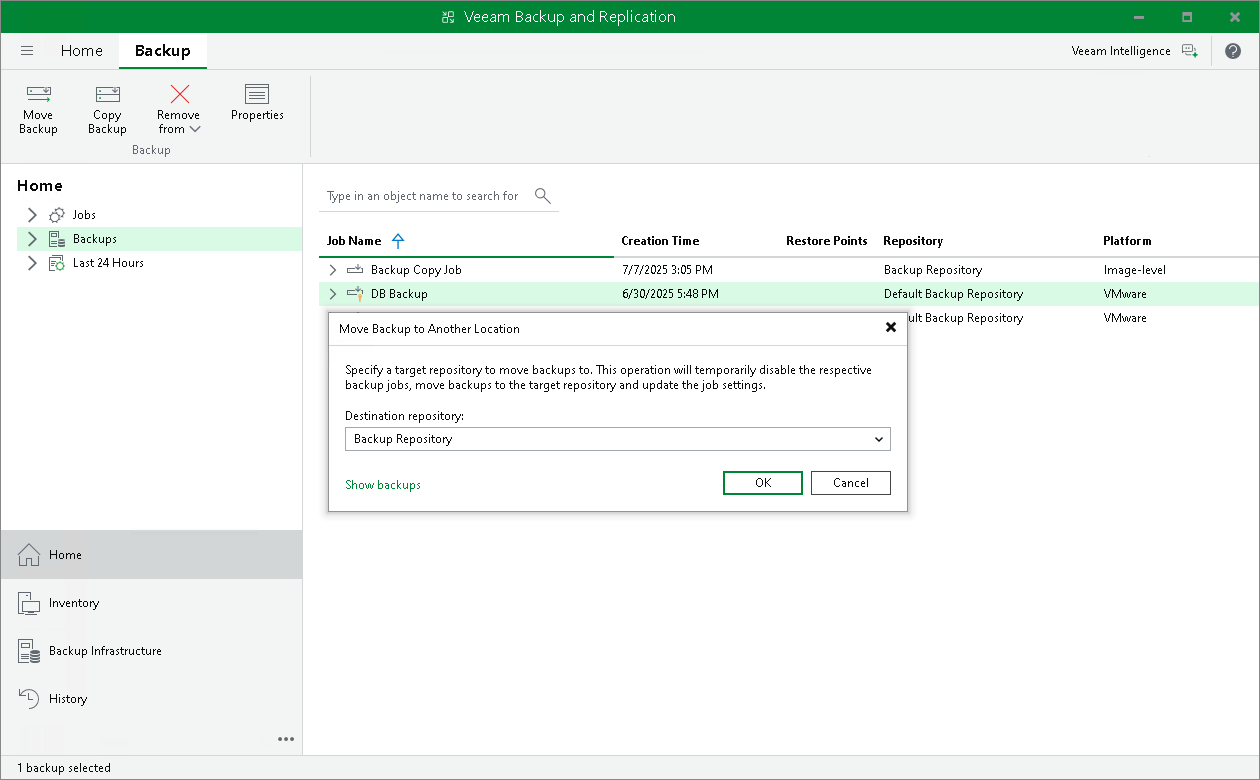
- Right-click the job and select Move backup. Alternatively, click Move Backup on the ribbon.
- In the Move Backup to Another Location window, select the repository to which you want to move backups.
Veeam Backup & Replication will reconfigure and target the backup job to the selected repository.
- Click OK.
Alternatively, you can change the repository in the job settings.
For information on the move operation, how it works and its limitations, see Backup Move.
To move backups to another job:
- Open the Home view.
- In the inventory pane, select the Backups node.
- In the working area, expand the necessary job and select workloads.
|
Note |
|
You can move individual workloads and their backups only if backups are per-machine with separate metadata files for each workload. |
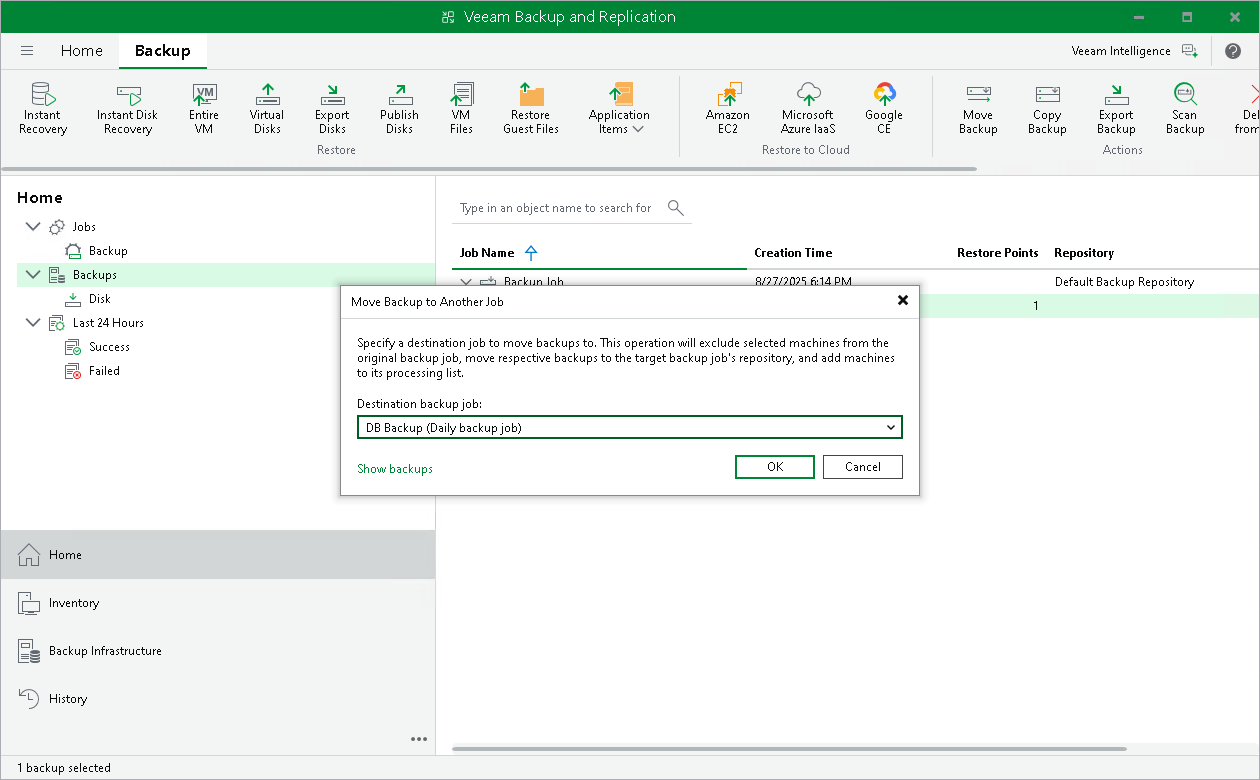
- Right-click one of the selected workloads and click Move backup. Alternatively, click Move Backup on the ribbon.
- In the Move Backup to Another Job window, select the job to which you want to move backups.
Veeam Backup & Replication will move backups of the selected workloads to the repository to which the selected backup copy job is targeted. Veeam Backup & Replication will not update the sources and exclusions of the original job and the selected job. After the move, check these settings in both jobs and update them manually.
- Click OK.
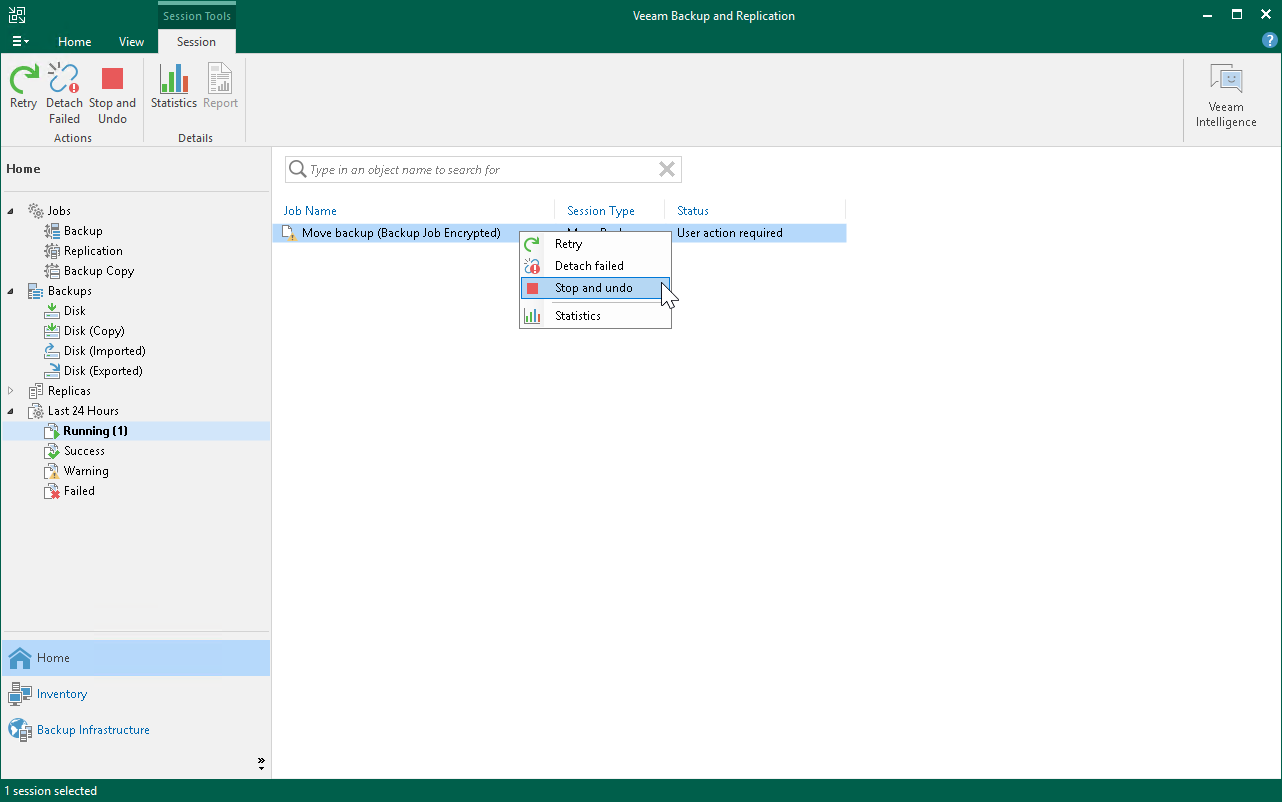
If the move operation fails, Veeam Backup & Replication assigns the User action required status to it.
|
Note |
|
The original job will still be in the disabled state until you finalize the failed move operation. |
To finalize the move operation, do the following:
- Open the Home view.
- In the inventory pane, select the Last 24 Hours node.
- Right-click the failed move session and select one of the following actions:
- Retry — to run the move operation again for failed workloads.
- Detach failed — to move failed workloads to the target job but detach their backups. The target job will create active full backups for these workloads and continue backup chains for other workloads. The detached backups will be shown in a node with the (Orphaned) postfix in the inventory pane.
- Stop and undo — to cancel all changes made during the move operation.
Alternatively, you can select these actions on the ribbon.