Removing Backup from Disk
If you want to delete records about backups from the Veeam Backup & Replication interface and configuration database and, additionally, delete backup files from the backup repository, you can use the Remove from disk operation.
|
NOTE |
|
You can remove an entire backup related to a Veeam Agent backup job or remove specific child backups — backups related to individual computers in the backup.
You can remove a Veeam Agent backup in one of the following ways:
Removing Backup from Disk Using Veeam Backup & Replication Console
To remove a Veeam Agent backup from the backup repository:
- Open the Home view.
- In the inventory pane, click Backups.
- In the working area, select and remove the necessary backup:
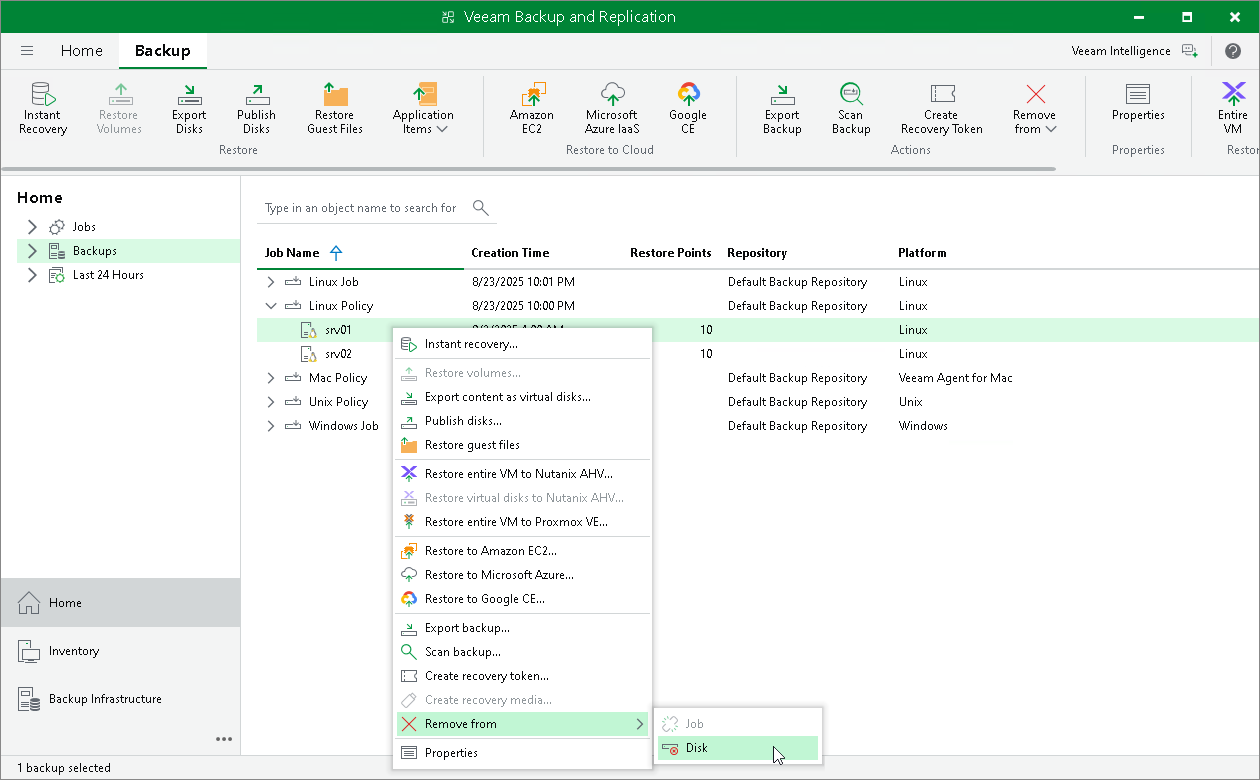
- To remove the entire backup related to the Veeam Agent backup job or policy, select the backup and click Remove from > Disk on the ribbon or right-click the backup and select Remove from > Disk.
- To remove a backup of a specific computer in the Veeam Agent backup job or policy, expand the parent backup, select the necessary computer and click Remove from > Disk on the ribbon or right-click the computer and select Remove from > Disk.
Removing Backup from Disk Using Veeam Backup & Replication Web UI
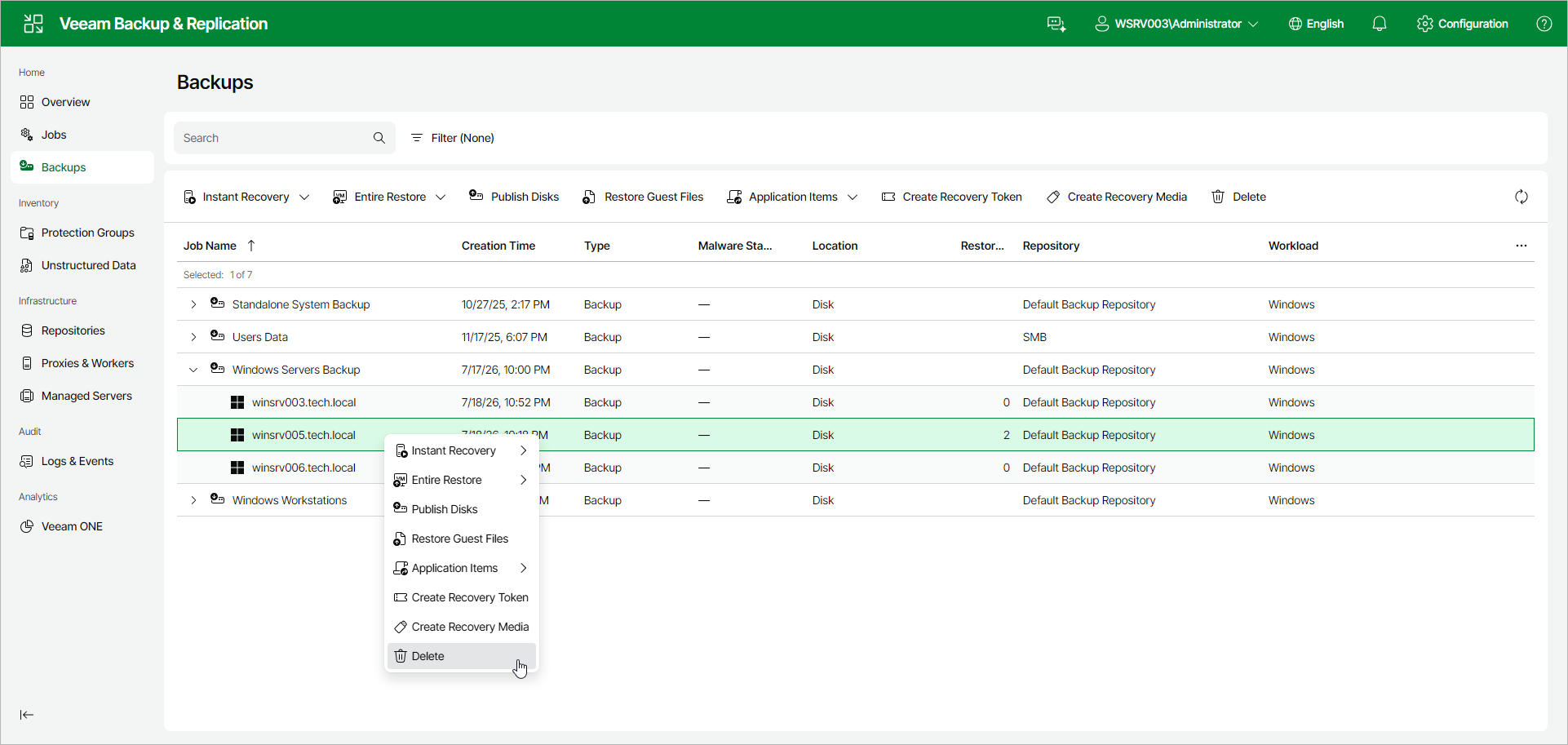
To remove a Veeam Agent backup from the backup repository in the Veeam Backup & Replication web UI:
- In the management pane, click Backups.
- Select and remove the necessary backup:
- To remove the entire backup related to the Veeam Agent backup job or policy, select the check box next to the backup and click Delete on the toolbar. Alternatively, right-click the backup and select Delete.
- To remove a backup of a specific computer in the Veeam Agent backup job or policy, expand the parent backup, select the check box next to the necessary computer and click Delete on the toolbar. Alternatively, right-click the computer and select Delete.