Cloning Backup Jobs
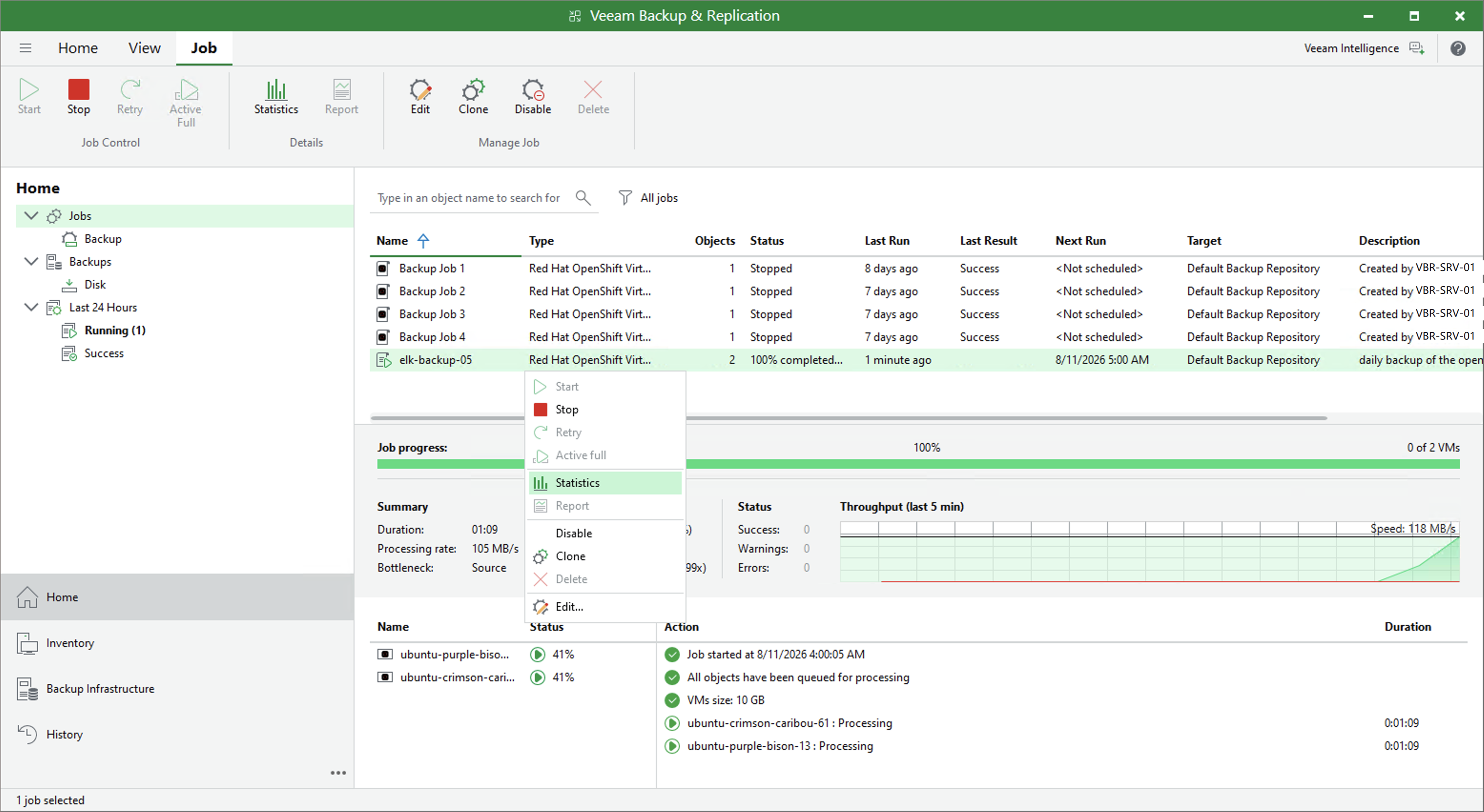
You can create a new job by cloning an existing one. Job cloning allows you to create an exact copy of any job with the same job settings.
To clone a backup job, do the following:
- Open the Home view.
- In the inventory pane, select Jobs.
- In the working area, select the job and click Clone on the ribbon. Alternatively, right-click the job and select Clone.
After a job is cloned, you can edit all its settings, including the job name.
The name of the cloned job is formed by the following rule: <job_name_clone1>, where job_name is the name of the original job and clone1 is a suffix added to the original job name. If you clone the same job again, the number in the name will be incremented, for example, job_name_clone2, job_name_clone3, and so on. To change the name of a cloned job, edit the job as described in Editing Backup Job Settings.
|
Note |
|
If the original job is scheduled to run automatically, Veeam Backup & Replication disables the cloned job. To enable the cloned job, select it in the job list and click Enable on the ribbon or right-click the job and select Enable. |