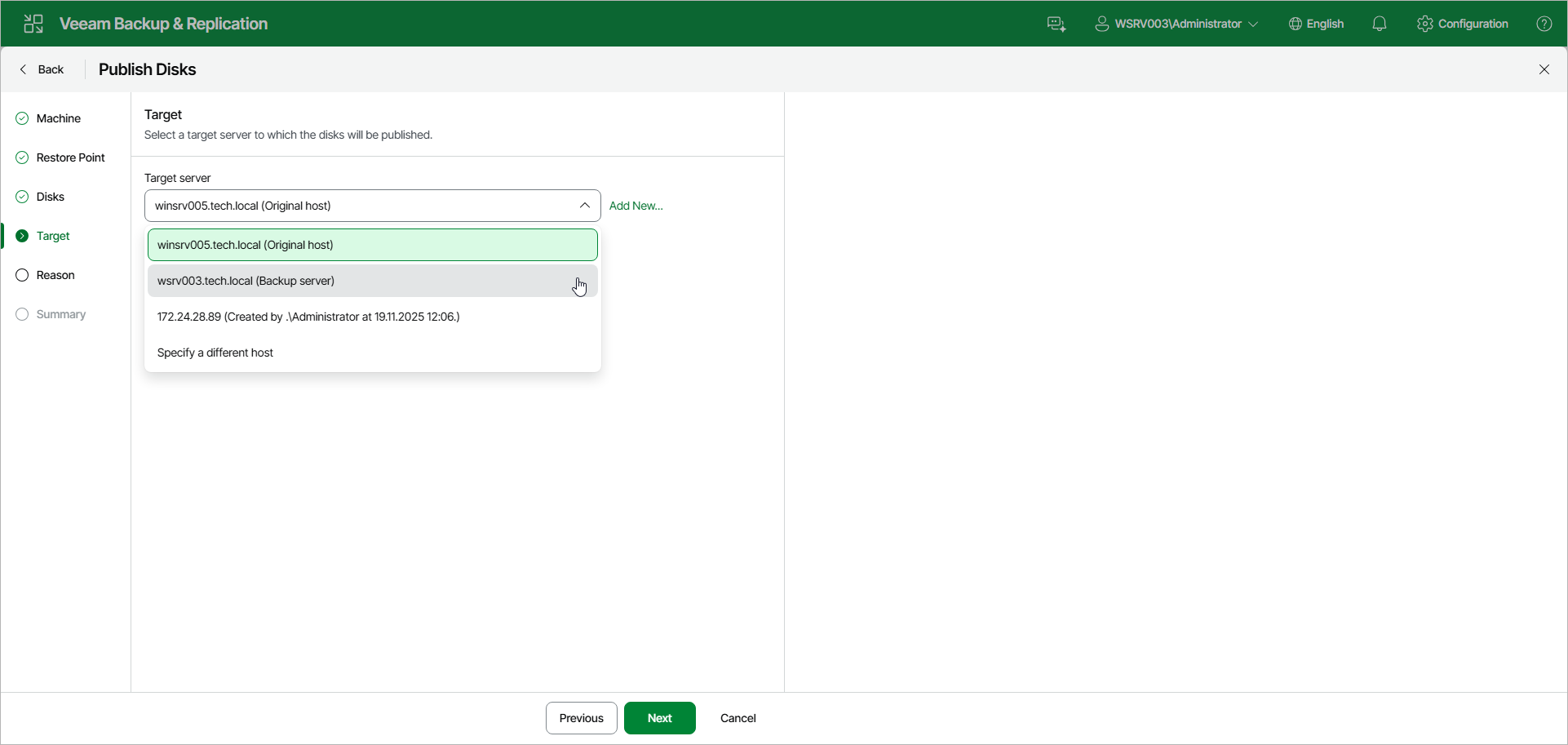
Step 5. Select Target Server
At the Target step of the wizard, from the Target server drop-down list, select a server that will have access to the disk content. You can select the following servers depending on the OS of the Veeam Agent computer:
- Linux server — for Linux-based Veeam Agent computers.
- Microsoft Windows server — for Microsoft Windows-based Veeam Agent computers.
You can select one of the following types of servers:
- A server added to the backup infrastructure.
If you want to add a new server to the backup infrastructure at this step, click Add New. In this case, you will be able to add a new Microsoft Windows server or a new Linux server. To learn more, see Adding Microsoft Windows Servers and Adding Linux Servers.
- A temporary server. In this case, from the Target server drop-down list, select Specify a different host. In the Target Server window, specify the following settings:
- In the Host name field, specify a server name or IP address of the server.
- Select the account from the Credentials list. If you have not set up credentials beforehand, click the Manage accounts link or click Add on the right to add a new account in the Credentials Manager. To learn more, see Credentials Manager.
If prompted, specify credentials for the target server.