Accessing Web UI from Workstation
To access the backup appliance, in a web browser, navigate to the appliance web address. The address consists of a public IPv4 address or DNS hostname of the backup appliance. Note that the website is available over HTTPS only.
|
Important |
|
You can access the backup appliance using a local user account or a user account of an external identity provider. To learn how to add user accounts to backup appliances, see Adding User Accounts.
|
Note |
|
The web browser may display a warning notifying that the connection is untrusted. To eliminate the warning, you can replace the TLS certificate that is currently used to secure traffic between the browser and the backup appliance with a trusted TLS certificate. To learn how to replace certificates, see Replacing Security Certificates. |
Logging In Using Local User Account
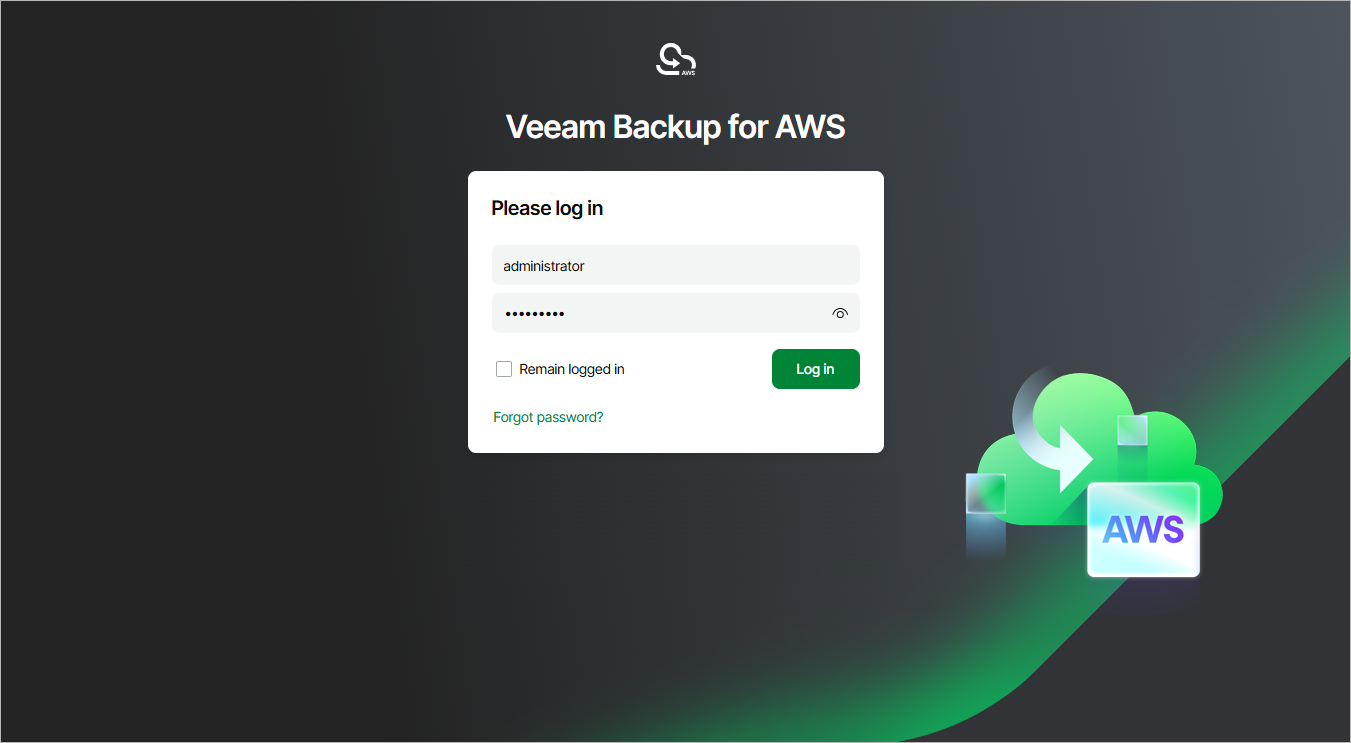
To log in to the backup appliance using credentials of a user account, do the following:
If you log in for the first time, use credentials of the default user that was created after the product installation. In future, you can add other user accounts to grant access to the backup appliance. For more information, see Managing User Accounts.
|
Tip |
|
If you do not remember the user password, you can reset it. To do that, click the Forgot password? link and follow the instructions provided in this Veeam KB article. |
- Select the Remain logged in check box to save the specified credentials in a persistent browser cookie so that you do not have to provide credentials every time you access the backup appliance in a new browser session.
- Click Log in.
If multi-factor authentication (MFA) is enabled for the user, the backup appliance will prompt you to enter a code to verify the user identity. In the Verification code field, enter the temporary six-digit code generated by the authentication application running on your trusted device. Then, click Log in.
Logging In Using Identity Provider User Account
|
Important |
|
To access the backup appliance under a user account of your identity provider, you must first configure single sign-on settings and then add the identity provider user account to the appliance. |
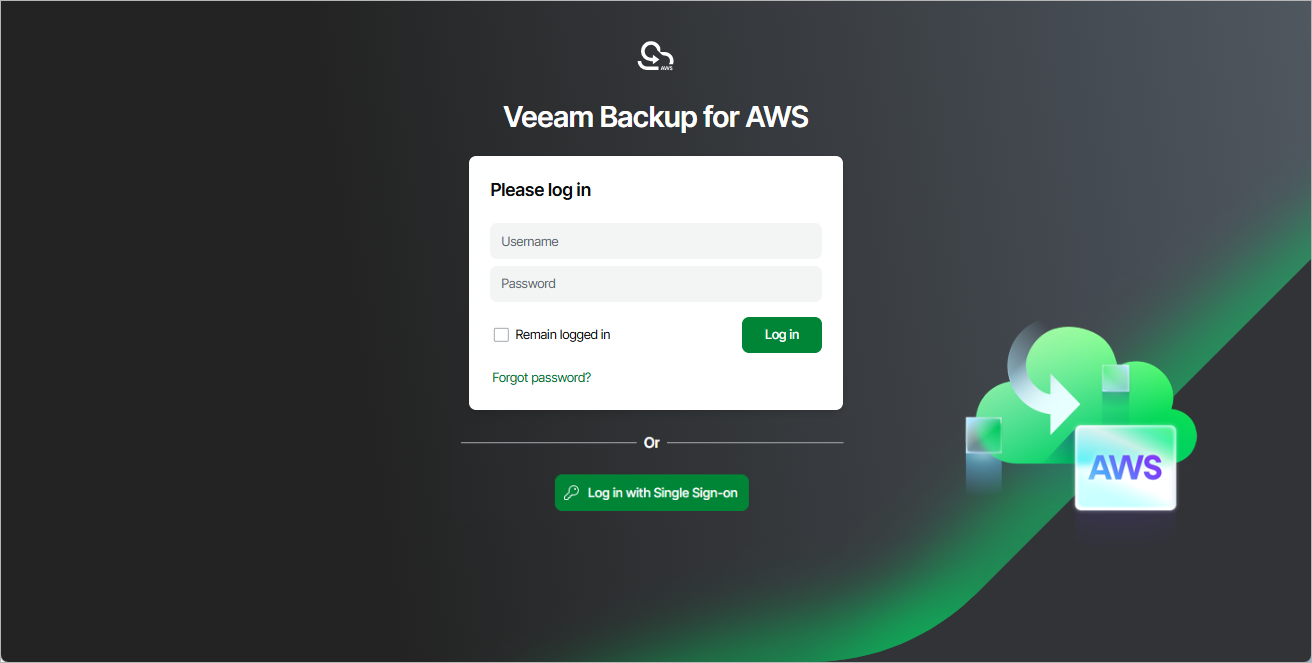
To log in using an identity provider, do the following:
- Click Log in with Single Sign-On. You will be redirected to your identity provider portal.
- If you have not logged in yet, log in to the identity provider portal. After that, you will be redirected to the Veeam Backup for AWS Overview page as an authorized user.
Logging Out
To log out, at the top right corner of the backup appliance window, click the user name and then click Log out.