Replacing Security Certificates
To establish secure data communications between the backup appliance and web browsers running on user workstations, Veeam Plug-In for Google Cloud uses Transport Layer Security (TLS) certificates.
When you install Veeam Plug-In for Google Cloud, it automatically generates a default self-signed certificate. You can replace this default certificate with your own self-signed certificate or with a certificate obtained from a Certificate Authority (CA). To replace the currently used TLS certificate, do the following:
- Switch to the Configuration page.
- Navigate to General > Certificate.
- Click Replace Certificate.
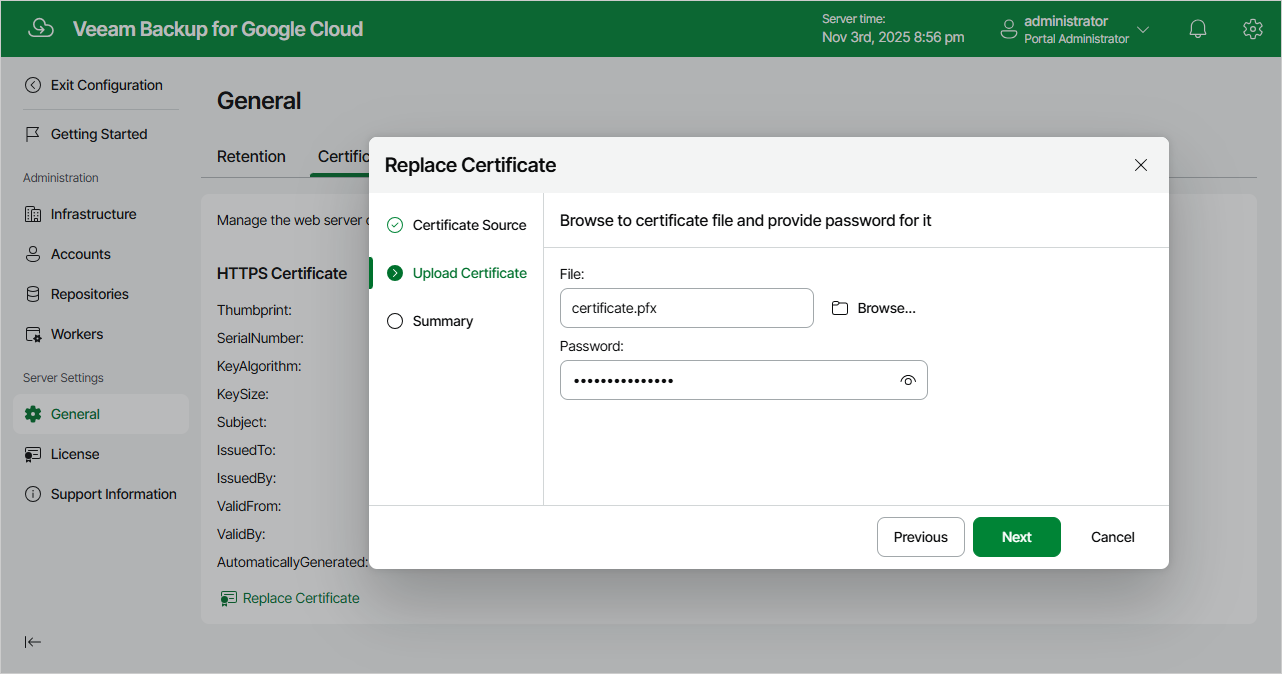
- Complete the Replace Certificate wizard:
- At the Certificate Source step of the wizard, do the following:
- Select the Re-create the self-signed certificate option if you want to replace the existing certificate with a new self-signed certificate automatically generated by Veeam Plug-In for Google Cloud.
- Select the Upload a new certificate option if you want to upload a certificate that you obtained from a CA or generated using a 3rd party tool.
- [Applies only if you have selected the Upload a new certificate option] At the Upload Certificate step of the wizard, browse to the certificate that you want to install, and provide a password for the certificate file.
|
Note |
|
Only the PFX and P12 certificate formats are supported. |
- At the Summary step of the wizard, review summary information and click Finish.