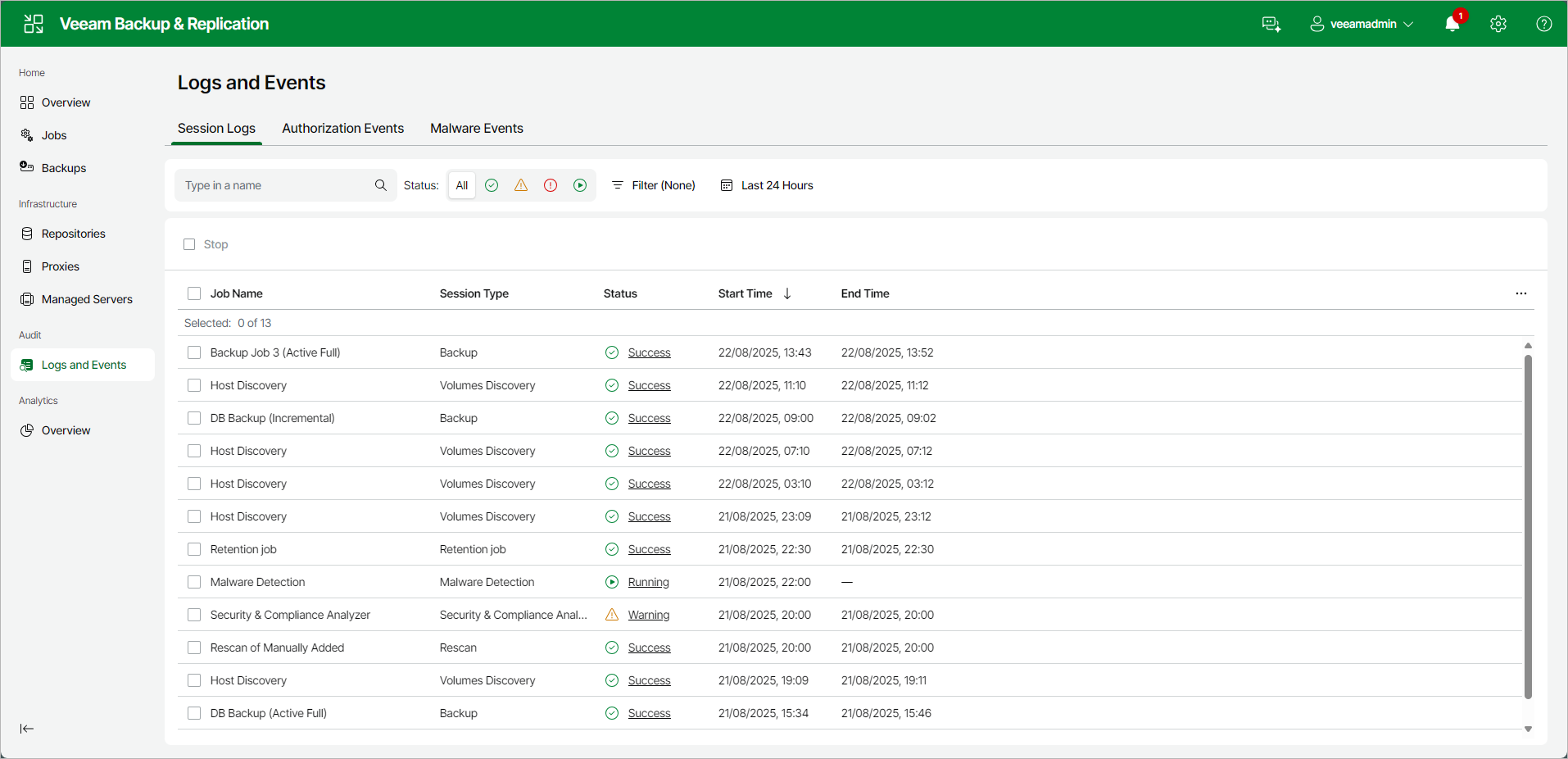
Viewing Logs and Events
To monitor sessions and events in Veeam Backup & Replication, do the following:
- In the management pane, click Logs & Events.
- Click the necessary tab:
- Session Logs — job, restore and system sessions.
- Events — security-related events: approval requests and their results, role assignments, and changes to users, user groups and four-eyes authorization settings. The tab also shows Veeam Software Appliance events. The tab is available only to users with the Backup Administrator or Security Administrator role.
- Malware Events — events created during malware detection activities. For more information on these events, see Viewing Malware Detection Events Using Web UI.
- On the Session Logs tab, you can do the following:
- By default, the tab shows sessions for the last 24 hours. To change the period, click Last 24 Hours. In the Specify time period window, select the necessary option. For the Date and Period options, specify the date or date range. Then click Apply.
- By default, the tab shows sessions of all types. To show only specific sessions, click Filter and select the necessary job types, restore types or system sessions.
- To view details of a session, click the link in the Status column.
- To stop a running job or restore session, select it and click Stop.