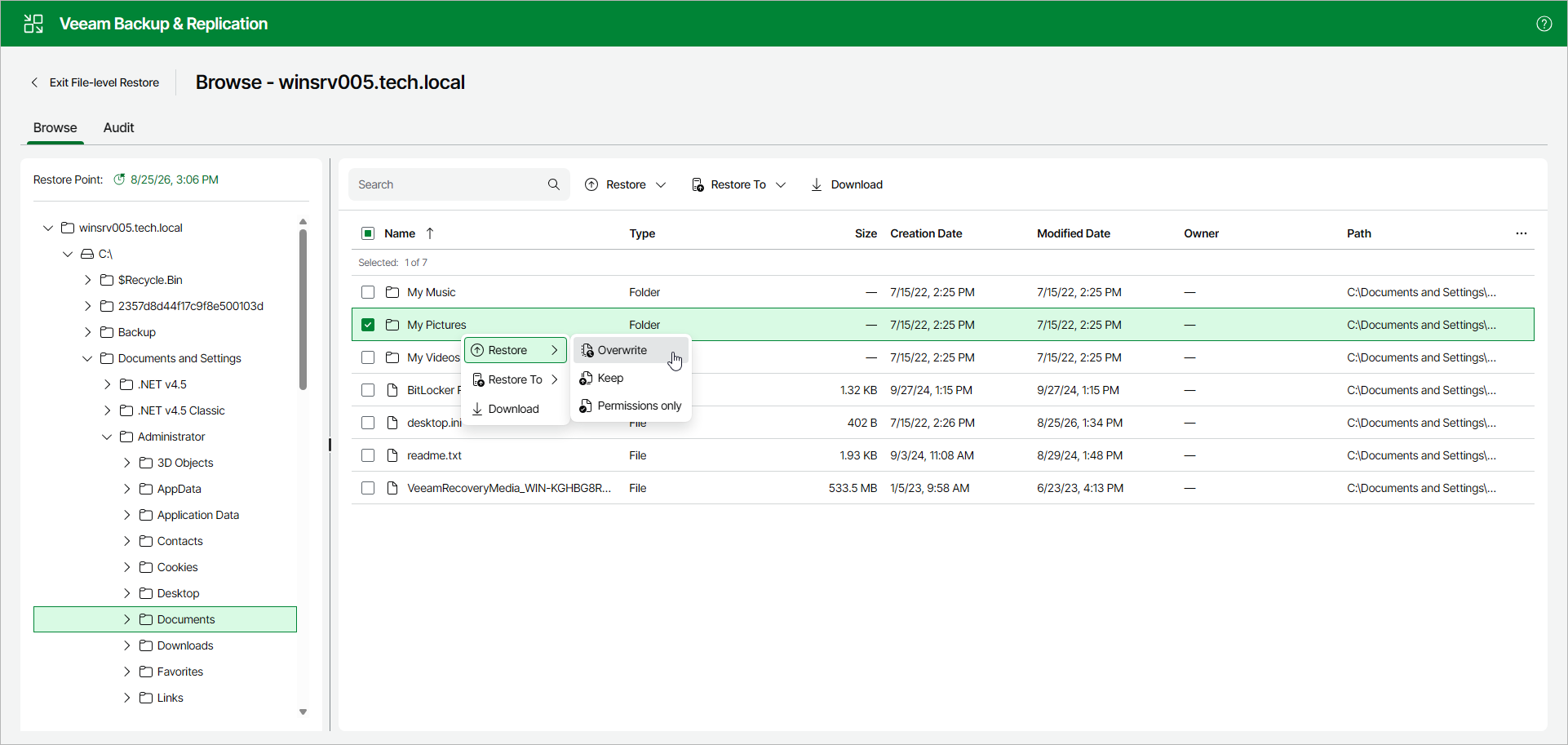
Restoring Files and Folders to Original Location
To restore files and folders to the original location:
- Select the necessary files and folders in the working area.
- Right-click one of the selected items and select one of the following:
- To save the restored files and folders next to the original ones, select Restore > Keep.
Veeam Backup & Replication will add the RESTORED_YYYYMMDD_HHMMSS postfix to the original names and store the restored items in the same folder where the original items reside.
- To overwrite the original files and folders with the ones restored from the backup, select Restore > Overwrite.
- To restore only NTFS permissions of the original files and folders, select Restore > Permissions only.
This option is available only for backups of Microsoft Windows computers.
Alternatively, you can select the same commands on the ribbon.