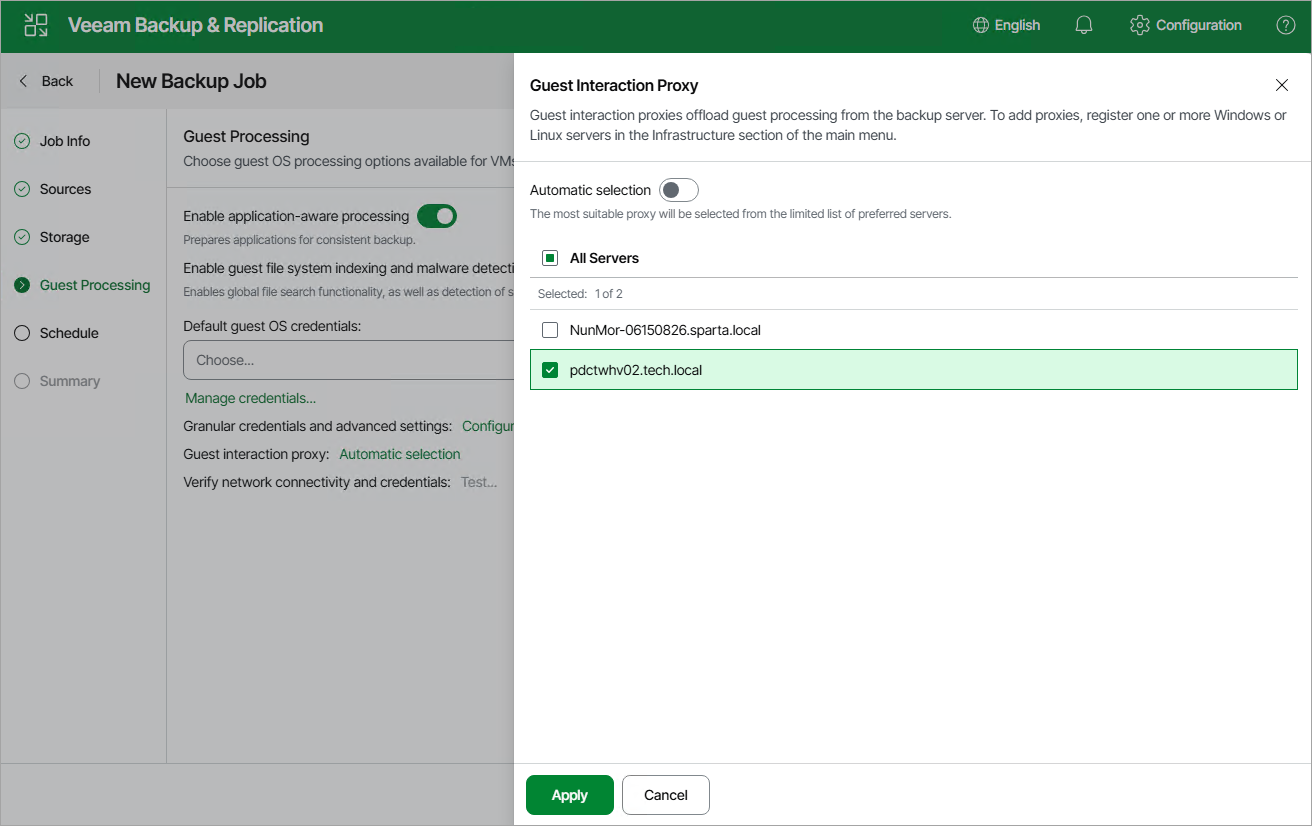
Step 5c. Choose Guest Interaction Proxy
To produce transactionally consistent backups and to perform file system indexing, Veeam Backup & Replication communicates with the guest OS of each processed VM to deploy non-persistent runtime components that coordinate guest processing activities such as accessing VM applications and creating a catalog of VM files. Since these activities may significantly increase the load on the backup server in case of a large backup scope, Veeam Backup & Replication distributes the load among all Microsoft Windows and Linux servers added to the backup infrastructure (further referred to as guest interaction proxies).
By default, Veeam Backup & Replication automatically chooses which guest interaction proxy to use for each of the processed VMs based on network settings and rules listed in section Guest Interaction Proxies. You can also manually limit the list of servers that may be used as proxies — to do that, set the Automatic Selection toggle in the Guest Interaction Proxy window to Off, then select check boxes next to the necessary servers.
For a server to be displayed in the list of available guest interaction proxies, it must be added to the backup infrastructure as described in sections Adding Microsoft Windows Servers and Adding Linux Servers.