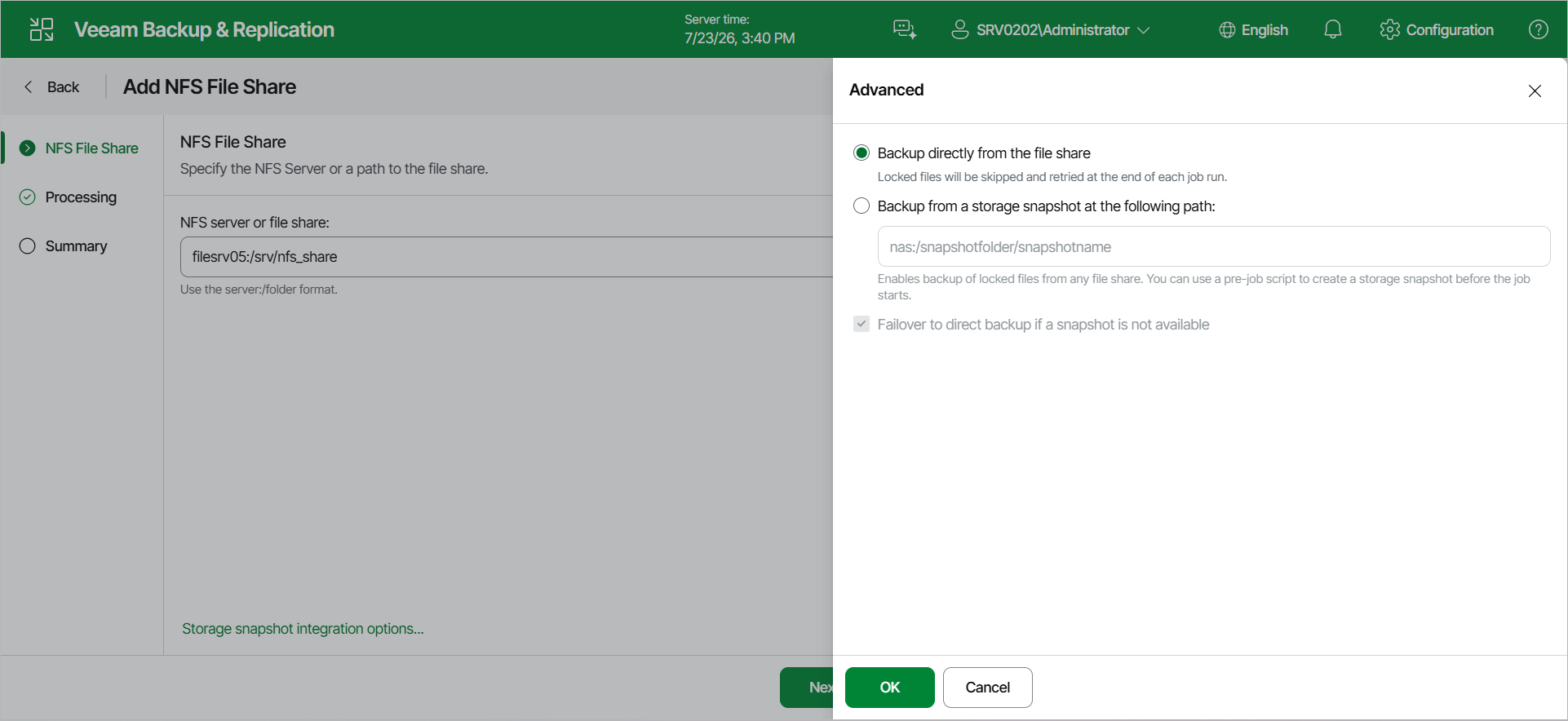
Step 2. Specify NFS File Share Settings
At the NFS File Share step of the wizard, do the following:
Specifying Access Settings for NFS File Share
Specify the path to an NFS file share in the server:/folder format.
You can add the root server folder in the server:/format to protect all NFS file shares residing on this server. You can specify the IPv4 or IPv6 address of the server. Note that you can use IPv6 addresses only if IPv6 communication is enabled as described in the IPv6 Support section.
After that, create a single file backup job to protect the added server, as described in the Creating File Backup Jobs section. Then all NFS file shares added on this server will be automatically processed with the file backup job and protected. If you previously had several separate non-root shared folders residing on the same server and want to switch to using a single root shared folder to cover the same shares, you do not have to run full backups to update data of protected shares. Instead, you can convert existing backups and update existing file backup jobs to protect single root shared folders comprising all other non-root shared folders residing on the same server. To learn more about the conversion, see the Converting Backups from Non-Root to Root Shared Folders section. Perform the conversion with extreme caution.
You can instruct Veeam Backup & Replication to back up data from native storage snapshots. During backup jobs, Veeam Backup & Replication will read data of shared files and folders from snapshots, which speeds up backup operations and improves RPOs.
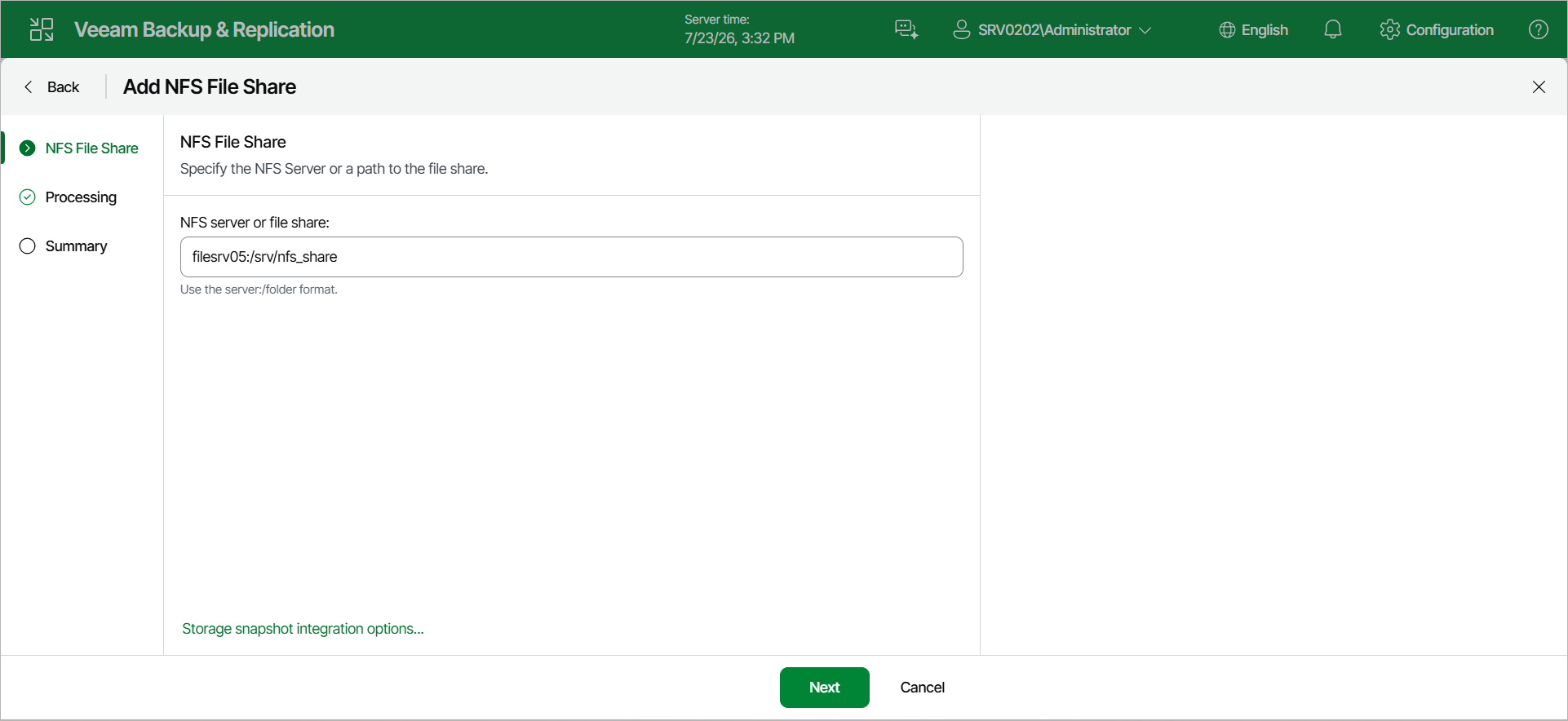
Specifying Storage Snapshot Advanced Settings
To define if Veeam Backup & Replication will use snapshots for backups:
- At the NFS File Share step of the wizard, click Advanced.
- In the Advanced window, select one of the following options:
- To ignore the snapshot functionality, select Backup directly from the file share. Veeam Backup & Replication will ignore locked files and folders. When creating a backup job, you can configure notifications to list files and folders that are skipped during the backup procedure. For more information see the Notification Settings section.
- To back up files from the native storage snapshot, select Backup from a storage snapshot at the following path and specify the path in the server:/snapshotfolder/snapshotname format to the snapshot stored on the NFS file share. You can specify the IPv4 or IPv6 address of the server. Note that you can use IPv6 addresses only if IPv6 communication is enabled as described in section the IPv6 Support section.
If you select this option, you can additionally use custom scripts written by you, for example, to create a snapshot before the backup and remove it after the backup. You can define these scripts when creating a new file backup job, as described in the Script Settings section.
|
Note |
|
Consider the following:
|
- Select Failover to direct backup if a snapshot is not available if you want Veeam Backup & Replication to read data for backup directly from the file share when the snapshot is unavailable. If you do not select the option and the snapshot is unavailable, the file backup job will stop with a failure.