Step 4. Specify Target Server
At the Target Server step, do the following:
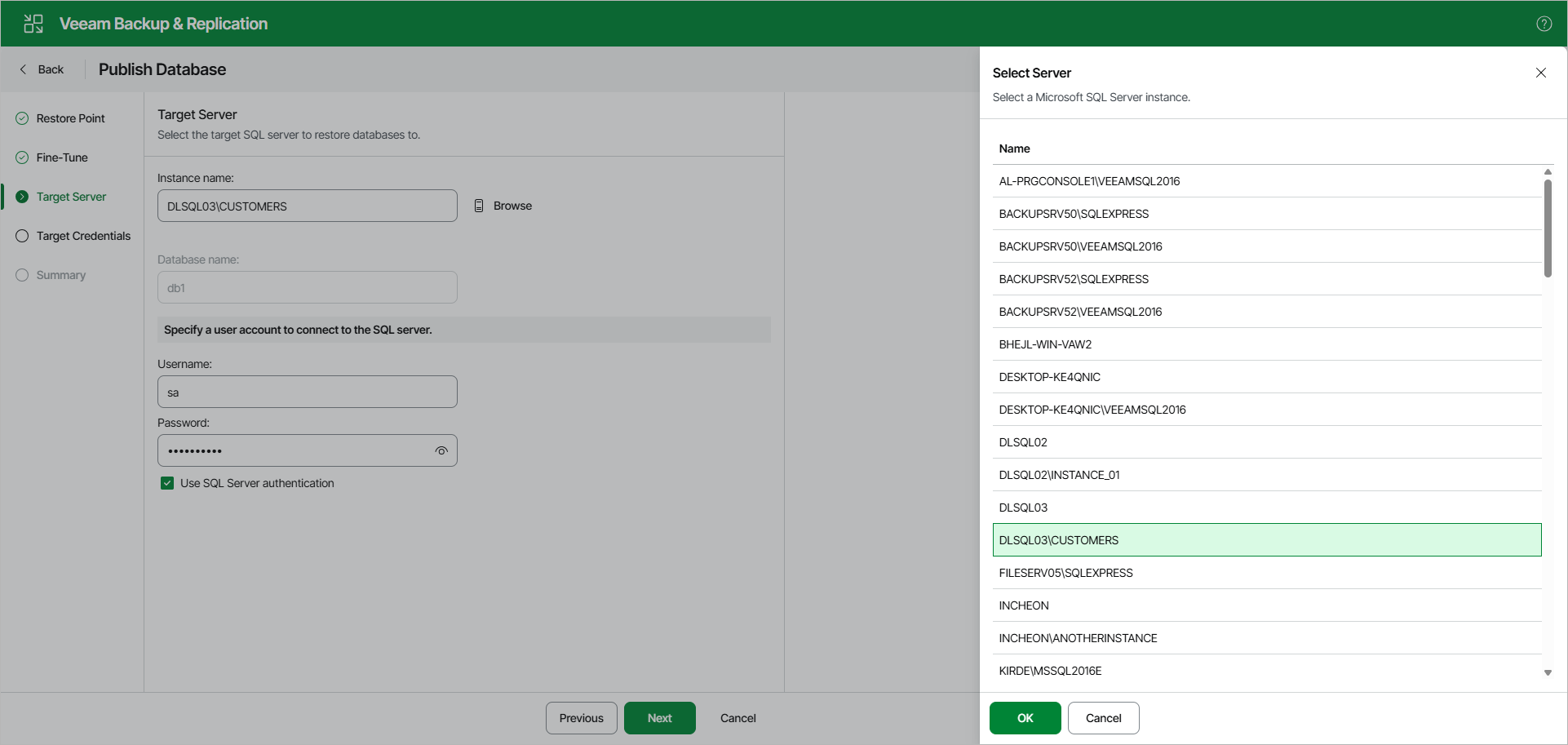
- In the Instance name field, specify the Microsoft SQL Server instance to which you want to publish the database.
Use the <IP address\instance> or <hostname\instance> format.
You can click Browse to open the Select Server window and browse through the list of instances available over the network.
Select a Microsoft SQL Server instance and click OK.
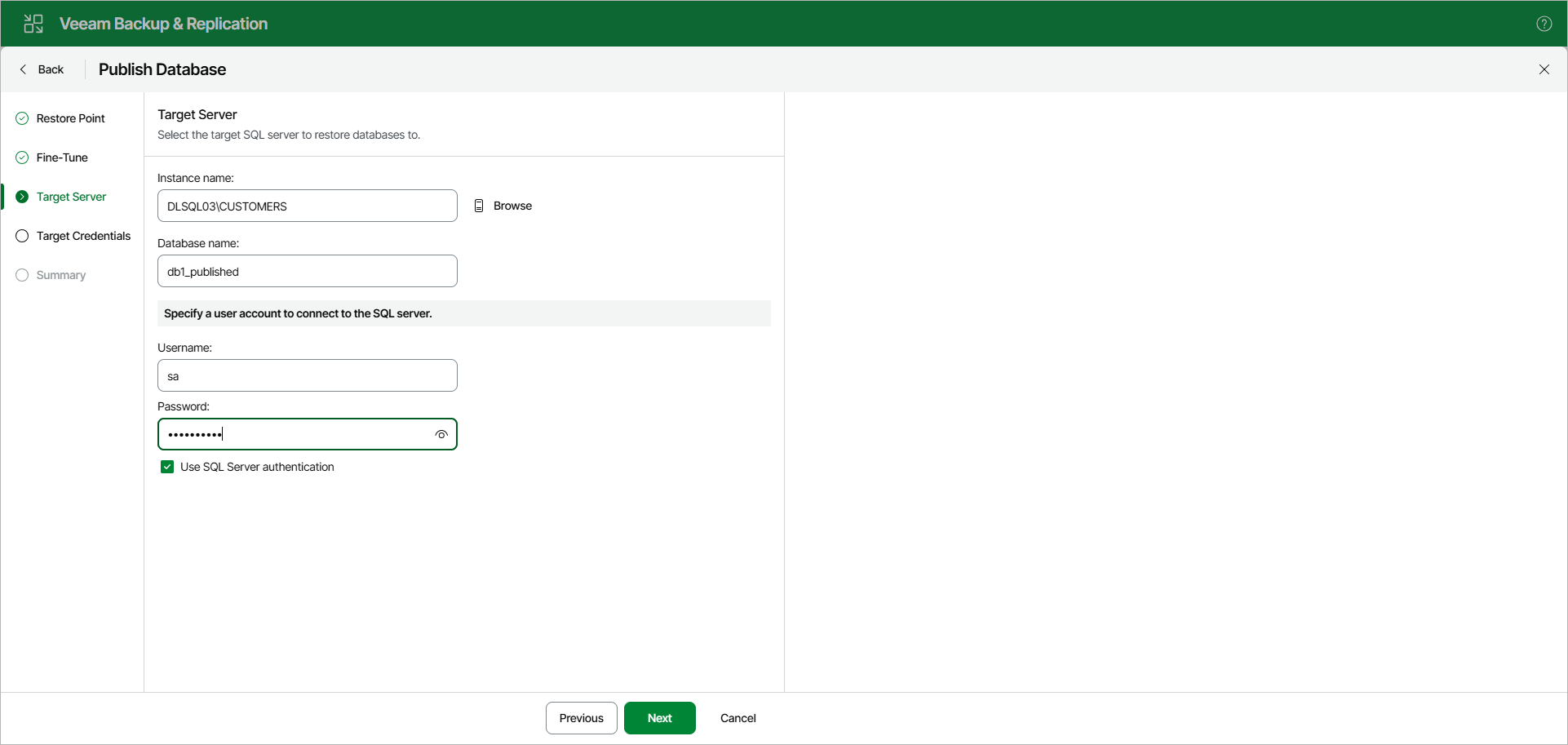
- In the Database name field, specify a new name under which you want to publish your database.
Consider that if you leave the original database name, Veeam Explorer for Microsoft SQL Server will overwrite the associated database on the target server.
- In the Specify a user account to connect to the SQL server section, provide a user name and password to connect to the target instance. You can use Windows or SQL authentication.
- To use Windows authentication, specify the credentials of an account with the sysadmin role on the target Microsoft SQL Server machine. These credentials are used to connect to the guest OS and the SQL instance.
- To use SQL authentication, select the Use SQL Server authentication check box. Provide SQL credentials to connect to the target instance.
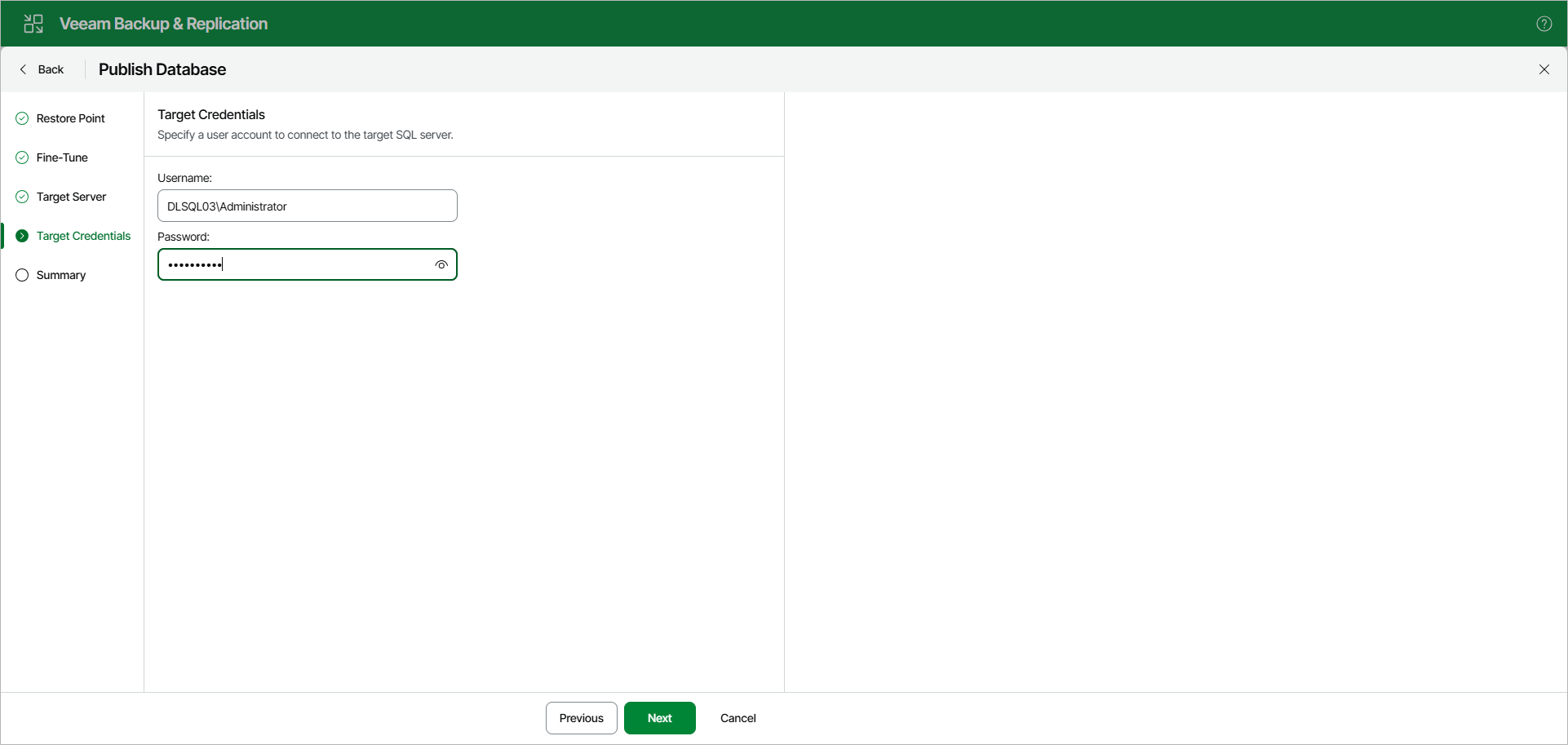
If you use SQL authentication, you will get the Target Credentials step.
Specify the credentials of an account that can access the guest OS on the target server.