Step 4. Specify Veeam Data Cloud Vault Settings
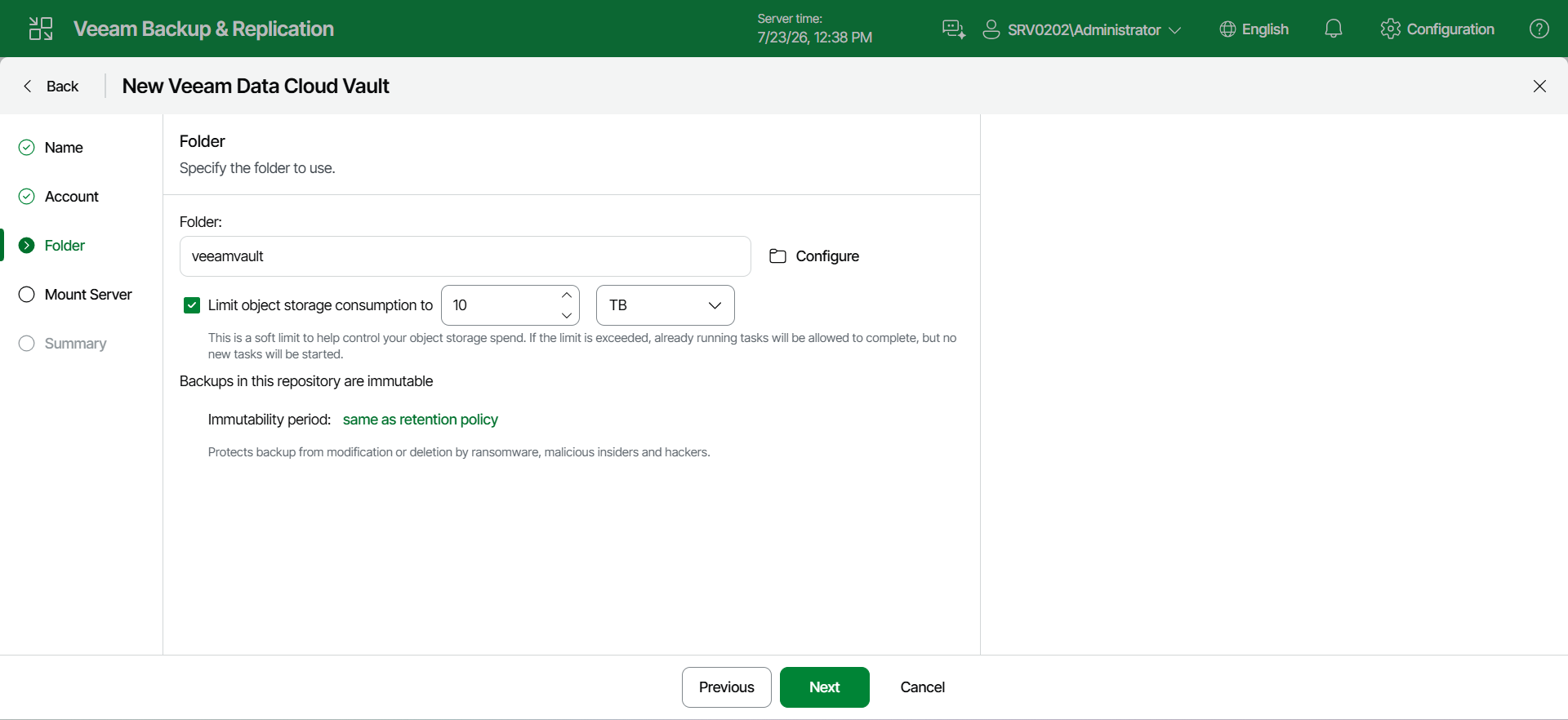
At the Folder step of the wizard, do the following:
Specifying General Folder Settings
To specify the folder that will be used to store data and the storage consumption, do the following:
- To the right of the Folder field, click Browse and either select an existing folder or click New Folder.
- Select the Limit object storage consumption to check box to define a soft limit for your object storage consumption. If this limit is exceeded during a job run, Veeam Backup & Replication will complete the job. However, a new job will not be able to start unless you remove the extra data that exceeds the limit or change the soft limit settings. Provide the value in TB or PB.
-
If another backup server already manages this object storage repository, Veeam Backup & Replication will prompt you to do either of the following:
- Add as read-only — use this option if you want the first backup server to keep ownership of this object storage repository. You will be able to perform restores and verify the recoverability of backups after you add the repository to the second backup server.
- Take ownership — use this option if you want this backup server to become the owner of this object storage repository instead of the backup server currently managing it in read-write mode.
For more information, see the Read-only mode subsection.
Important
Consider the following:
- This pop-up window appears only after you click Next.
- These options are available only for immutable object storage repositories, added as a standalone repository or as the performance or capacity extent of a scale-out backup repository.
- You cannot change this option after you add the object storage repository to the backup infrastructure.
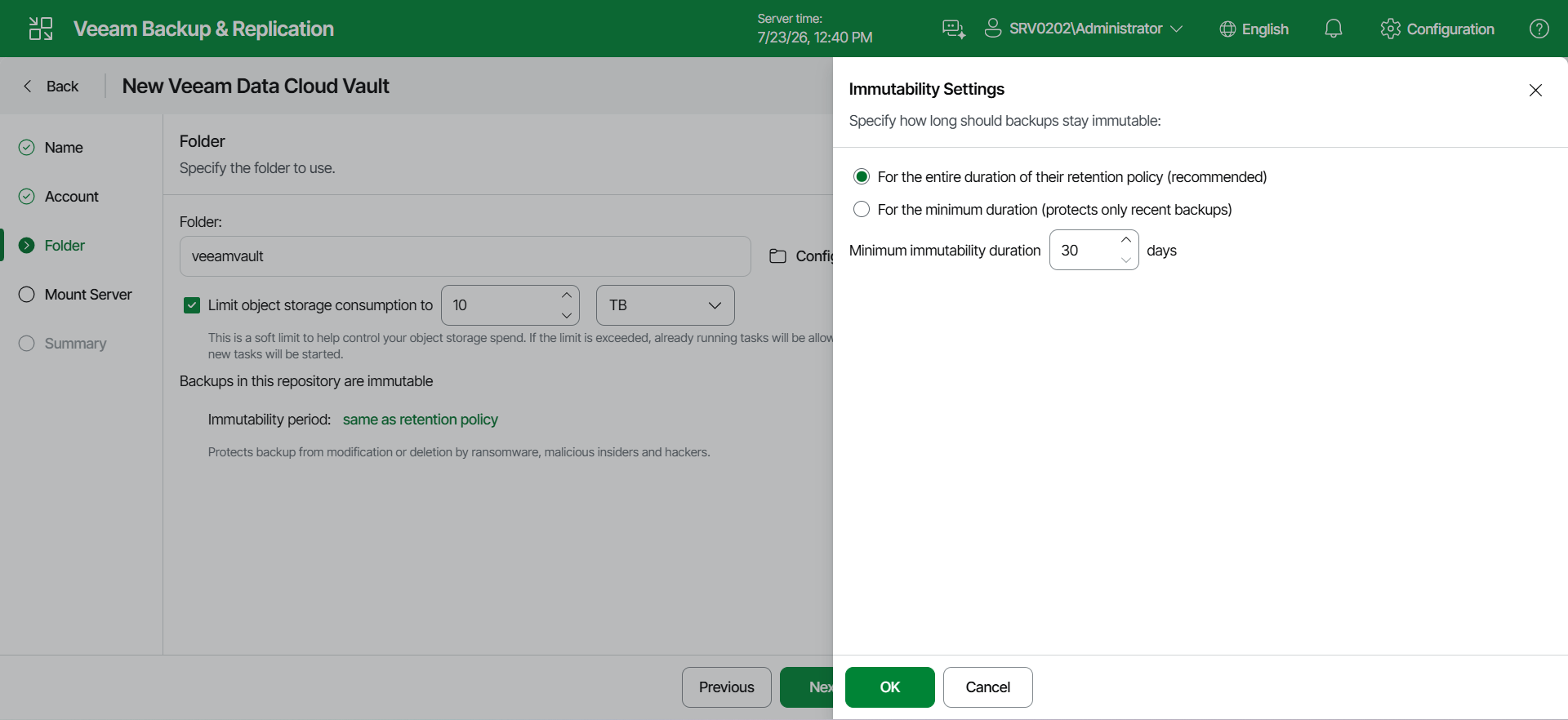
Specifying Immutability Settings
Immutability prohibits deletion of blocks of data from your object storage repository.
To enable immutability:
- Select the Make backups immutable (recommended) check box.
- In the Immutability Settings window, specify how the immutability period is counted and set the immutability period in days:
- Select the For the entire duration of their retention policy option if you want the immutability period to depend on the retention policy of a backup job.
|
Important |
|
Consider the following:
For more information, see How Immutability Works. |
- Select the For the minimum immutability period only option if you want to specify the immutability period explicitly. The backup job retention will be skipped.
- Next to the Minimum immutability duration option, provide the necessary value.