Restoring Latest State
You can restore a Microsoft SQL Server database as of the latest state of the restore point.
The data will be restored in the following manner:
- Database files will be mounted to the original Microsoft SQL Server machine and copied to the original location.
- If a database with the same name already exists on a target Microsoft SQL Server machine, you will be prompted to overwrite the database with that from the backup file.
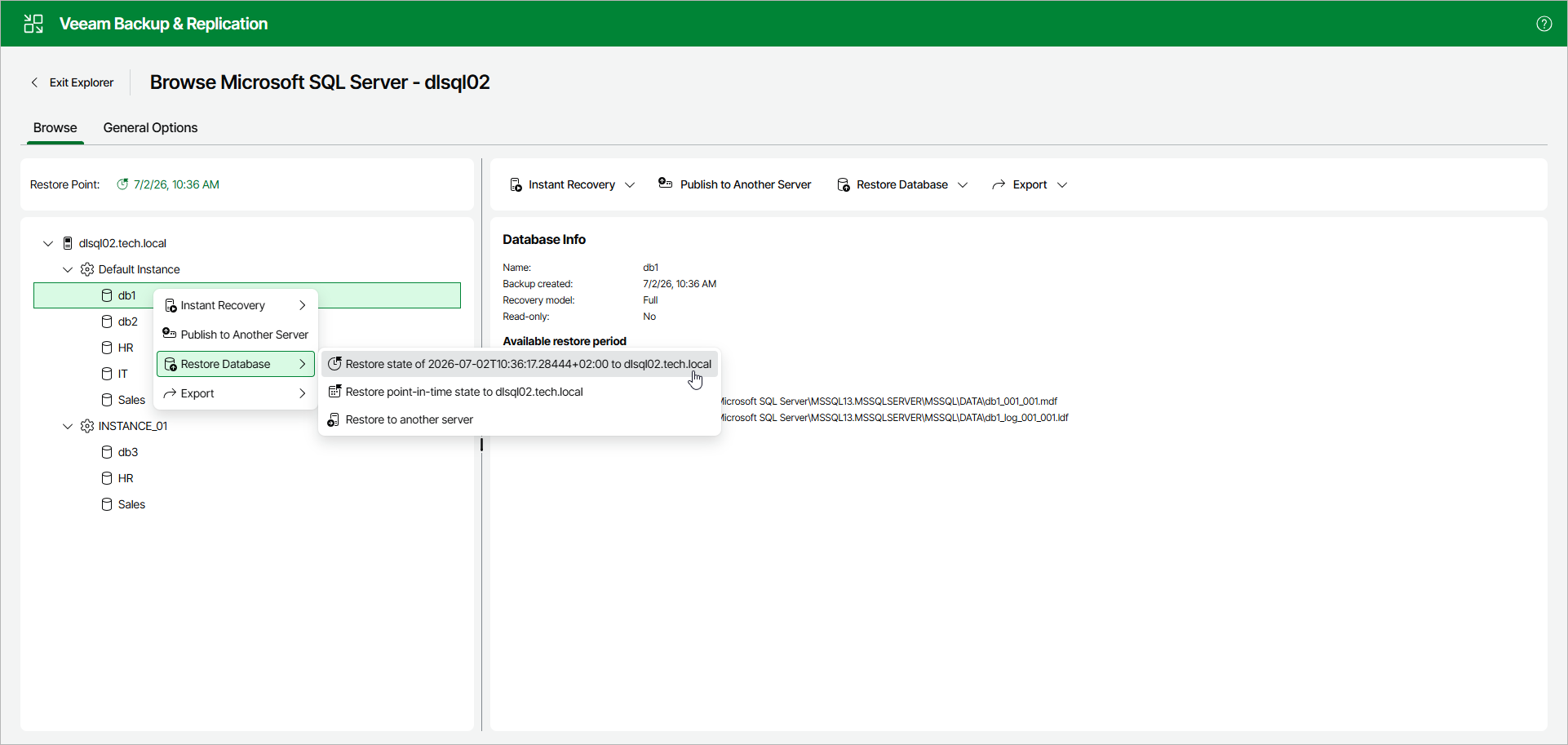
To restore the latest available state of a Microsoft SQL Server database, open the Browse tab and do the following:
- In the navigation pane, select a database.
You can select the root instance node to restore all the available databases at once.
- In the upper part of the preview pane, select Restore Database > Restore latest state to <original_location>.
Alternatively, you can open the Browse tab, right-click a database and select Restore database > Restore latest state to <original_location>.
Note |
|
The name of the restore option depends on the selected restore point.
|