Step 5. Configure Backup Target Settings
By default, backup policies create only cloud-native snapshots of processed instances. At the Targets step of the wizard, you can instruct Veeam Plug-In for Google Cloud to create image-level backups of the selected Cloud Spanner instances:
- Set the Enable backups toggle to On.
- Click Choose repository.
- In the Choose repository window, select a backup repository where the created image-level backups will be stored.
For a backup repository to be displayed in the Repository list, it must be added to Veeam Plug-In for Google Cloud as described in section Adding Backup Repositories. The Repository list shows only backup repositories of the Standard and Nearline storage classes.
- To save changes made to the backup policy settings, click Apply.
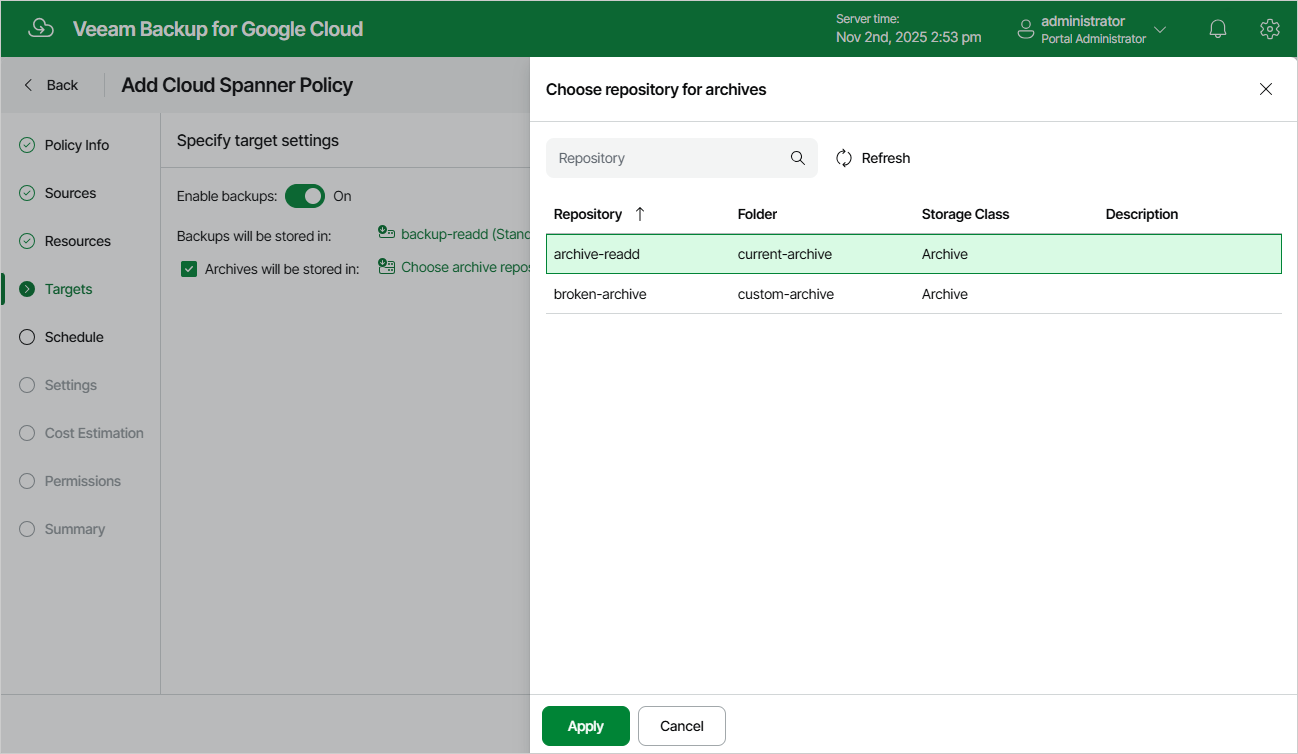
You can also enable the backup archiving mechanism to instruct Veeam Plug-In for Google Cloud to store backed-up data in a low-cost, long-term archive storage:
- Select the Archives will be stored in check box.
- Click Choose repository.
- In the Choose repository window, select a backup repository where the archived data will be stored.
For a backup repository to be displayed in the Repository list, it must be added to Veeam Plug-In for Google Cloud as described in section Adding Backup Repositories. The Repository list shows only backup repositories of the Archive storage class.
- To save changes made to the backup policy settings, click Apply.
For more information on the backup archiving mechanism, see Enabling Backup Archiving.