Step 9. Configure Re-IP Rules
At the Re-IP step of the wizard, configure re-IP rules for the restored domain controllers. Re-IP rules reassign IP addresses to restored domain controllers to meet the target site IP addressing scheme.
Important |
|
Consider the following:
|
The table lists the configured rules with the source IP address, target IP address and description. The following sections describe how to add and manage IPv4 and IPv6 re-IP rules.
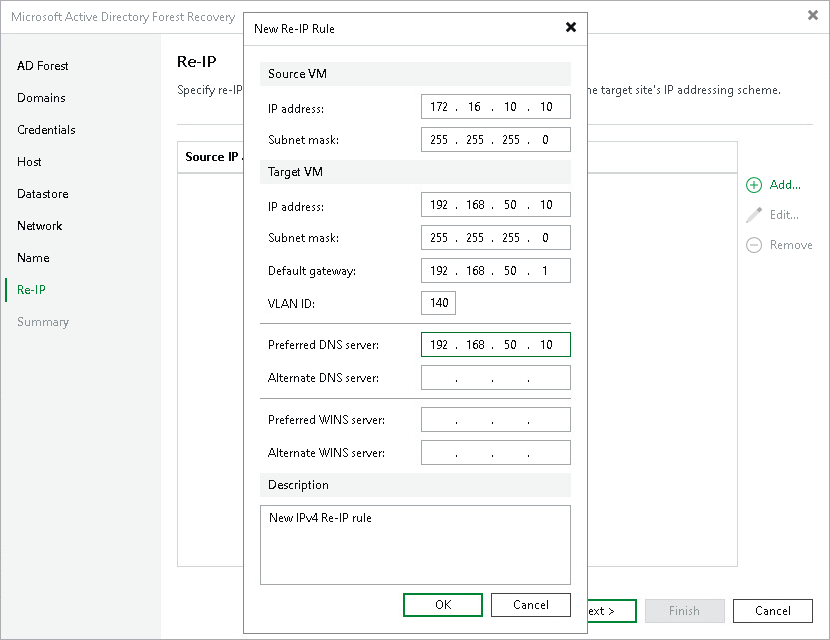
Adding IPv4 Re-IP Rule
To add an IPv4 re-IP rule, do the following:
- Click Add and select IPv4 Rule. This will open the Edit Re-IP Rule for IPv4 window.
- In the Source VM section, specify the IPv4 address and the subnet mask of the domain controller in the source environment.
- In the Target VM section, specify the IPv4 address, subnet mask and default gateway for the domain controller in the target environment.
- [Optional] Specify the preferred and alternate DNS and WINS server addresses.
- In the Description field, enter a description for the re-IP rule.
- Click OK.

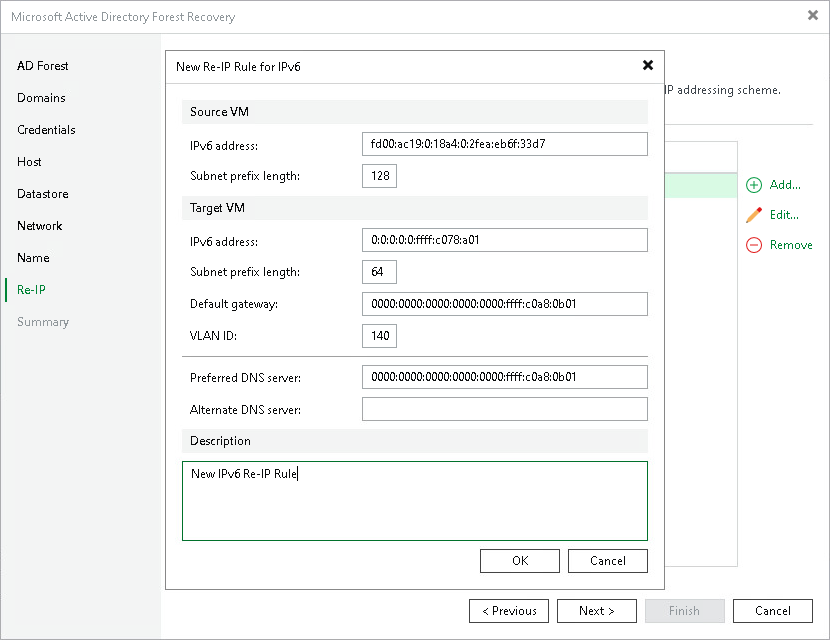
Adding IPv6 Re-IP Rule
To add an IPv6 re-IP rule, do the following:
- Click Add and select IPv6 Rule. This will open the Edit Re-IP Rule for IPv6 window.
- In the Source VM section, specify the IPv6 address and the subnet prefix length of the domain controller in the source environment.
- In the Target VM section, specify the IPv6 address, subnet prefix length and default gateway for the domain controller in the target environment.
- [Optional] Specify the preferred and alternate DNS server addresses.
- In the Description field, enter a description for the re-IP rule.
- Click OK.

Managing Re-IP Rules
Once you create re-IP rules, you can edit or remove them.
- To edit an existing rule, select it and click Edit — the Re-IP Rule window opens.
- To remove one or more rules, select them and click Remove. To select multiple rules at once, press and hold [Ctrl] or [Shift].