Step 3. Specify Project
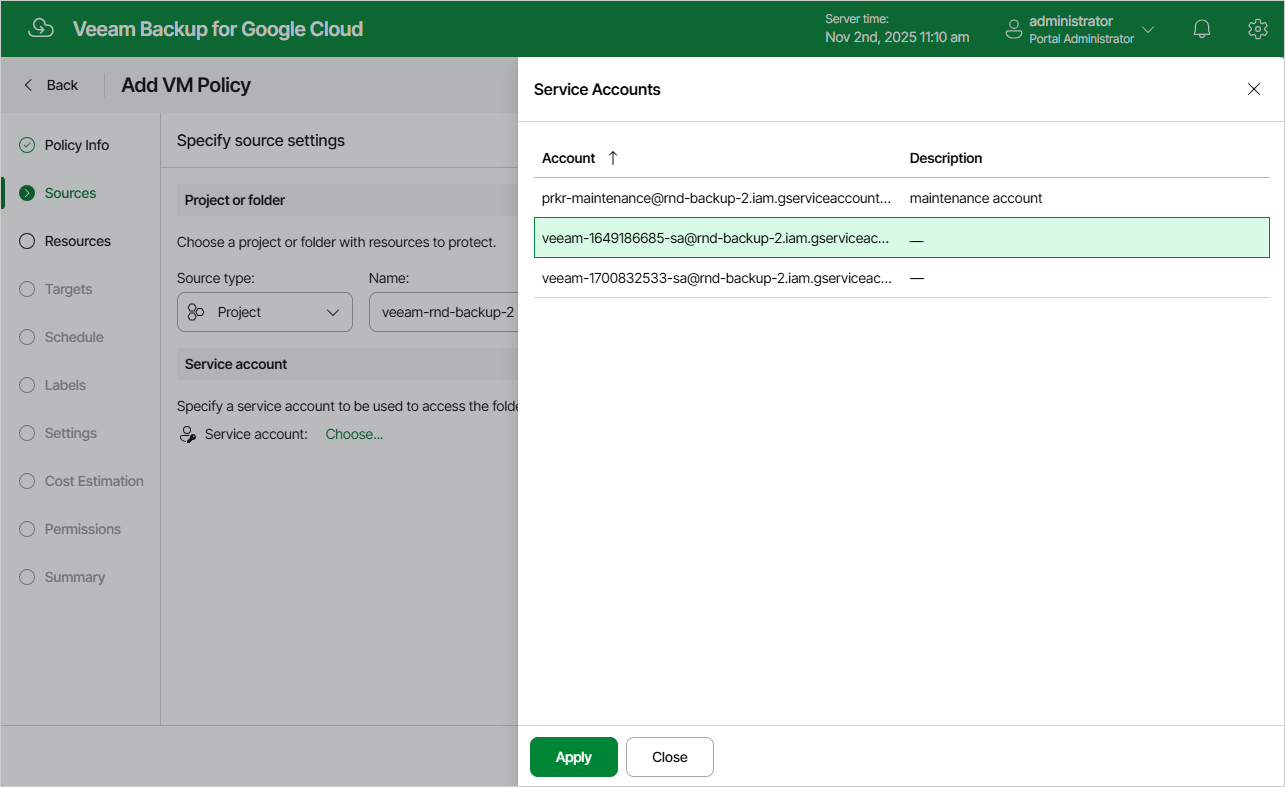
At the Sources step of the wizard, choose a project or a folder with a project that manages resources that you want to protect, and specify a service account that will be used to access the project or folder.
For a project or folder to be displayed in the list of available entities, it must be added to Veeam Plug-In for Google Cloud as described in section Adding Projects and Folders. If you have not added the necessary entity to Veeam Plug-In for Google Cloud beforehand, you can do it without closing the Add VM Policy wizard. To do that, click Add and complete the Add Projects and Folders wizard.
For a service account to be displayed in the list of available accounts, it must be added to Veeam Plug-In for Google Cloud as described in section Adding Service Accounts, and must be assigned the VM Instances Snapshot and Backup operational roles as described in section Adding Projects and Folders.