Step 8. Specify Disk Names
[This step applies only if you have selected the Restore to new location, or with different settings option at the Restore Mode step of the wizard]
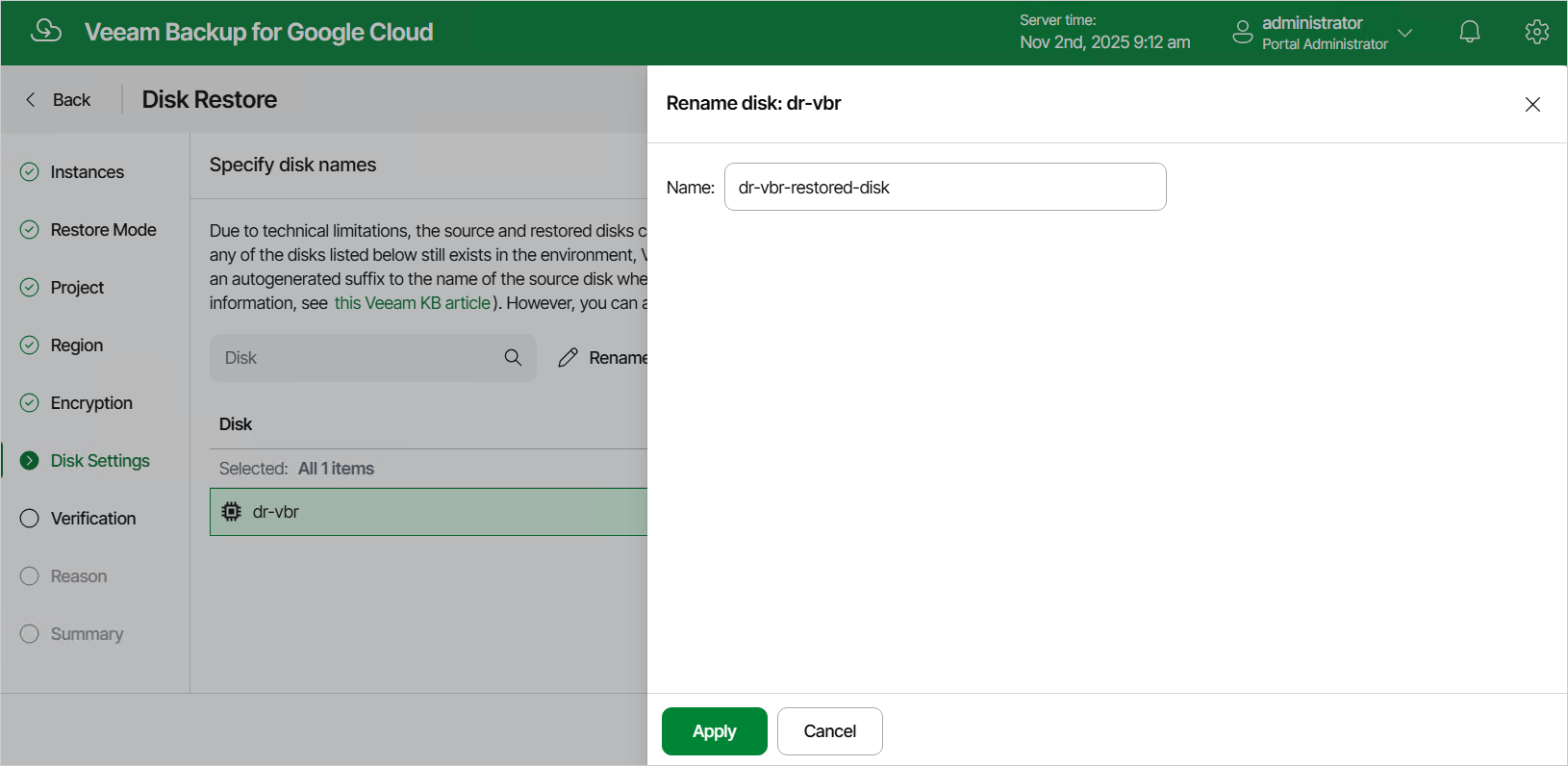
At the Disk Settings step of the wizard, you can specify a new name for each restored disk:
- Select the necessary disk and click Rename.
- In the Rename disk window, specify a name for the disk and click Apply.
|
Tip |
|
If Veeam Plug-In for Google Cloud is unable to restore the disk using the specified name for some reason, the wizard will display a warning icon in the Disk column. To learn what this reason is, hover your mouse over the icon. |