Backup Health Settings
You can specify backup health settings for a backup chain created with the Veeam Agent backup job managed by the backup server. These operations help make sure that the backup chain remains valid and consistent.
To specify backup health settings for the backup job:
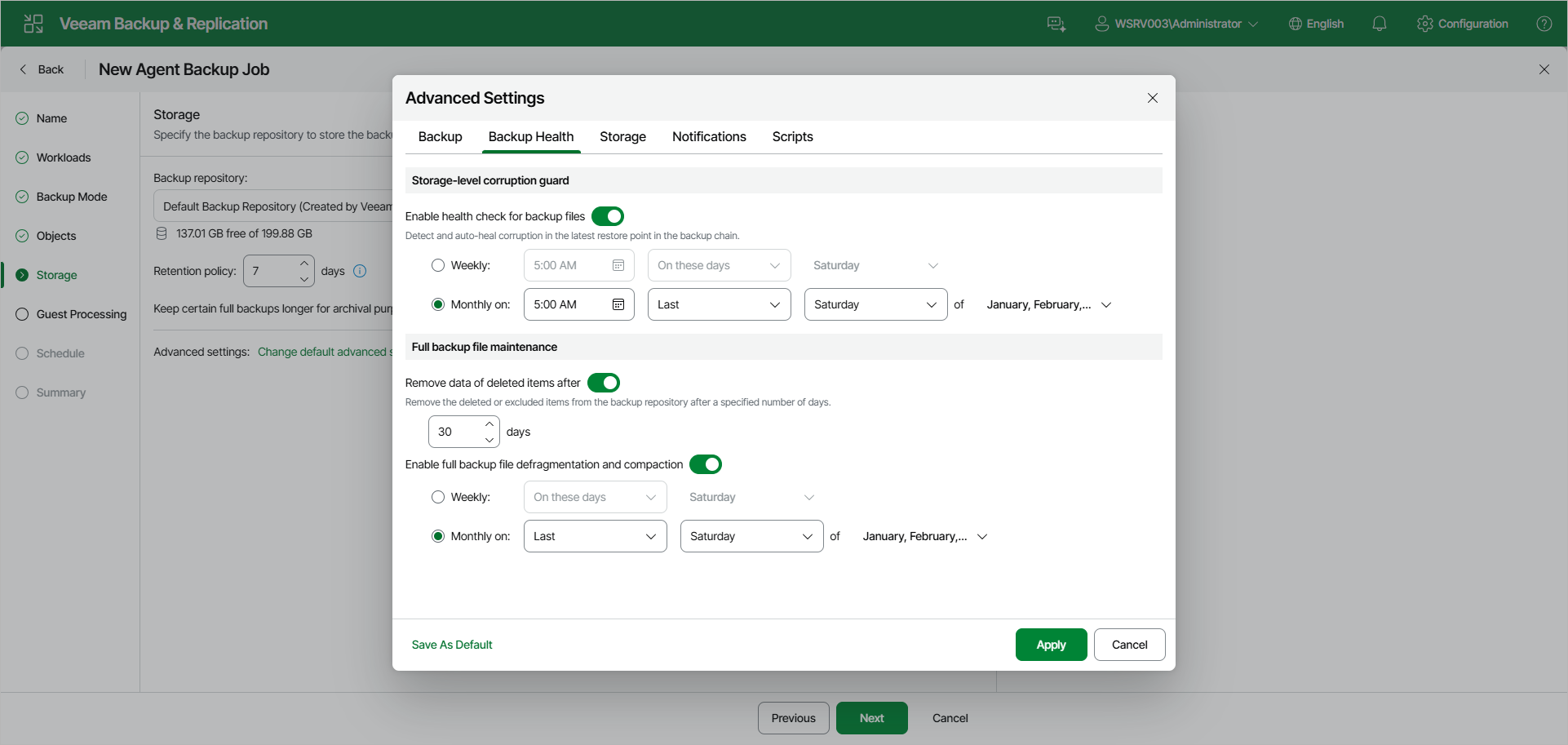
- At the Storage step of the wizard, click Change default advanced settings and open the Backup Health tab.
- To periodically perform a health check for the latest restore point in the backup chain, under Storage-level corruption guard, turn on the Enable health check for backup files toggle. Then select Weekly or Monthly on and specify the scheduling settings in the drop-down lists.
An automatic health check can help you avoid a situation where a restore point gets corrupted, making all dependent restore points corrupted, too. If during the health check Veeam Backup & Replication detects corrupted data blocks in the latest restore point in the backup chain (or the restore point before the latest one if the latest restore point is incomplete), it will start the health check retry and transport valid data blocks from the protected computer to the Veeam backup repository. The transported data blocks are stored to a new backup file or the latest backup file in the backup chain, depending on the data corruption scenario. For more information, see Health Check for Backup Files.
|
NOTE |
|
For object storage, Veeam Agent offers a special health check mechanism as default. To run the health check for object storage, turn on the Enable health check for backup files toggle in the Storage-level corruption guard section and specify the health check schedule. You can also switch from the health check for object storage to the standard health check. To do so, select the Verify content of each object in backup check box in the backup job settings. Keep in mind that enabling this setting may result in additional charges from your object storage provider. For more information, see the Health Check for Object Storage section in the Veeam Agent for Linux User Guide. |
- Under Full backup file maintenance, turn on the Remove data of deleted items after toggle and specify the number of days for which you want to keep the data of items removed from the backup job in the target location.
For Veeam Agent backup jobs managed by the backup server, deleted items retention policy is similar to retention policy for deleted VMs. After you remove a protection group or individual computer from a Veeam Agent backup job, Veeam Backup & Replication will keep its data on the backup repository for the period that you have specified. When this period is over, backup data of this computer will be removed from the backup repository. For more information, see Retention Policy for Deleted Items.
By default, the deleted items data retention period is 30 days. Do not set the deleted items retention period to 1 day or a similar short interval. In the opposite case, the backup job may work not as expected and remove data that you still require.
- To periodically defragment and compact a full backup, turn on the Enable full backup file defragmentation and compaction toggle. Then select Weekly or Monthly on and specify the scheduling settings in the drop-down lists. During the compact operation, data blocks from the full backup file are copied to a new empty file. As a result, the full backup file gets defragmented, and the speed of reading from and writing to the backup file increases.
|
NOTE |
|
The Enable full backup file defragmentation and compaction option is not available for backup jobs targeted at object storage. |
If the full backup file contains data blocks for deleted items (protection groups or individual computers), Veeam Backup & Replication removes these data blocks. For more information, see Compact of Full Backup File.
|
|
|
Consider the following:
|