Editing Appliance Settings
For each backup appliance managed by the backup server, you can modify the settings configured while adding the appliance to the backup infrastructure:
- In the Veeam Backup & Replication console, open the Backup Infrastructure view.
- Navigate to Managed Servers.
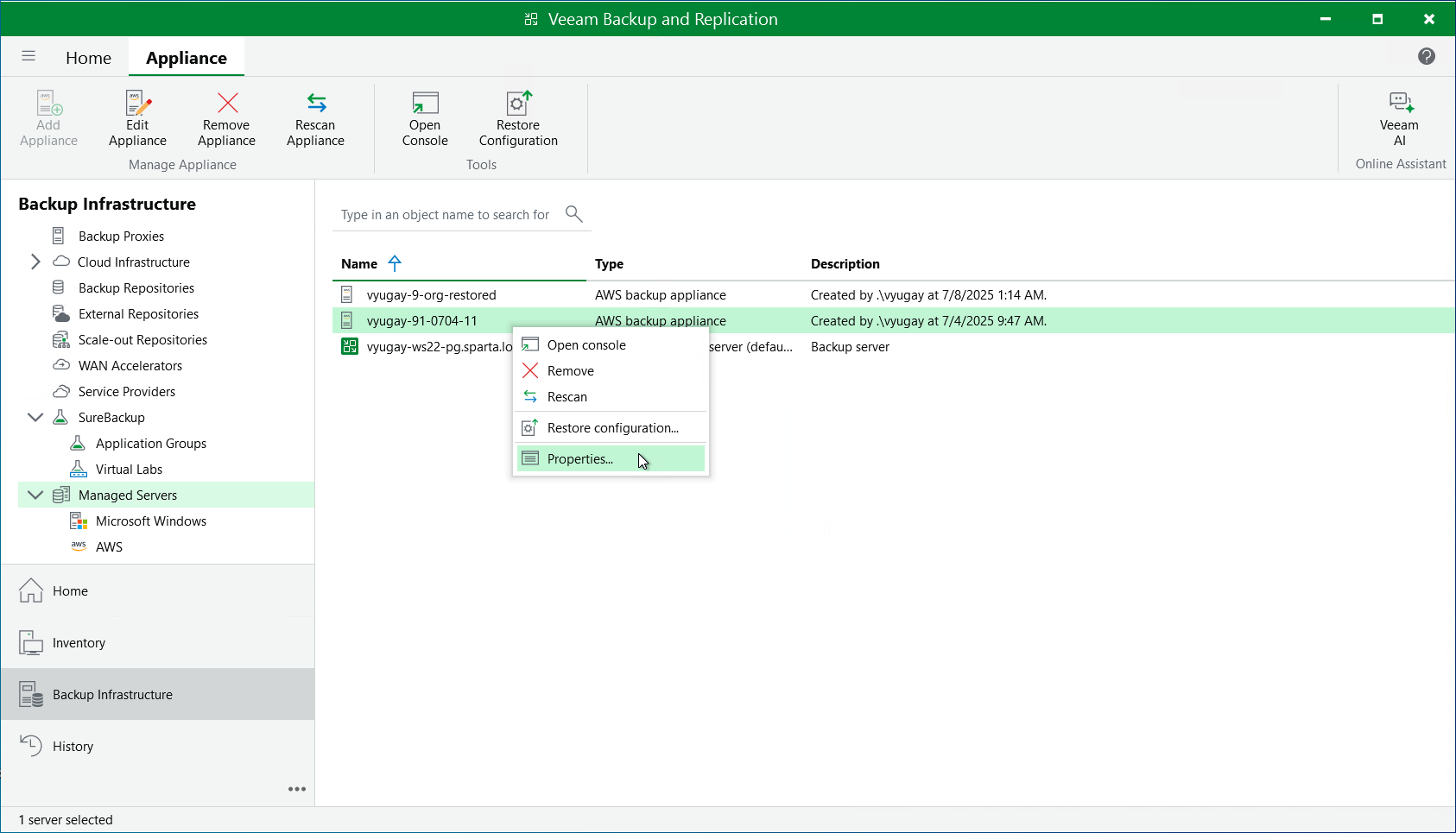
- Select the necessary backup appliance and click Edit Appliance on the ribbon.
Alternatively, you can right-click the appliance and select Properties.
- Complete the Edit Veeam Backup for Veeam Plug-in for AWS Appliance wizard:
- To change the access keys of an IAM user that are used to connect to the backup appliance, follow the instructions provided in section Connecting to Existing Appliances (step 1).
- To provide a new description for the backup appliance, follow the instructions provided in section Connecting to Existing Appliances (step 4).
- To change the way Veeam Backup & Replication connects to the backup appliance, follow the instructions provided in section Connecting to Existing Appliances (step 5).
|
Important |
|
You cannot change the way Veeam Backup & Replication connects to a backup appliance deployed in a private environment. |
- To change the user whose credentials Veeam Backup & Replication uses to connect to the backup appliance, follow the instructions provided in section Connecting to Existing Appliances (step 6).
- To accept the newly created self-signed certificate, follow the instructions provided in section Connecting to Existing Appliances (step 6).
- To edit settings of the backup appliance repositories added to the backup infrastructure, follow the instructions provided in section Connecting to Existing Appliances (step 7).
- At the Apply step of the wizard, wait for the changes to be applied and click Next.
- At the Summary step of the wizard, review summary information and click Finish to confirm the changes.