Step 6. Specify Mount Server Settings
[This step applies only if you plan to perform Instant Recovery, guest OS file restore or application item restore operations]
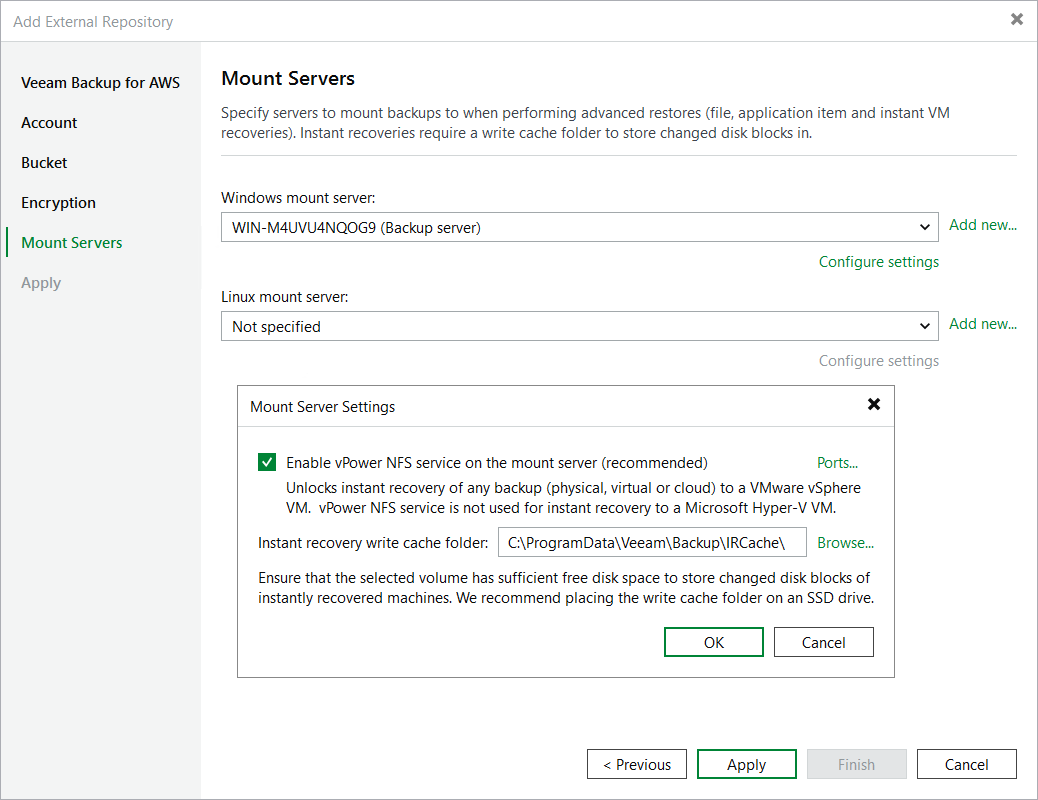
At the Mount Servers step of the wizard, you can specify servers that will be used to mount volumes of protected EC2 instances and to copy backed-up data to restore locations. By default, these servers are selected automatically depending on the operating system of the server where Veeam Backup & Replication is deployed and on the list of servers added to your backup infrastructure; however, you can also specify the servers manually. To do the latter, use the Windows mount server and Linux mount server drop-down list — a Windows mount server is required to restore data of Windows EC2 instances, while a Linux mount server is required to restore data from Linux EC2 instances.
For a server to be displayed in the list of available mount servers, it must be added to the backup infrastructure as described in section Adding Microsoft Windows Servers or Adding Linux Servers. If you have not added the server to Veeam Backup & Replication beforehand, you can do it without closing the Add External Repository wizard. To do that, click Add new and complete the New Server wizard.
|
Important |
|
When specifying mount servers manually, keep in mind that these servers must meet the system requirements listed in section Planning and Preparation. |
If you plan to perform guest OS file restore or application item restore operations, no additional configuration is required. However, if you plan to perform Instant Recovery or verify backups with SureBackup in VMware vSphere environments, you must configure the following settings for each of the specified mount servers:
- For SureBackup, you must enable the vPower NFS service.
- For Instant Recovery, you must enable the vPower NFS service and specify a cache folder.
The Veeam vPower NFS Service is a Microsoft Windows or Linux service that allows a machine to act as an NFS server — Veeam Backup & Replication installs the service, creates a specific directory (that is, a vPower NFS datastore) on the machine, and mounts this directory to the target ESXi host. As a result, the host becomes able to access backed-up VM images. For more information, see Veeam Backup & Replication Services.
To instruct Veeam Backup & Replication to install the Veeam vPower NFS Service on a mount server, do the following:
- Click Configure settings.
- In the Mount Server Settings window, select the Enable vPower NFS service on the mount server check box.
By default, the service uses ports 1058 and 2049 to establish a connection between the vPower NFS datastore and the target ESXi host. However, you can also customize the ports manually — to do that, click Ports.
|
Important |
|
It is recommended that you do not run Microsoft Windows NFS services on the same machine where the Veeam vPower NFS Service is installed. Otherwise, both services may fail to work properly. |
When Veeam Backup & Replication performs Instant Recovery, it creates a number of cache files containing changes that take place while recovered EC2 instances are running. These files are stored in a specific cache folder on each mount server. By default, Veeam Backup & Replication uses the /var/lib/veeamdata/veeam/IRCache/ folder; however, you can specify a folder manually:
- Click Configure settings.
- In the Mount Server Settings window, click Browse. Then, navigate to the necessary folder.
Depending on the amount of processed data, cache may grow large and increase the space consumption significantly. That is why it is recommended that you make sure that the disk where the folder is located has enough free space.
Related Topics