Viewing Backup Properties
You can view summary information for the entire backup related to a Veeam Agent backup job or backup of specific objects.
|
NOTE |
|
You can view backup properties only in the Veeam Backup & Replication console. This operation is not available in the Veeam Backup & Replication web UI. |
Viewing Information for Entire Backup
To view summary information for the entire backup:
- Open the Home view.
- In the inventory pane, select Backups.
- In the working area, select the backup and click Properties on the ribbon or right-click the backup and select Properties.
- To see the list of available restore points, select the required object from the Objects list.
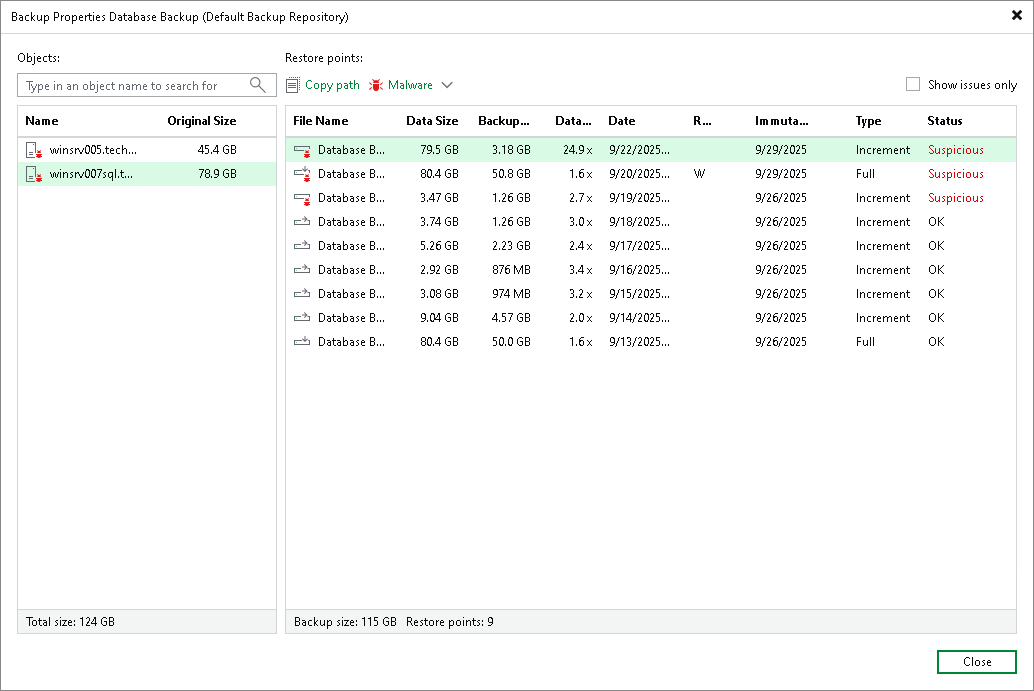
In this case, the summary information provides the following data:
- Names of protected objects.
- Size of data on protected objects.
- Malware status of restore points.
- Names and types of backup files.
- Size of backed-up data.
- Backup size.
- Data reduction ratio.
- Dates of restore points creation.
- GFS retention policy applied (W — weekly; M — monthly; Y — yearly).
- Immutability expiration date.
- Types of restore points.
- Dates of backup files creation.
|
NOTE |
|
[For Linux-based and Unix-based Veeam Agent computers] If the protected computer has LVM volume groups or BTRFS pools on top of physical partitions, during a full backup, Veeam Agent creates a separate disk in the backup file for each physical volume and each LVM volume group or BTRFS pool. As a result, the size of backed-up data (Data Size) may appear larger than the actual volume of the physical partitions. |
Viewing Information for Specific Object
To view summary information for a backup of a specific object:
- Open the Home view.
- In the inventory pane, select Backups.
- In the working area, expand the backup, select the necessary object and click Properties on the ribbon or right-click the object and select Properties.
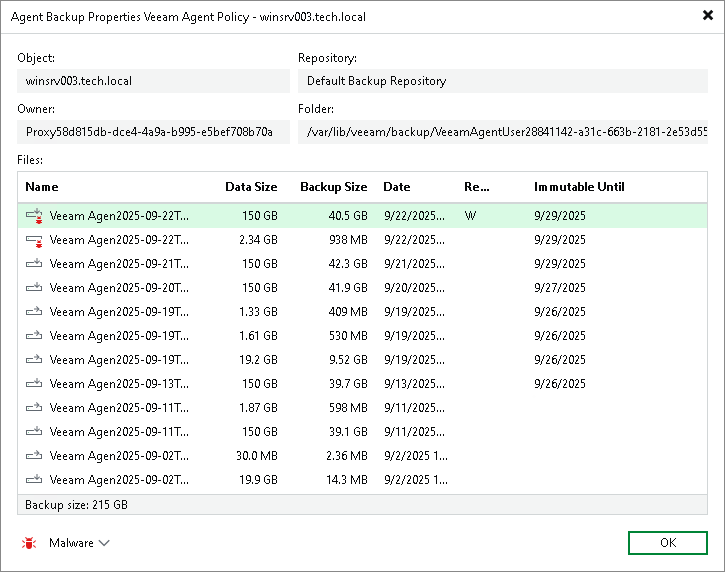
In this case, the summary information provides the following data:
- Name of the protected object.
- ID of the internal Veeam Backup & Replication user that has access to the backup files.
- Name of the repository where the backup is stored.
- Path to the folder where the backup is stored.
- Malware status of restore points.
- Names and types of backup files.
- Size of backed-up data.
- Backup size.
- Dates of backup files creation.
- GFS retention policy applied (W — weekly; M — monthly; Y — yearly).
- Immutability expiration date.