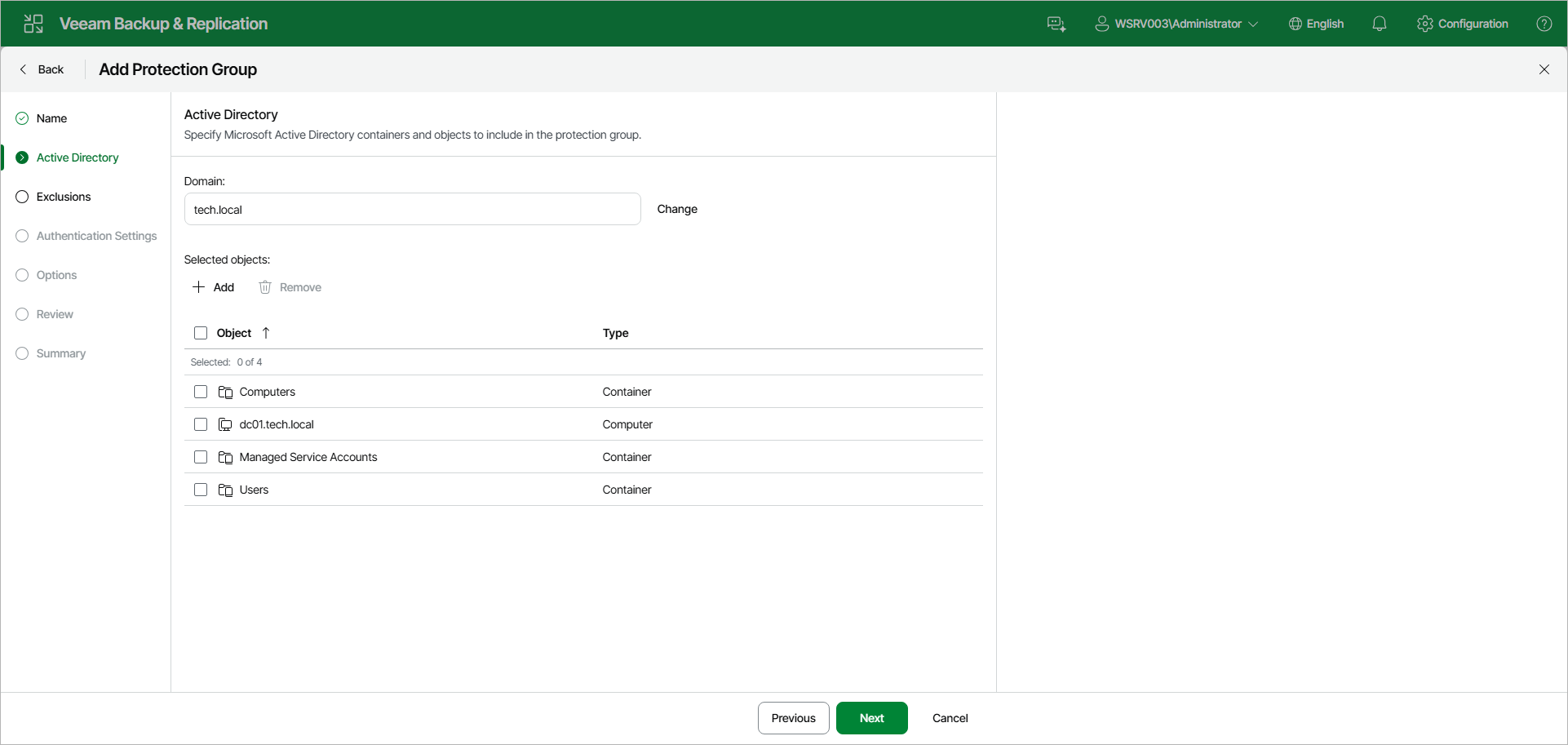
Step 3. Specify Active Directory Objects
At the Active Directory step of the wizard, select Active Directory objects that you want to add to the protection group. You can add to a protection group the following types of Active Directory objects: domain, organizational unit, container, computer, failover cluster, or group.
To add Active Directory objects to a protection group:
- In the Domain field, click Change.
- In the Specify Domain window, specify settings of the domain whose objects you want to include in the protection group:
- In the Domain controller or domain DNS name field, type a name of the domain controller or domain whose objects you want to include in the protection group.
- In the Port field, specify a port number over which Veeam Backup & Replication must communicate with the domain controller. By default, Veeam Backup & Replication uses port 389.
If you want to use port 636, make sure that the domain Root CA certificate is properly published in the domain. Otherwise, Veeam Backup & Replication will not be able to establish a secure connection to the protection group.
- From the Account list, select a user account that has read access permissions to all hosts with the required AD objects. If you have not set up credentials beforehand, click the Manage Accounts link or click Add on the right to add credentials.
- Click OK to close the Specify Domain window.
- Under Selected objects, click Add.
- In the Active Directory Objects window, select the necessary Active Directory object in the tree, or press and hold [Ctrl] to select multiple objects at once, and click OK.
To quickly find the necessary object, you can use the search field at the top of the Active Directory Objects window.
- Click the drop-down list to the left of the search field and select the necessary type of object to search for: Everything, Computer, Cluster, Organization unit, Container, or Group.
- Enter the object name or a part of it in the search field and press [Enter].
You can also modify the list of selected objects in the following way:
- To remove an object from the list, select the object and click Remove.