Exporting Logs Using Web UI
To collect all log files in the same location, do the following in the Veeam Backup & Replication web UI:
- Click the Configuration button in the top bar.
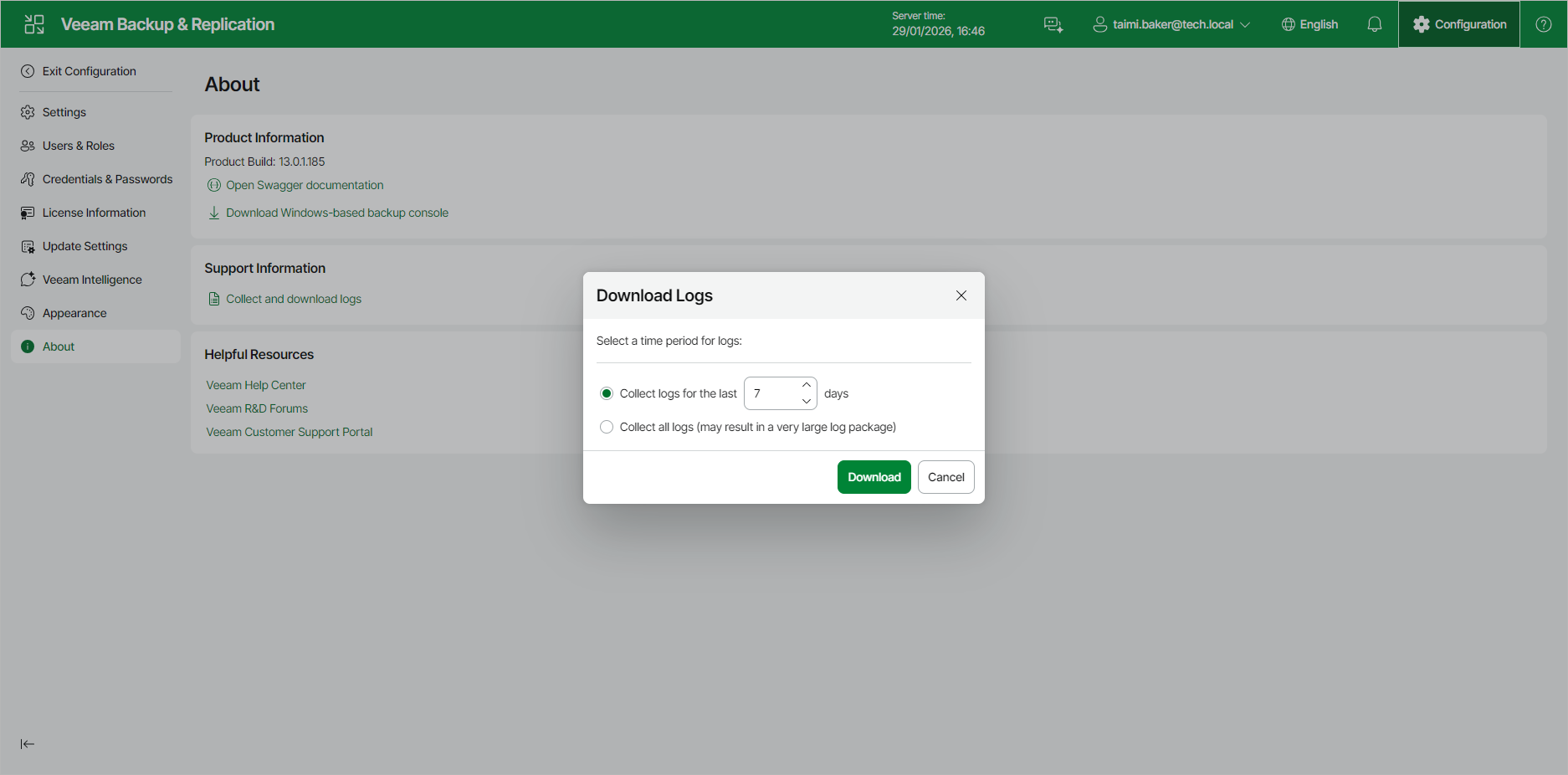
- In the management pane, click About > Collect and download logs.
- In the Download Logs window, specify the time period for which logs must be collected. You can select one of the following options:
- Collect logs for the last N days
- Collect all logs
- Click Download. Logs will be downloaded to the folder that is set in the browser.
- Wait for the download process to complete. Open the folder that contains the downloaded log files.
|
Note |
|
To collect logs about the Veeam Software Appliance, collect logs as described in section Exporting Logs Using Console. |