Performing File-Level Restore
With guest OS file recovery (file-level restore), you can restore individual guest OS files and folders from VM backups created with Veeam Plug-in for Scale Computing HyperCore. When restoring files and folders, you do not need to extract the VM image to a staging location or start the VM prior to restore. For more information on VM guest OS file restore, see Guest OS File Recovery.
To restore VM guest OS files and folders, do the following:
- Open the Home view.
- In the inventory pane, select Backups.
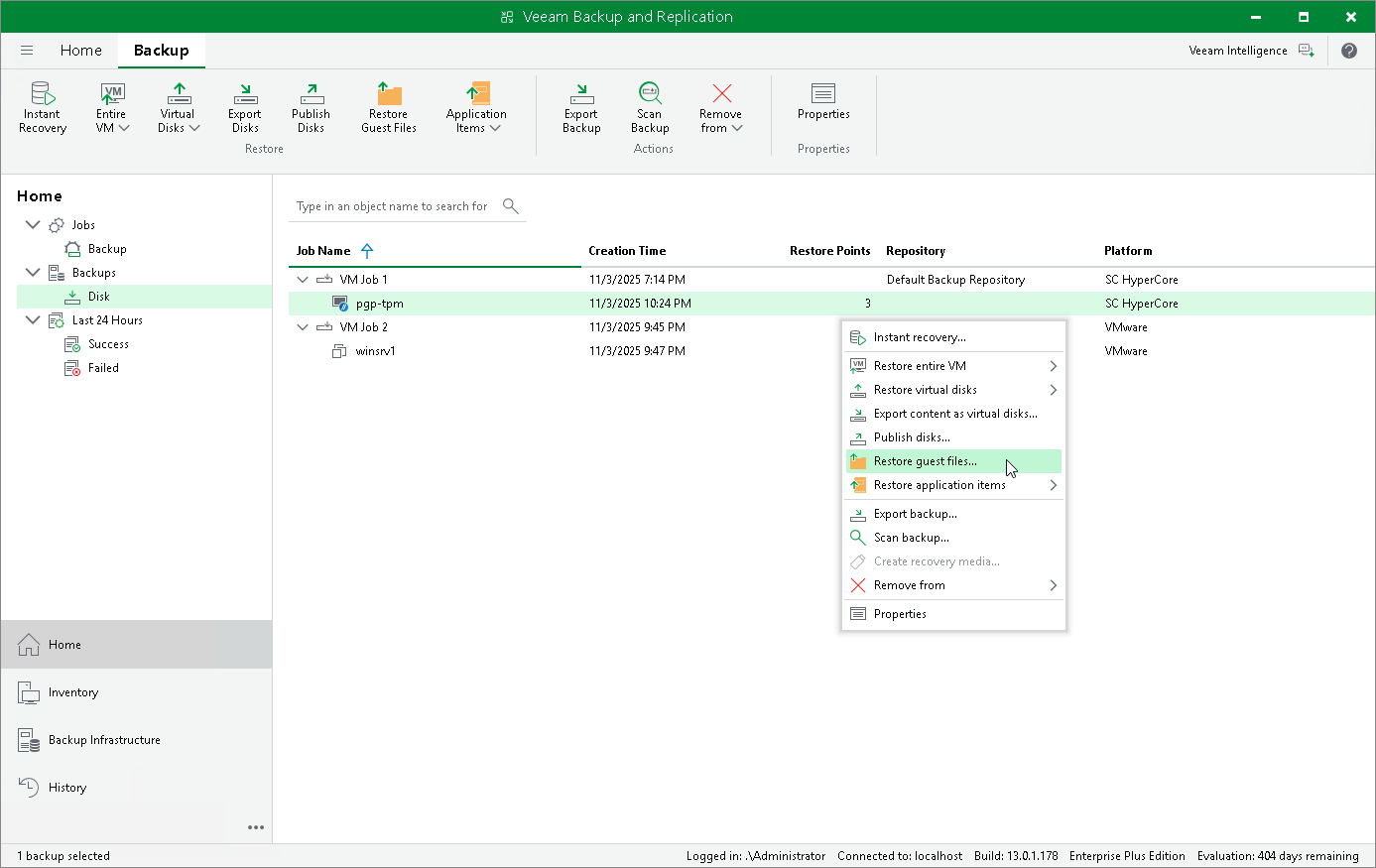
- In the working area, expand the necessary backup job, right-click the VM that contains files you want to restore and select Restore guest files.
Alternatively, you can select the VM and click Restore Guest Files on the ribbon.
- Complete the File Level Restore wizard as described in section Recovering Guest OS Files Using Console.
|
Note |
Depending on the operating system of a VM whose files and folders you want to restore, Veeam Backup & Replication may require a mount host — a server that will be used to mount VM disks. While completing the Guest File Restore wizard, you will be able either to choose a server already added to the backup infrastructure or to specify connection settings of a new server that will be used as the mount host. For more information on how Veeam Backup & Replication selects mount hosts, see Mount Host Automatic Selection. |