Step 2. Select Restore Point
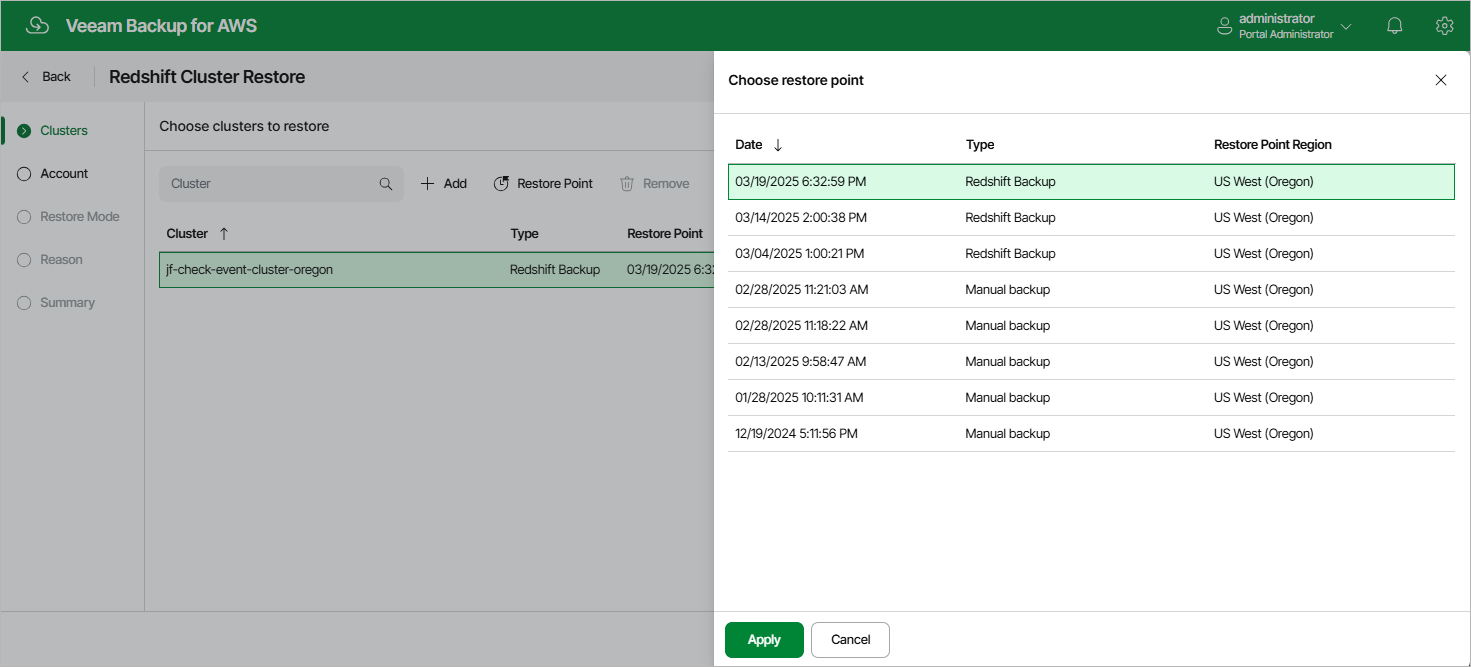
At the Clusters step of the wizard, you can add Redshift clusters to the restore session and select restore points to be used to perform the restore operation for each added cluster. By default, the backup appliance uses the most recent valid restore point. However, you can restore a cluster to an earlier state.
To select a restore point, do the following:
- Select the cluster and click Restore Point.
- In the Choose restore point window, select the necessary restore point and click Apply.
To help you choose a restore point, the backup appliance provides the following information on each available restore point:
- Date — the date when the restore point was created.
- Type — the type of the restore point:
- Redshift backup — a Redshift backup created by a backup policy.
- Manual backup — a Redshift backup created manually.
- Restore Point Region — the AWS Region where the restore point is stored.
|
Important |
|