Configuring Advanced Settings
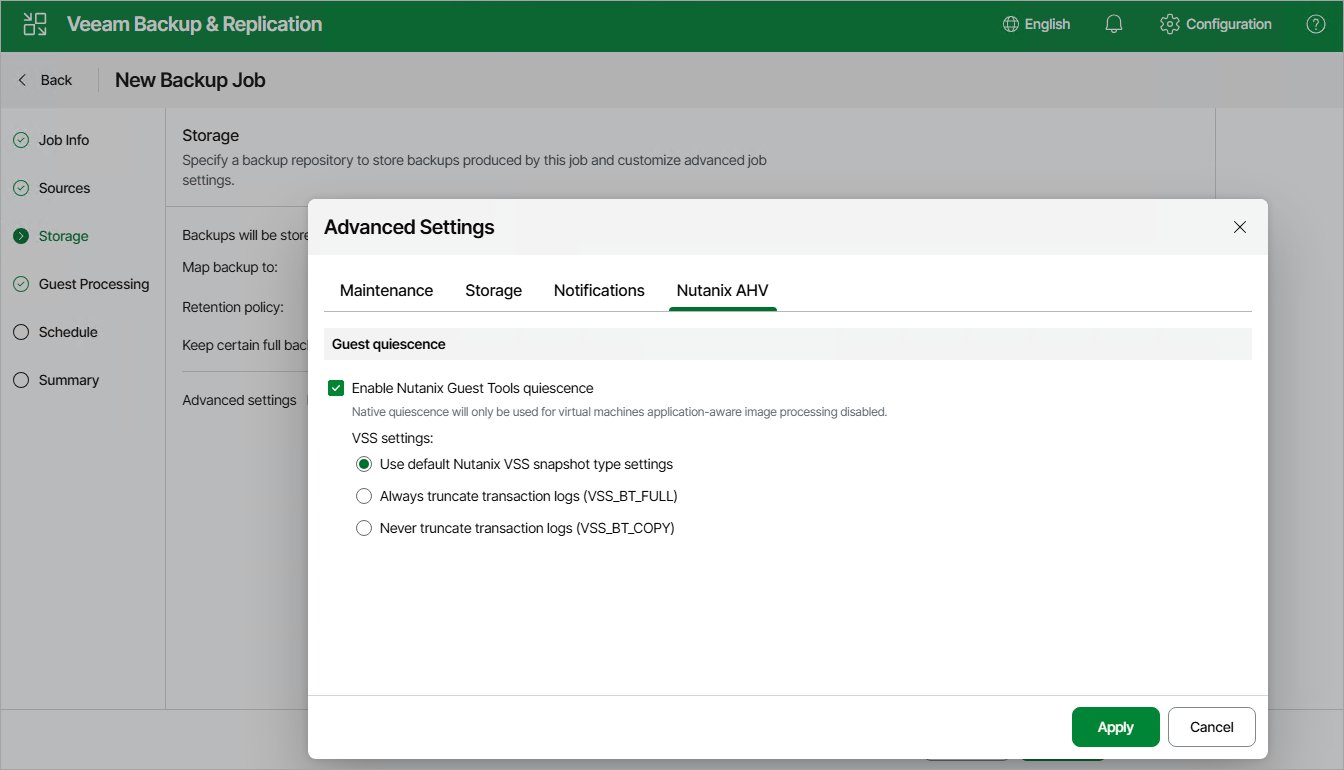
In the Advanced Settings window, you can configure backup job maintenance settings, enable Nutanix Guest Tools quiescence, specify backup file storage settings and customize email notifications.
Maintenance Settings
To specify how Veeam Backup & Replication will maintain backups created by the backup job, switch to the Maintenance tab and set the Delete backups of VMs that are no longer included in the backup job toggle to On, then specify the number of days for which Veeam Backup & Replication will keep these backups.
|
Important |
|
If you have selected an off-premise cloud object storage repository as the target location for backups at step 4, it is recommended that you configure a helper appliance in the repository settings. Otherwise, additional data transfer costs may occur. |
Storage Settings
To specify storage settings for backup files created by the backup job, switch to the Storage tab and do the following:
- To decrease the size of the files, select a compression level from the Compression level drop-down list (None, Dedupe-friendly, Optimal, High or Extreme). For more information on data compression, see Compression and Deduplication.
- To optimize job performance and storage usage, select a block size from the Storage optimization drop-down list. Veeam Backup & Replication will use this size to "split" VM images into separate data blocks when processing VMs — the more data blocks there are, the more time is required to process the VM images. For more information on how data block sizes affect performance, see Storage Optimization.
Notification Settings
To instruct Veeam Backup & Replication to send email notifications on the backup job results, switch to the Notifications tab, select the Send email notifications check box and specify an email address of a recipient; use a semicolon to separate multiple recipient addresses. For Veeam Backup & Replication to be able to send email notifications, you must configure a mail server as described in section Configuring Email Notification Settings.
|
Note |
|
Email notifications on the backup job results will be also sent to recipients configured in the global notification settings. |
Guest Quiescence Settings
To instruct Nutanix AHV to freeze applications running on VMs while snapshots are taken, switch to the Nutanix AHV tab, and select the Enable AHV Tools quiescence check box.
|
Note |
|
Veeam Backup & Replication prioritizes guest processing settings over guest quiescence settings. If you enable application-aware processing for a backup job, Veeam Backup & Replication will ignore the configured guest quiescence settings. |