Viewing Scan Results Using Console
The results of a Scan Backup session are available in the session statistics.
To view Scan Backup session statistics, do one of the following:
- Open the Home view. In the inventory pane, select Last 24 hours. In the working area, double-click the necessary Scan Backup session. Alternatively, you can select the session and click Statistics on the ribbon or right-click the session and select Statistics.
- Open the History view. In the inventory pane, select Jobs. In the working area, double-click the necessary Scan Backup session. Alternatively, you can select the session and click Statistics on the ribbon or right-click the session and select Statistics.
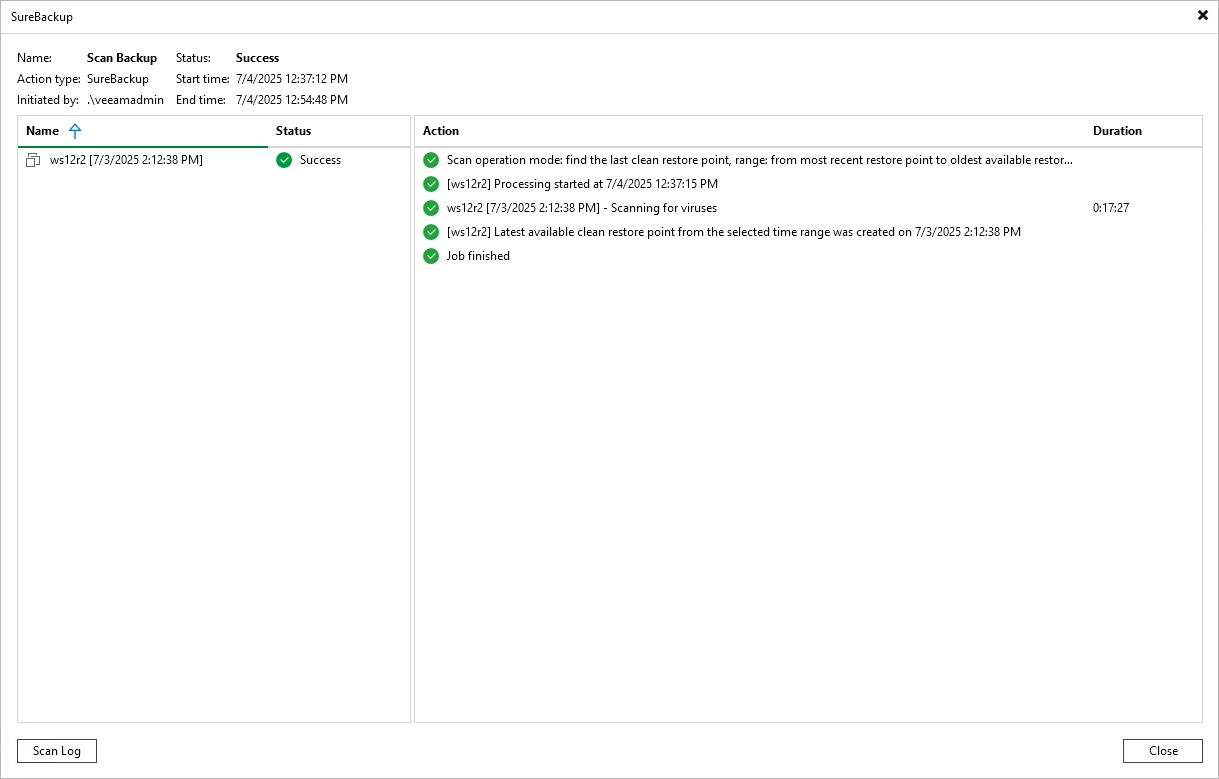
To view the detailed log of the scan, click Scan Log. Veeam Backup & Replication will display the most recent logs in a file of 1 MB in size.
Full logs of the scan are stored on the mount server. For machine backups, the default path is:
- C:\ProgramData\Veeam\Backup\FLRSessions\Windows\FLR__<machinename>_\Antivirus for Veeam Backup & Replication on Microsoft Windows.
- /var/log/VeeamBackup/FLRSessions/OtherOS/FLR_<machinename>/Antivirus/ for Veeam Backup & Replication on Linux.
For file share and object storage backups, the default path is:
- C:\ProgramData\Veeam\Backup\InstantFileShareRestore\<timestamp>_<guid>\Antivirus for Veeam Backup & Replication on Microsoft Windows.
- /var/log/VeeamBackup/InstantFileShareRestore/<timestamp>_<guid>/Antivirus/ for Veeam Backup & Replication on Linux.