Rebooting Protected Computer
You can use the Veeam Backup & Replication interface to reboot a protected computer running a Microsoft Windows OS. This operation may be required, for example, if you have installed the CBT driver on a selected computer and need to reboot this computer to finish the installation process and enable the driver.
Keep in mind that you cannot reboot a protected computer that is added to a protection group for pre-installed Veeam Agents. To learn more about protection groups for pre-installed Veeam Agents, see Protection Group Types.
You can reboot a protected computer in the following ways:
Rebooting Protected Computer Using Veeam Backup & Replication Console
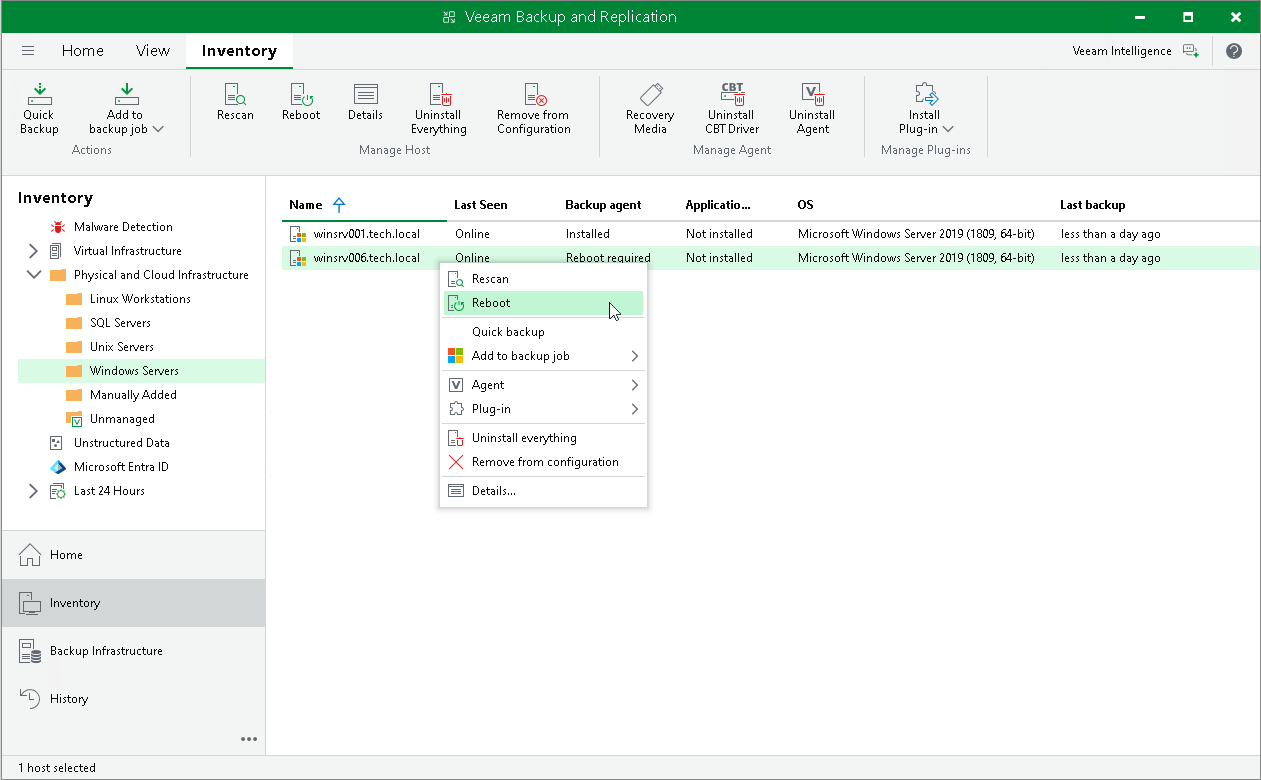
To reboot a protected computer in the Veeam Backup & Replication console:
- Open the Inventory view.
- In the inventory pane, expand the Physical and Cloud Infrastructure node and select a protection group that contains the computer that requires reboot. The computer that requires reboot is displayed in the Reboot required status in the Veeam Backup & Replication console.
- In the working area, select the necessary computer and click Reboot on the ribbon or right-click the computer and select Reboot.
- In the displayed window, click Yes.
|
TIP |
|
You can also reboot a computer with a different status than the Reboot required status. To do this, select the necessary computer, press and hold the [Ctrl] key, right-click the computer and select Agent > Reboot. |
Rebooting Protected Computer Using Veeam Backup & Replication Web UI
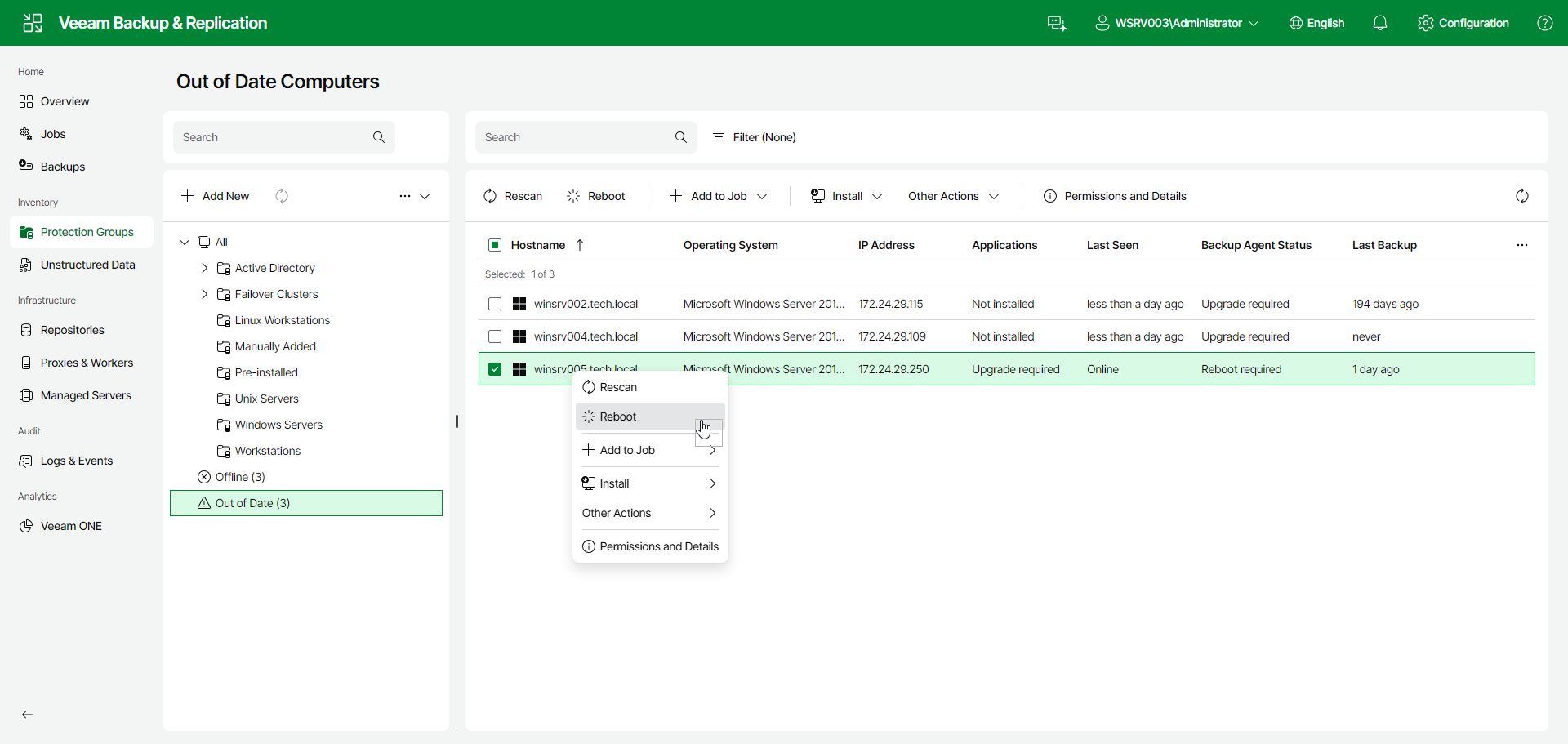
To reboot a protected computer in the Veeam Backup & Replication web UI:
- In the management pane, click Protection Groups.
- Select the protection group that contains the necessary computer.
- In the working area, select the check box next to the computers and click Reboot on the toolbar. Alternatively, right-click the computer and select Reboot.
- In the displayed window, click Yes.