Deleting Replicas
By default, Veeam Backup & Replication maintains replicas according to retention policy settings saved in the replica metadata. If Veeam Backup & Replication detects that the number of restore points in the replica chain exceeds the allowed number, it automatically removes obsolete snapshots. If you no longer need to protect a VM with its replica, you can either remove replicas from the configuration or delete replicas from disks.
Removing Replicas From Configuration
When you remove replicas from the configuration, Veeam Backup & Replication removes records about the replicas from the configuration database, stops showing the replicas in Veeam Backup & Replication console and also stops synchronizing their state with the state of the source VMs. However, the actual replicas remain on hosts.
Note |
|
Consider the following:
|
To remove records about replicas from the Veeam Backup & Replication console and configuration database:
- Open the Home view.
- In the inventory pane, click Replicas.
- In the working area, right-click the necessary replica in the Ready state and select Remove from configuration.
Alternatively, select the replica and click Remove from > Configuration on the ribbon.
Deleting Replicas From Disk
When you delete replicas from disks, Veeam Backup & Replication removes the replicas not only from the Veeam Backup & Replication console and configuration database, but also from the host.
Note |
|
Consider the following:
|
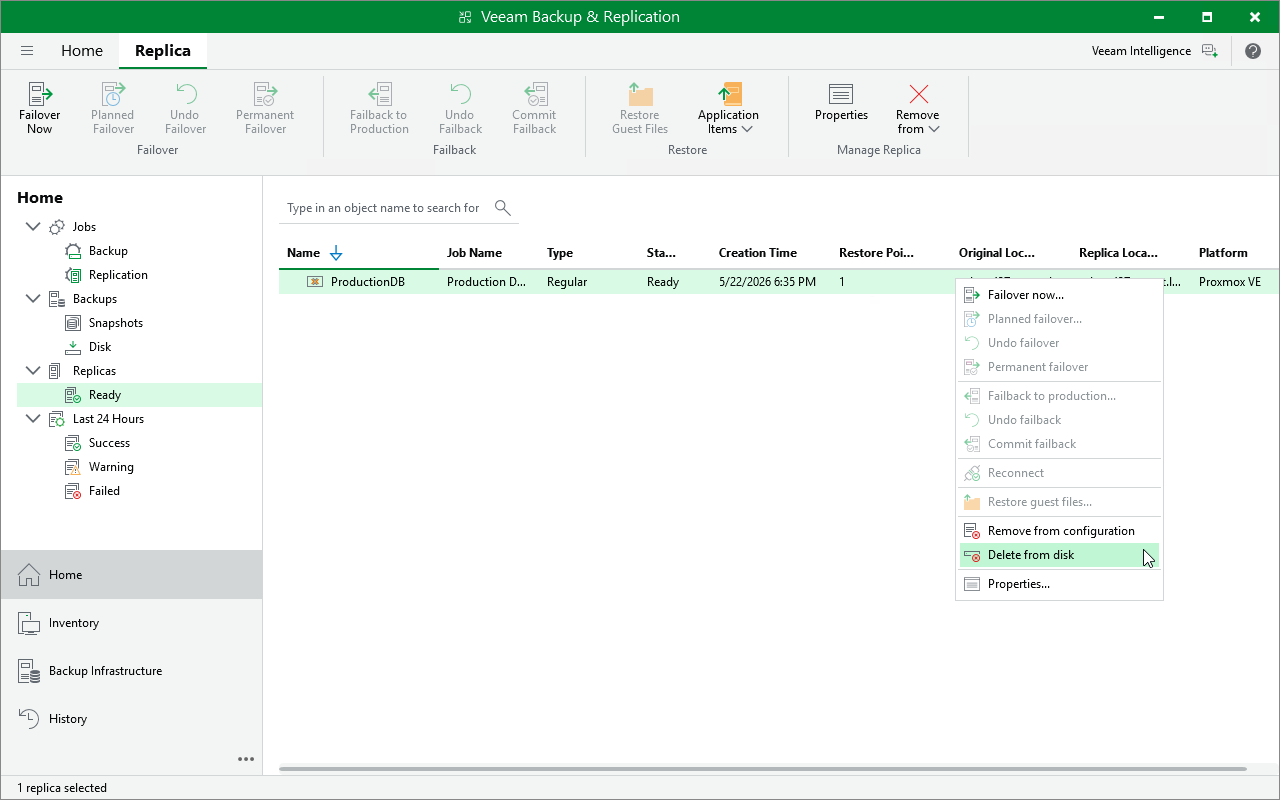
To delete a replica, do the following:
- Open the Home view.
- In the inventory pane of the Home view, select Replica.
- In the working area, expand right-click the necessary VM and select Delete from disk.
Alternatively, select the replica and click Remove from > Disk on the ribbon.