Step 4. Configure Backup Source Settings
At the Resources step of the wizard, select the regions where Cloud SQL instances that you plan to back up reside, choose Cloud SQL instances to back up, and specify Cloud SQL instances or labels to exclude from the backup policy.
Choose Regions
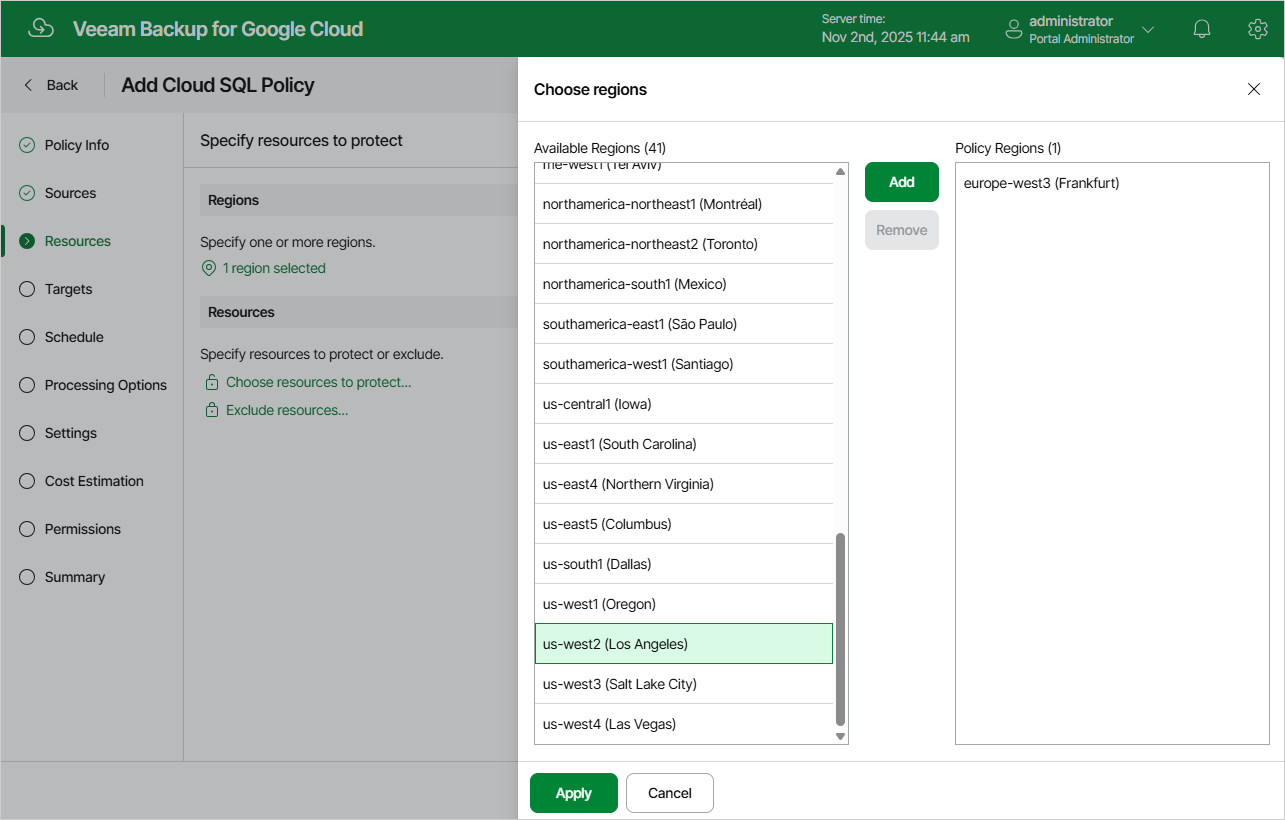
In the Regions section of the Resources step of the wizard, choose regions in which Cloud SQL instances that you want to protect reside.
- Click Choose regions.
- In the Choose regions window, select the necessary regions from the Available Regions list, and click Add.
- To save changes made to the backup policy settings, click Apply.
Select Cloud SQL Instances
In the Resources section of the Resources step of the wizard, specify the backup scope — select Cloud SQL instances that Veeam Plug-In for Google Cloud will back up:
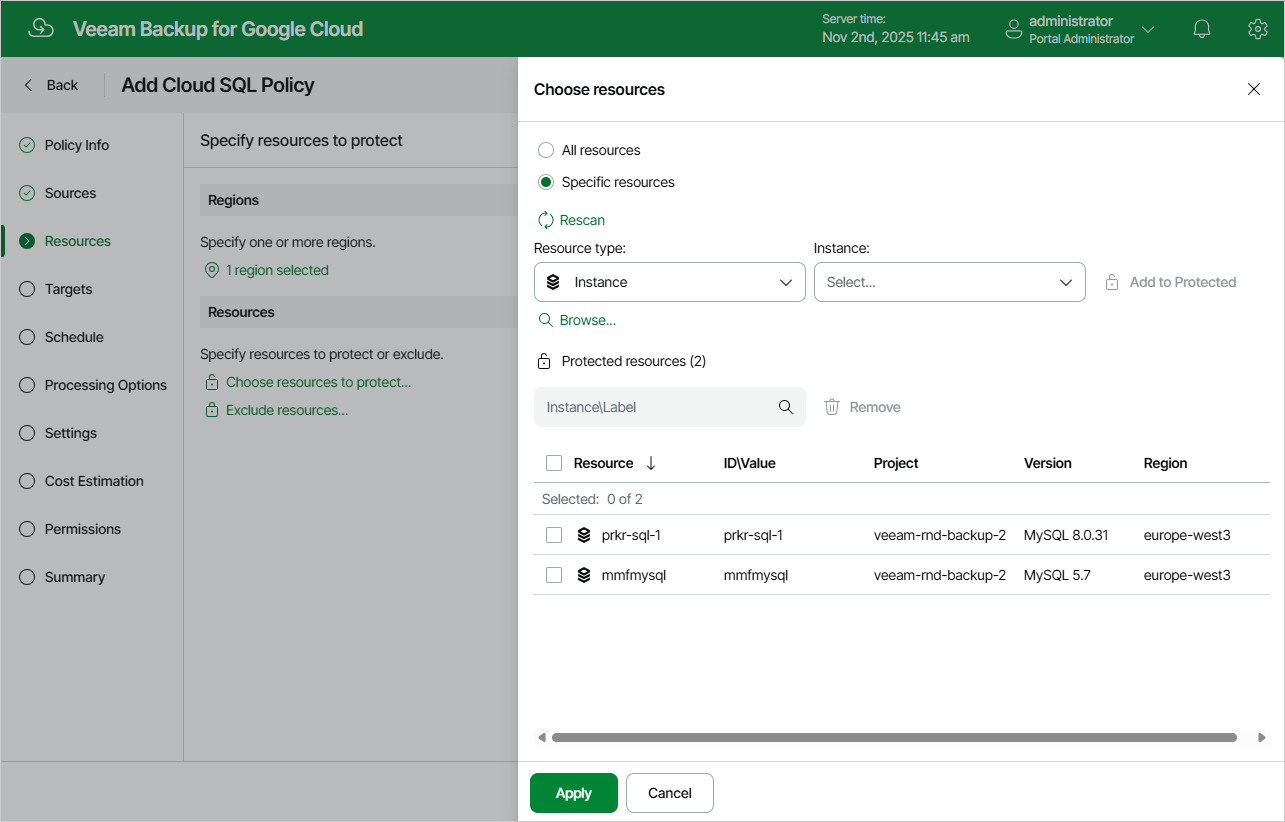
- Click Choose resources to protect.
- In the Choose resources window, choose whether you want to back up all Cloud SQL instances from the selected regions, or only specific Cloud SQL instances.
If you select the All resources option, Veeam Plug-In for Google Cloud will regularly check for new Cloud SQL instances launched in the selected regions and automatically update the backup policy settings to include these instances in the backup scope.
If you select the Specific resources option, you must also specify the instances explicitly:
- Use the Resource type drop-down list to choose whether you want to add individual Cloud SQL instances or Google Cloud labels to the backup scope.
If you select the Label option, Veeam Plug-In for Google Cloud will back up only those Cloud SQL instances that reside in the selected regions under specific labels.
- Use the Instance\Label list to find the necessary resource, and then click Add to Protected to add the resource to the backup scope.
For a resource to be displayed in the list of available resources, it must reside in a region that has ever been specified in any backup policy. Otherwise, the only option to discover available resources is to click Browse and wait for Veeam Plug-In for Google Cloud to populate the resource list. Note that Veeam Plug-In for Google Cloud automatically filters the resource list to show only either MySQL or PostgreSQL instances — depending on the option that you have selected while running the wizard.
|
Tip |
|
You can simultaneously add multiple resources to the backup scope. To do that, click Browse, select check boxes next to the necessary Cloud SQL instances or labels in the list of available resources, and then click Protect. If the list does not show the resources that you want to back up, click Rescan to launch the data collection process. As soon as the process is over, Veeam Plug-In for Google Cloud will update the resource list. |
If you add a label to the backup scope, Veeam Plug-In for Google Cloud will regularly check for new Cloud SQL instances assigned the added label and automatically update the backup policy settings to include these instances in the scope. However, this applies only to Cloud SQL instances from the selected regions. If you select a label assigned to Cloud SQL instances from other regions, these instances will not be protected by the backup policy. To work around the issue, either go back to step 4a and add the missing regions, or create a new backup policy.
- To save changes made to the backup policy settings, click Apply.
|
Tip |
|
As an alternative to selecting the Specific resources option and specifying the resources explicitly, you can select the All resources option and exclude a number of resources from the backup scope. To do that, click Exclude resources and specify the Cloud SQL instances or labels that you do not want to back up — the procedure is the same as described for including resources in the backup scope. Consider that if a resource appears both in the list of included and excluded resources, Veeam Plug-In for Google Cloud will still not process the resource because the list of excluded resources has a higher priority. |