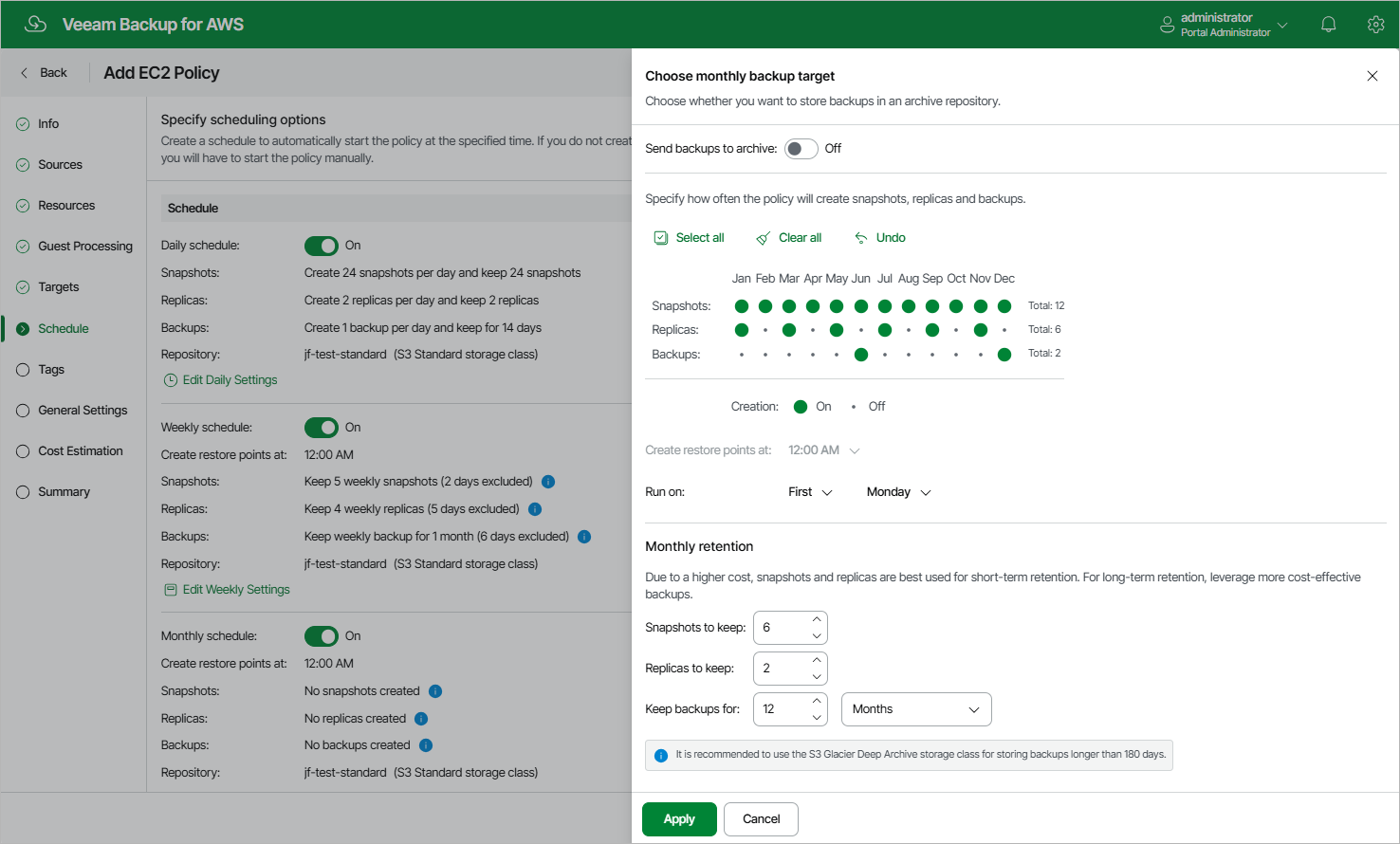
Specifying Monthly Schedule
To create a monthly schedule for the backup policy, at the Schedule step of the wizard, do the following:
- Set the Monthly schedule toggle to On and click Edit Monthly Settings.
- [Applies only if you enabled backup archiving at the step 6 step of the wizard] In the Choose monthly backup target section of the opened window, choose whether you want to store monthly backups in the archive backup repository.
If you set the Send backups to archive toggle to On, follow the instructions provided in section Enabling Backup Archiving.
- In the Create monthly schedule section, select months when the backup policy will create cloud-native snapshots, snapshot replicas or image-level backups.
|
Note |
|
The backup appliance do not create snapshot replicas and image-level backups independently from cloud-native snapshots. That is why when you select months to create snapshot replicas and image-level backups, the same months are automatically selected for cloud-native snapshots. To learn how backup appliances perform backup, see EC2 Backup. |
- Use the Create restore points at and Run on drop-down lists to schedule a specific time and day for the backup policy to run.
|
Notes |
|
- In the Monthly retention section, configure retention policy settings for the monthly schedule:
- For cloud-native snapshots and snapshot replicas, specify the number of restore points that you want to keep in cloud-native snapshot and snapshot replica chains.
If the restore point limit is exceeded, the backup appliance removes the earliest restore point from each chain. For more information, see EC2 Snapshot Retention.
- For image-level backups, specify the number of days (or months) for which you want to keep restore points in a backup chain.
If a restore point is older than the specified time limit, the backup appliance removes the restore point from the chain. For more information, see EC2 Backup Retention.
- To save changes made to the backup policy settings, click Apply.
|
Tip |
|
The backup appliance will start applying the configured retention settings as soon as the backup policy produces restore points. Even if you disable the monthly schedule after the restore points are created, the retention policy will still be applied to these restore points. As a workaround, you can modify the configured retention settings. |
Considerations and Limitations
When you configure retention policy settings, consider the following:
- For the backup appliance to be able to use the Changed Block Tracking (CBT) mechanism when processing EC2 instance data, you must keep at least one cloud-native snapshot in the snapshot chain.
- Regardless of the number of restore points that you specify, the backup appliance permanently retains an additional cloud-native snapshot in the chain by design, which is required for proper CBT functioning.
- It is recommended that you do not set the Snapshots to keep value to 0. Otherwise, the backup appliance will not be able to use the CBT mechanism, and it may take significantly more time to create incremental backups.
To learn how the CBT mechanism works, see Changed Block Tracking.