Step 1. Launch File Restore Wizard
To launch the File Restore wizard, do one of the following:
In the Home tab on the ribbon, click Restore > File Share. In the Restore from File Backup window, click Restore entire share.
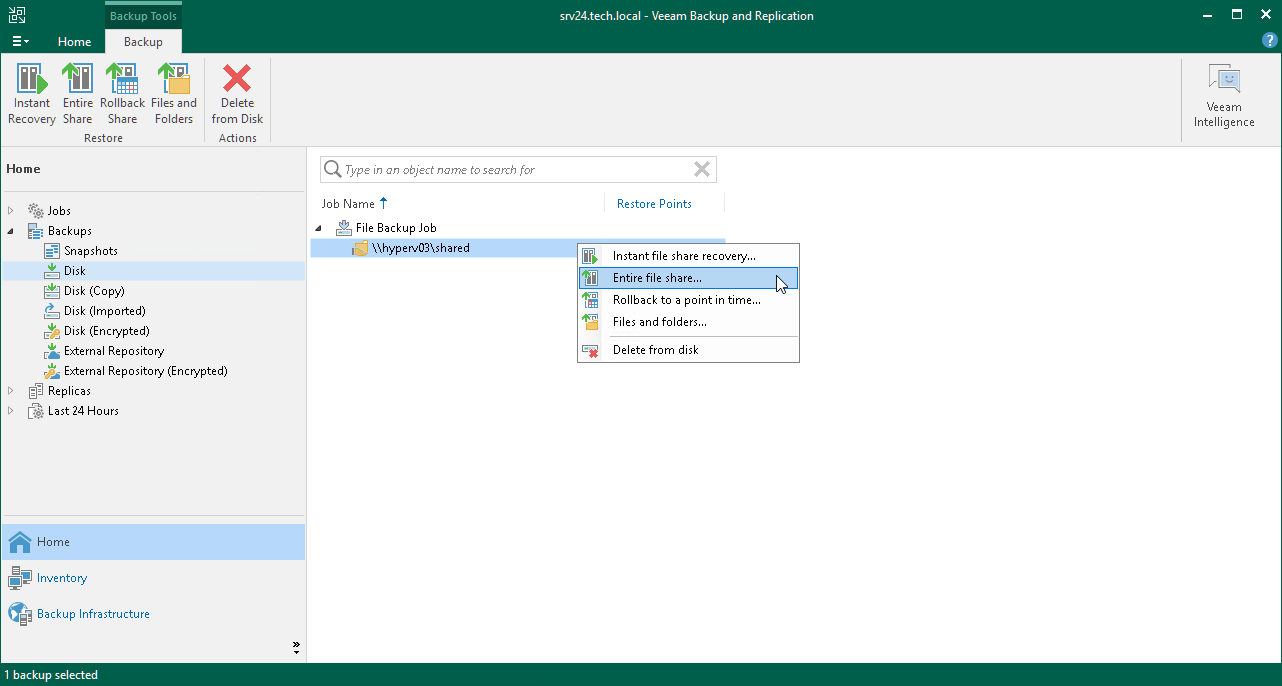
Open the Home view. In the inventory pane, select Backups. In the working area, expand the necessary backup and do one of the following:
- Click the file share that you want to restore. In the Backup tab on the ribbon, click Entire share.
- Right-click the file share that you want to restore and select Entire file share.
You can restore the file share to the state as of a specific restore point by using a backup copy. Backup copies created in the secondary repositories are represented in the Backups > Disk (Copy) node in the inventory pane. If the secondary repository is an object storage repository, backup copies created in it are represented in the Backups > Object Storage (Copy) node in the inventory pane.