Step 4. Choose Target Folder
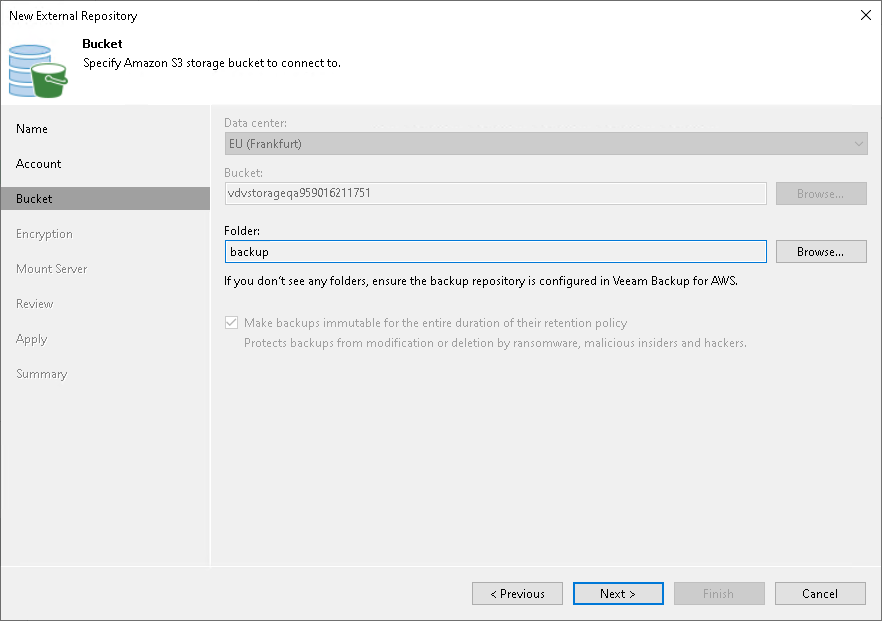
After you choose a storage vault at step 3 of the wizard, Veeam Backup & Replication automatically detects both the AWS Region where the vault is located and the bucket that is associated with it. To choose a folder inside the bucket where the backups reside, click Browse at the Bucket step.
|
Note |
|
Veeam Backup & Replication does not support adding storage vaults with immutability disabled. That is why you will not be able to clear the Make backups immutable for the entire duration of their retention policy check box. For more information on the immutability feature, see Immutability. |