Saving Files
You can use Veeam Explorer for Microsoft Teams to save files published in a team channel to a specified location. You can save all files of a channel or specific posts.
To save files published in a team channel, do the following:
- In the navigation pane, expand a channel whose files you want to save.
- In the navigation pane, do one of the following:
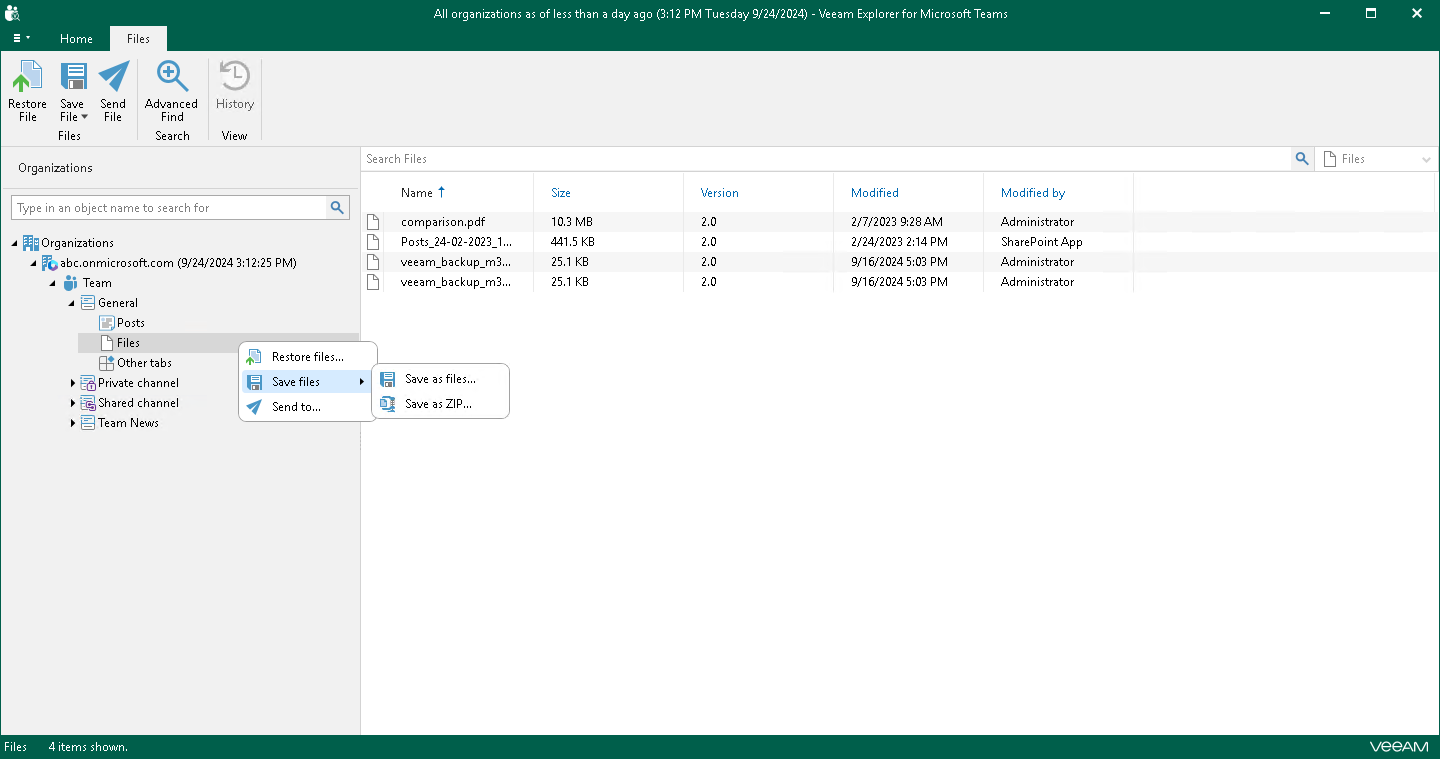
- Select Files, and on the Files tab, click Save File and select how you want to save files:
- Save as files. Select this option if you want to save each file separately to a specified location. To specify a location, in the displayed window, browse to the necessary folder and click Select Folder.
- Save as ZIP. Select this option if you want to add saved files to a ZIP archive and save the resulting archive to a specified location. To specify a location, in the displayed window, browse to the necessary folder and click Save. Veeam Explorer for Microsoft Teams will save files to an archive with the <channel_name>.zip name.
- Right-click Files and select Save files > Save as files or Save files > Save as ZIP.
To save a specific file published in a team channel, do the following:
- In the navigation pane, expand a channel whose files you want to save and select Files.
- In the preview pane, do one of the following:
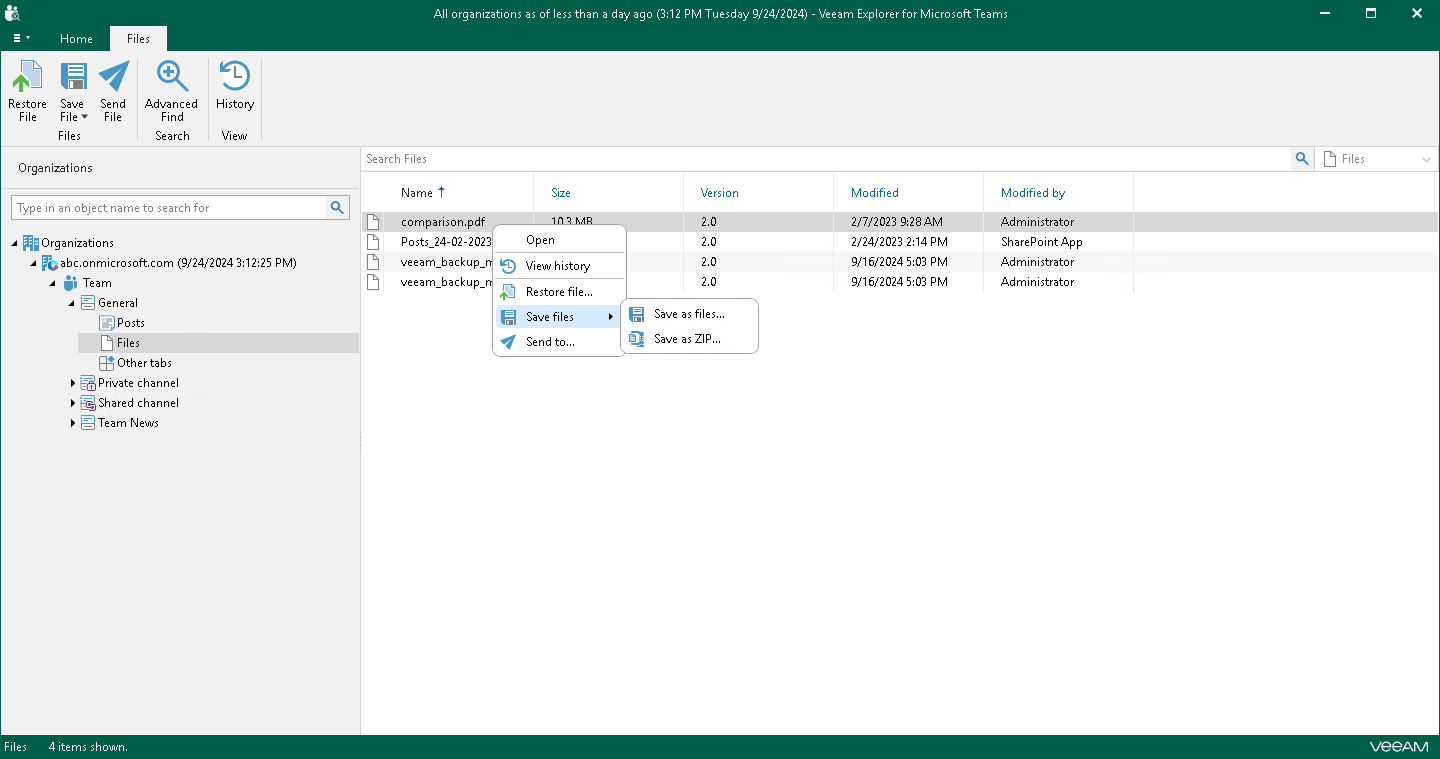
- Select a necessary file, and on the Files tab, click Save File and select how you want to save files:
- Save as files. Select this option if you want to save each file separately to a specified location. To specify a location, in the displayed window, browse to the necessary folder and click Select Folder.
- Save as ZIP. Select this option if you want to add saved files to a ZIP archive and save the resulting archive to a specified location. To specify a location, in the displayed window, browse to the necessary folder and click Save. Veeam Explorer for Microsoft Teams will save files to an archive with the archive.zip name.
- Right-click a necessary file and select Save file > Save as files or Save file > Save as ZIP.
|
Tip |
|
To select more than one file in the preview pane, press and hold the [Ctrl] key and select the necessary files. |