Managing Malware Exclusions Using Web UI
In the Veeam Backup & Replication web UI, you can customize malware detection settings for individual machines. For each machine, you can turn specific detection engines on or off and exclude specific files and folders from the file system activity analysis.
|
Note |
|
Per-machine exclusions are available only in the Veeam Backup & Replication web UI and apply to the file system activity analysis. To wholly exclude machines from the malware detection scan in the Veeam Backup & Replication console, see Managing Malware Exclusions Using Console. |
To customize malware detection settings for specific machines, do the following in the Veeam Backup & Replication web UI:
- In the top bar, click Configuration and open the Malware Detection page.
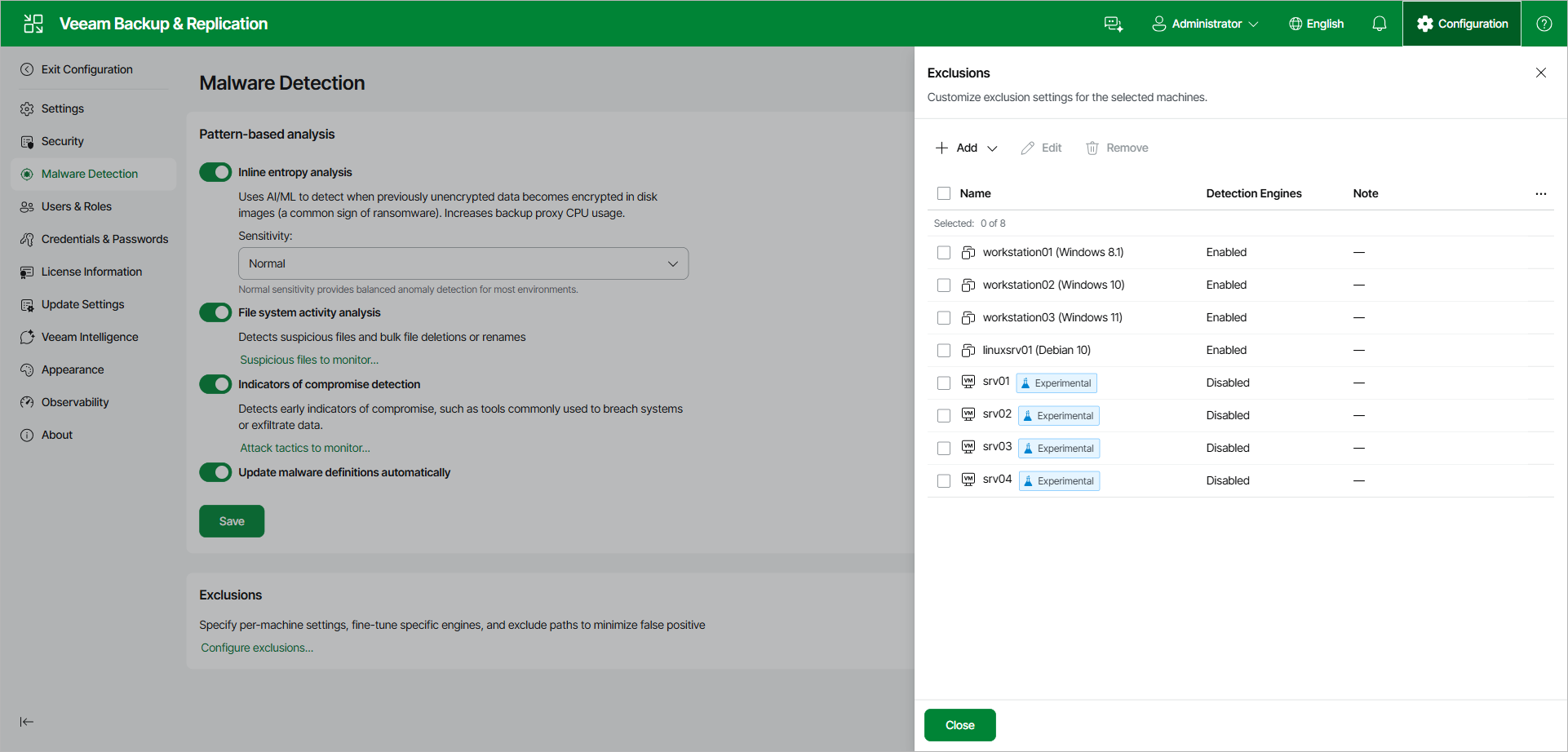
- In the Exclusions section, click Configure exclusions.
- Click Add and select the platform of the machines that you want to customize: VMware vSphere, Microsoft Hyper-V, or Computers.
- Select the machines and click Add.
- Select a machine in the list and click Edit to customize its detection engines and path exclusions.
|
Tip |
|
To edit multiple machines at once, use the Set-VBRMalwareDetectionExclusion PowerShell cmdlet. For more information, see the Set-VBRMalwareDetectionExclusion section in the Veeam PowerShell Reference. |
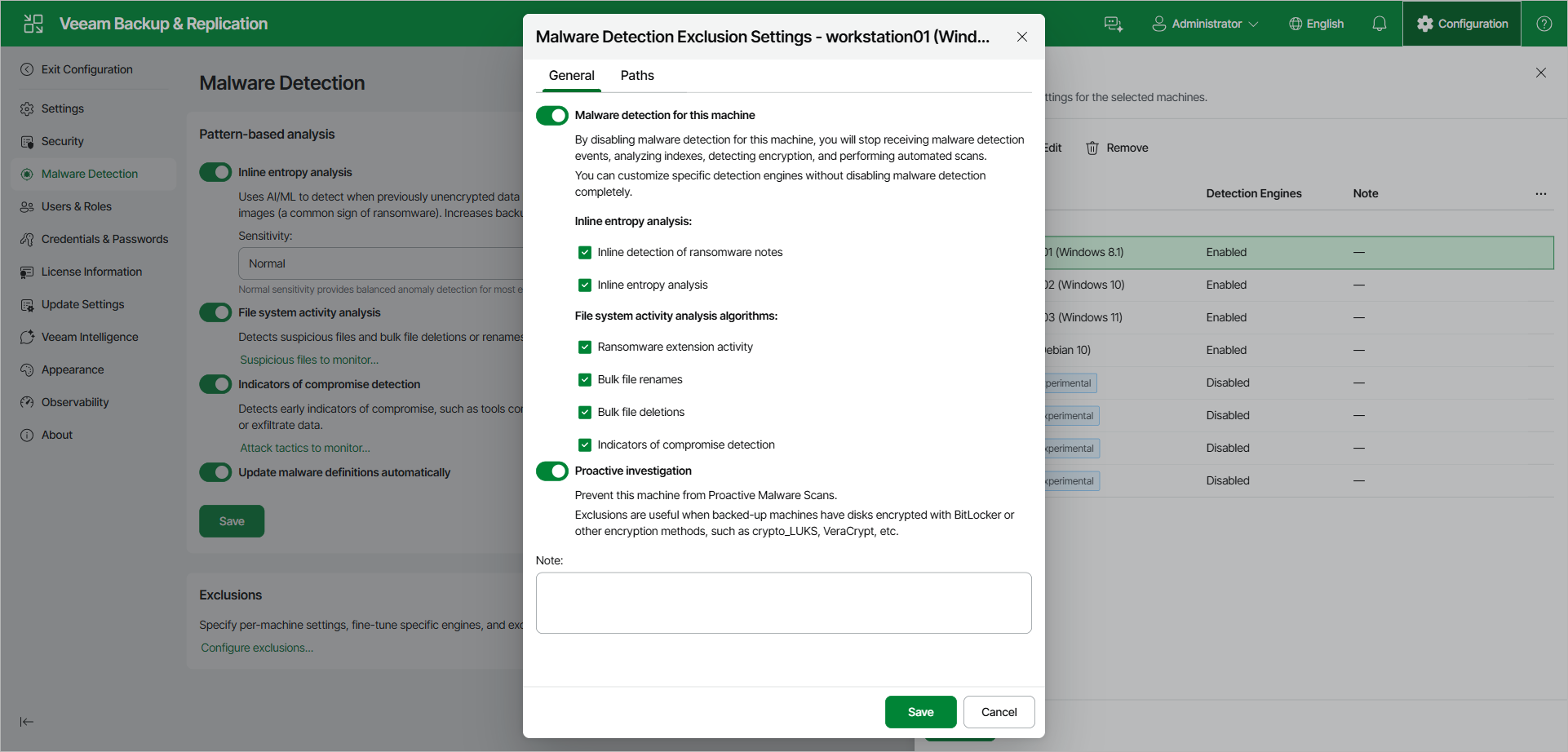
To customize the detection engines for a machine, open the General tab and do the following:
- Ensure that the Malware detection for this machine toggle is set to On.
- To turn individual detection engines on or off, select or clear the corresponding check boxes. The engines are grouped under Inline entropy analysis and File system activity analysis algorithms. To determine which detection engine to disable, check the type of the corresponding malware detection event.
- Set the Proactive investigation toggle to On or Off to include or exclude the machine from proactive malware scans. Exclude a machine if its disks are encrypted, for example, with BitLocker, crypto_LUKS, or VeraCrypt. Also exclude Linux machines if your backup infrastructure has no Linux mount server, which proactive scans of Linux machines require.
- In the Note field, optionally add a description for future reference.
- Click Save.
|
Note |
|
The Malware detection for this machine toggle and the individual engine check boxes differ as follows:
|
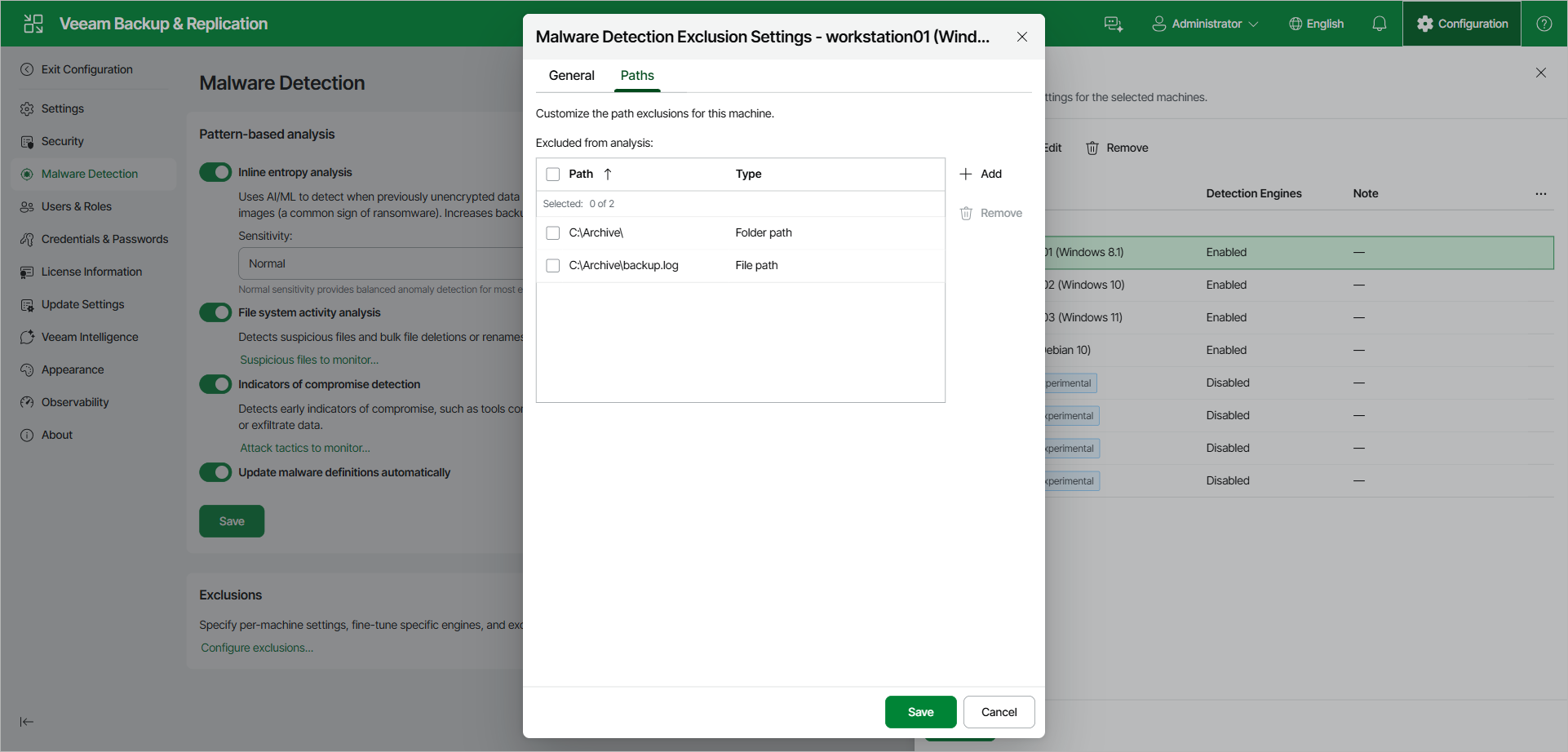
To exclude a specific file or folder from the file system activity analysis for the machine, do the following:
- Open the Paths tab and click Add.
- Specify the path to the file or folder and click OK. Wildcards are not supported. For example:
|
C:\Folder\ C:\Folder\file.name |
A path that ends with a slash excludes the folder and all its content. A path to a specific file excludes only that file.