Step 7. Choose Items to Recover
In the file-level recovery browser, you can find and recover items (files and folders) of the selected VM instance:
- In the file-level recovery browser, navigate to a folder that contains the necessary files.
- In the working area, select check boxes next to the files and click Add to Restore List.
- Repeat steps 1–2 for all other folders whose files you want to recover.
- Switch to the Restore List tab.
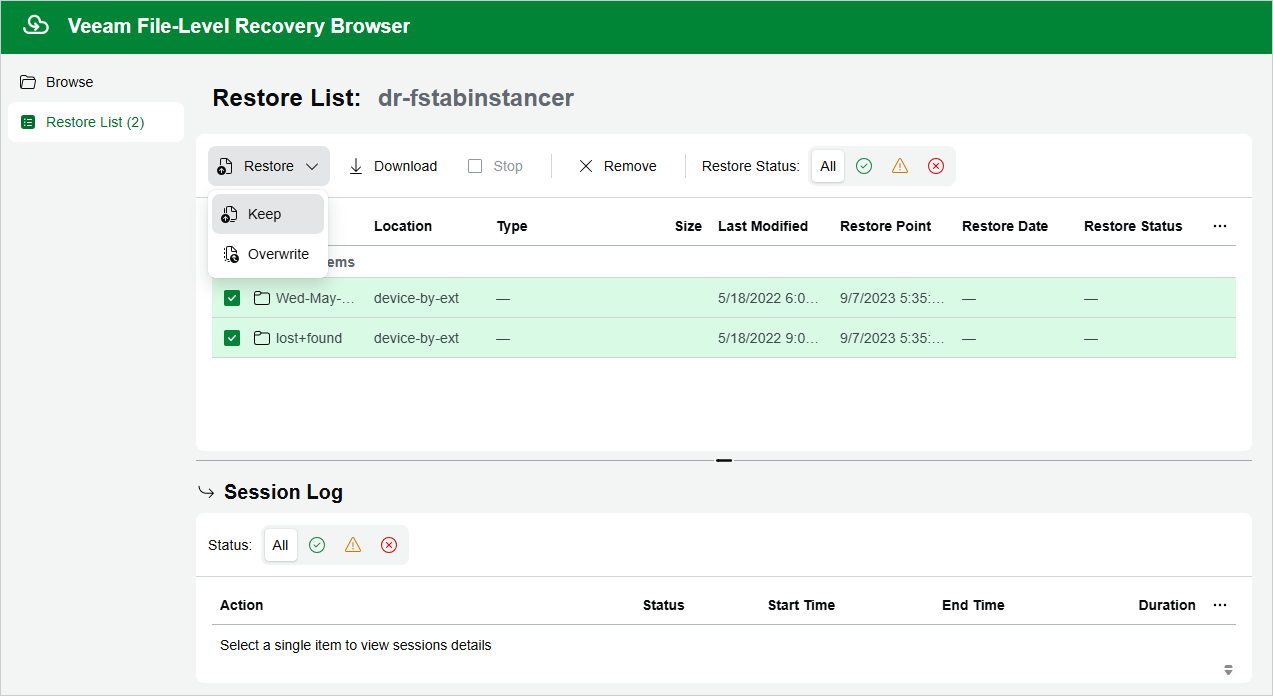
- On the Restore List tab, review the list of items to recover, select check boxes next to the items and do the following:
- To save all the recovered items as a single .ZIP archive to the default download directory on a machine from which you access the browser, click Download.
- To recover the items to the original location, click Restore.
|
Note |
|
When recovering items to the original location, Veeam Plug-In for Google Cloud will be able to display the directory structure only in case the disks of the source VM were mounted either using drive letters (for Windows-based VMs) or using UUIDs/labels with mount records stored in the /etc/fstab file (for Lunix-based VMs). If Veeam Plug-In for Google Cloud fails to display the structure correctly, you will be prompted to manually provide a path to the items you want to recover. |