Upgrading Backup Appliance
The backup appliance allows you to check for new product versions and available package updates. It is recommended that you timely install available package updates to avoid performance issues while working with the product. For example, timely installed security updates may help you prevent potential security issues and reduce the risk of compromising sensitive data.
When you perform upgrade to version 8 from Veeam Plug-In for Google Cloud version 7 or 6, Veeam Backup & Replication checks for available updates in the Veeam Update Repository and installs all necessary packages automatically.
Before you Begin
Before you upgrade the backup appliance, check the following prerequisites:
- Inbound internet access must be allowed for Veeam Backup & Replication server to the backup appliance through port 443.
- The service account whose access keys you plan to use when deploying a backup appliance or connecting to the appliance must be assigned permissions required to perform upgrade. For the list of required permissions, see Plug-in Permissions.
If the original appliance was connected to a Shared VPC network, both the service account whose access keys you plan to use and the Google APIs service account must have one of the following role combinations assigned to them:
- compute.networkUser role for the whole Shared VPC host project
- compute.networkViewer role for the whole host project and compute.networkUser for specific subnets in the host project.
- Outbound internet access must be allowed from the backup appliance to the PostgreSQL Apt Repository (apt.postgresql.org) through port 80 over the HTTP protocol.
- Outbound internet access must be allowed from the backup appliance to the PostgreSQL through port 443 over the HTTPS protocol to download the repository key https://www.postgresql.org/media/keys/ACCC4CF8.asc.
- Outbound internet access must be allowed from the backup appliance to the Veeam Update Repository through port 443 over the HTTPS protocol.
- Outbound internet access must be allowed from the backup appliance to the Ubuntu Security Repository (security.ubuntu.com) through port 80/443 over the HTTP/HTTPS protocol.
How to Perform Upgrade
To upgrade the backup appliance, do the following:
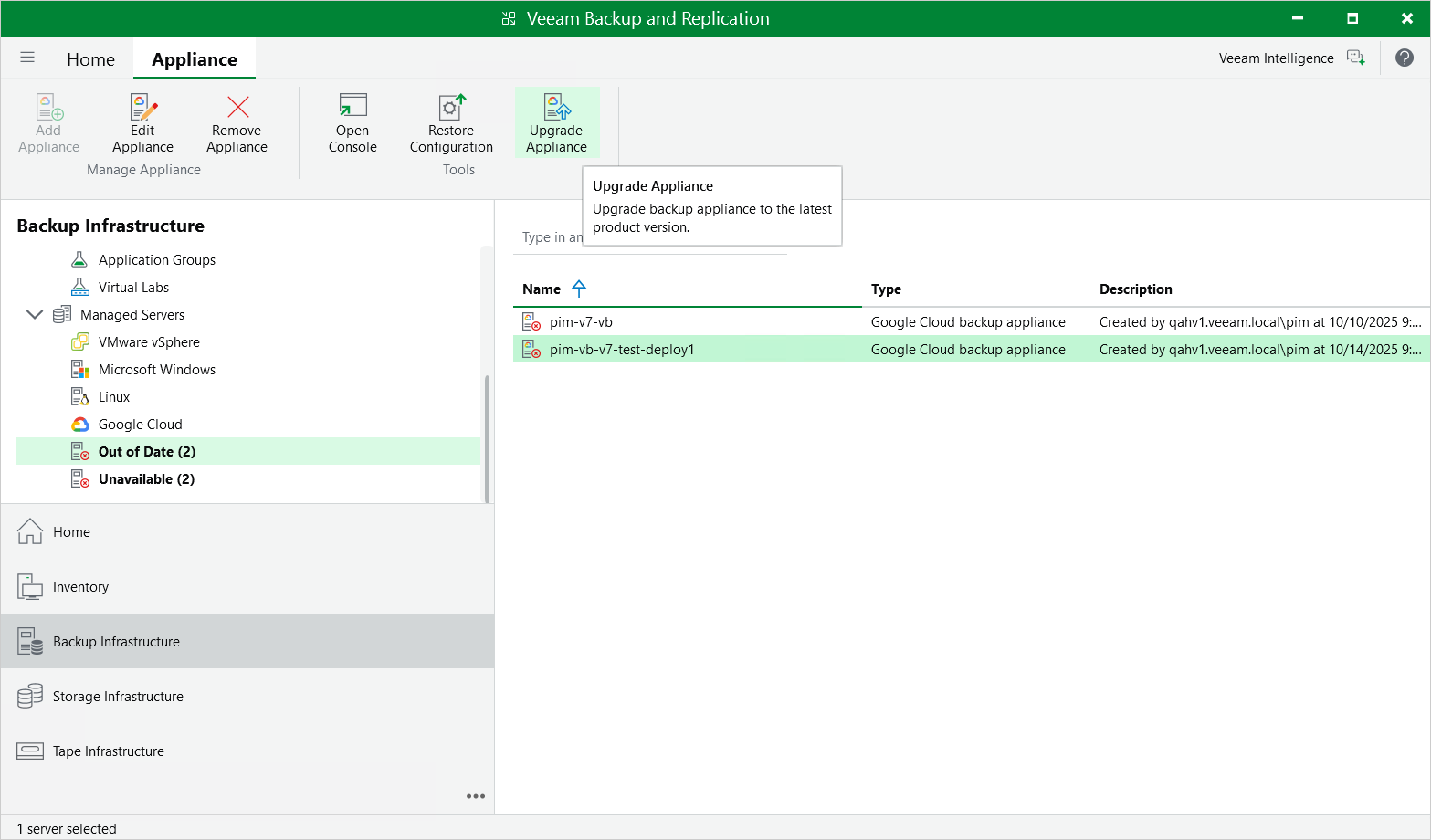
- In the Veeam Backup & Replication console, open the Backup Infrastructure view.
- Navigate to Managed Servers.
- Select the necessary backup appliance and click Upgrade appliance on the ribbon.
Alternatively, right-click the appliance and select Upgrade.
Related Topics