Step 3. Configure Backup Source Settings
At the Sources step of the wizard, specify the backup scope — select resources that Veeam Backup & Replication will back up:
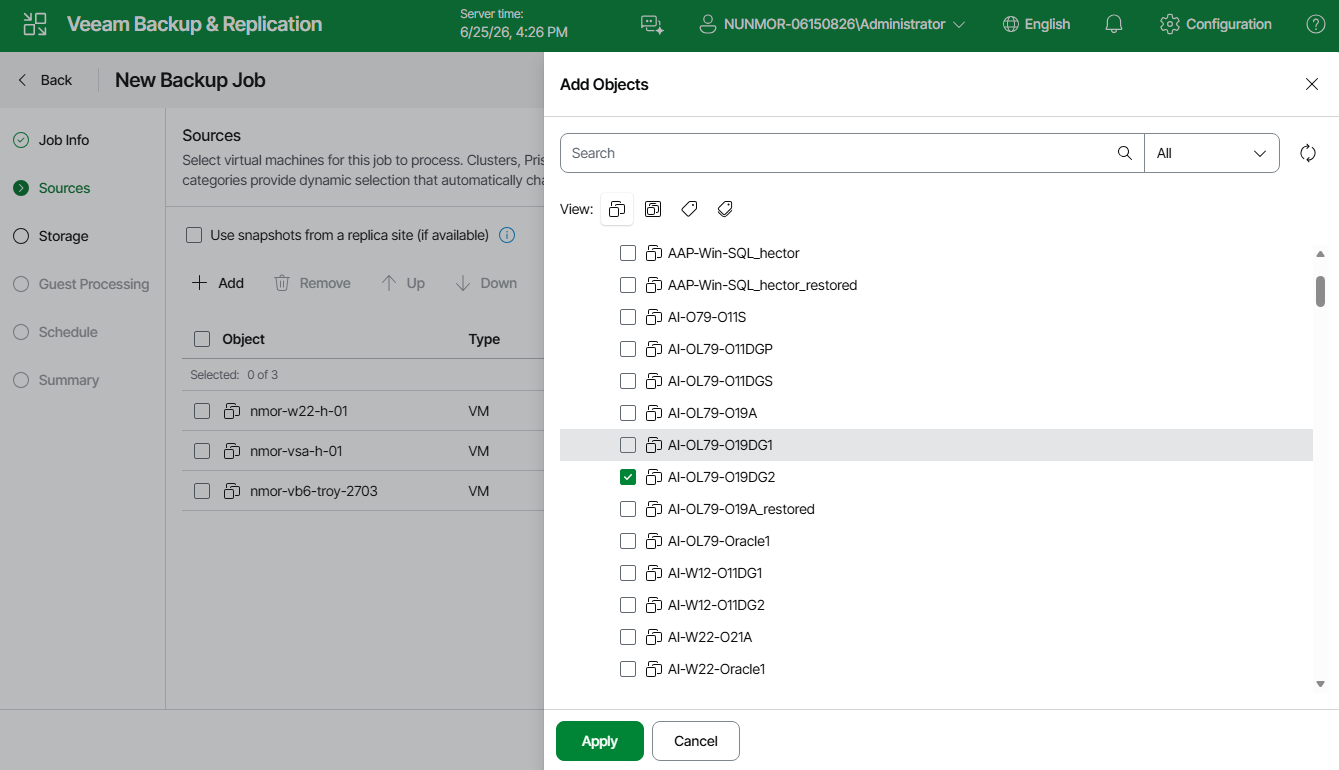
- Click Add.
- In the Add Objects window, choose whether you want to back up all VMs in the cluster, only specific VMs or protection domains. In the Prism Central deployment, you can also back up VMs and clusters assigned to a specific category or all VMs managed by a Prism Central.
To view the list of available protection domains, click the Protection Domains icon. If you add a protection domain, Veeam Backup & Replication will regularly check for new consistency groups (VMs and volume groups) added to the domain and automatically update the job settings to include these groups in the backup scope. For a protection domain to be displayed in the list of the available domains, it must be configured in the Nutanix AHV cluster as described in Nutanix documentation.
To view the list of available categories, click the Categories icon. If you add a category, Veeam Backup & Replication will regularly check for new VMs and clusters assigned to the category and automatically update the job settings to include these resources in the backup scope. You can also add several categories using the <AND> Categories icon — in this case Veeam Backup & Replication will check for new VMs and clusters assigned to all of the selected categories. For a category to be displayed in the list of the available categories, it must be configured in the Nutanix AHV Prism Central as described in Nutanix documentation.
- [Applies only to the Prism Central deployment scenario] If you want to instruct Veeam Backup & Replication to obtain VM data from a replica cluster, select the Use snapshots from a replica site (if available) check box.
Using replica clusters helps reduce the load on the production environment. If Veeam Backup & Replication fails to obtain data from a replica cluster, backup will be still performed using VM data obtained from the main cluster. For more information on snapshots from replica sites, see Snapshot Types.
|
Tip |
|
As an alternative to specifying resources explicitly, you can exclude a number of resources from the backup scope. To do that, click Backup Filters and specify the VMs, protection domains, cluster or categories that you do not want to back up — the procedure is the same as described for including resources in the backup scope. Consider that if a resource appears both in the list of included and excluded resources, Veeam Backup & Replication will not process the resource because the list of excluded resources has a higher priority. |
While running the job, Veeam Backup & Replication processes resources in the order they are added to the backup scope. However, you can change the order, for example, if you add some mission-critical VMs to the job and want them to be processed first. To change the processing order, select a resource and use the Up or Down buttons.
|
Notes |
|
Excluding Disks and Volume Groups from Backup Scope
By default, jobs process all disks and volume groups attached to VMs included into the backup scope. However, you can instruct Veeam Backup & Replication to back up only specific virtual disks and volume groups related to the selected backup scope. To do that:
- Click Backup Filters.
- In the Backup Filters window, switch to the Objects to Exclude tab and click Add.
- In the Add Objects window, select a resource that you have added to the backup scope and click OK.
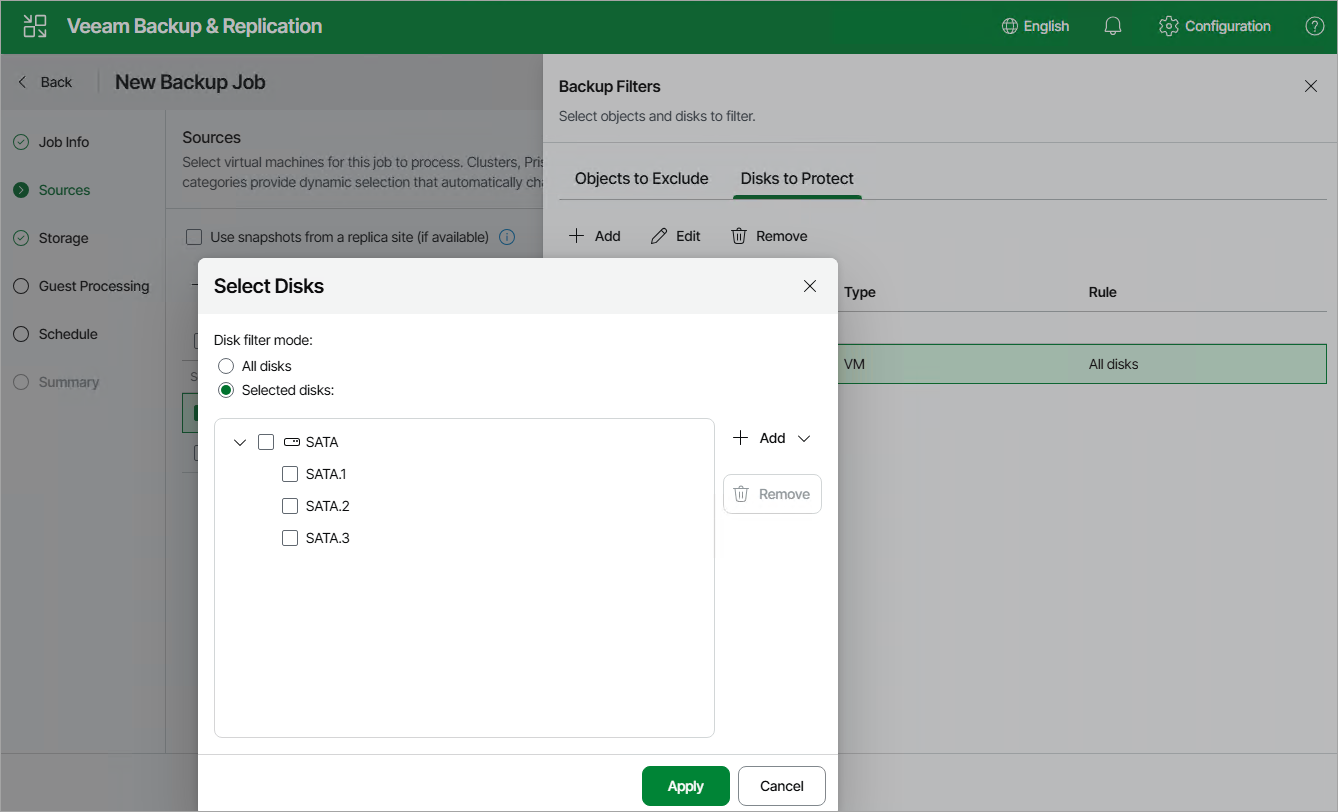
- Back to the Backup Filters window, switch to the Disks to Protect tab and click Add.
- In the Select Disks window, select the Selected Disks option, click Add and choose a bus type of the disks that you want to back up. Then, select the necessary disks.
Disks that you do not select will be excluded from the backup job.
|
Notes |
|